Follow these steps to add a password to the password candidate list for password extraction using the Web UI. You can add up to 100 password entries.
To add a password to the password candidate list:
In the Web UI, choose Settings > Attachment decryption.
Click Add Password to add a password to the candidate list.
The Add Password window opens.
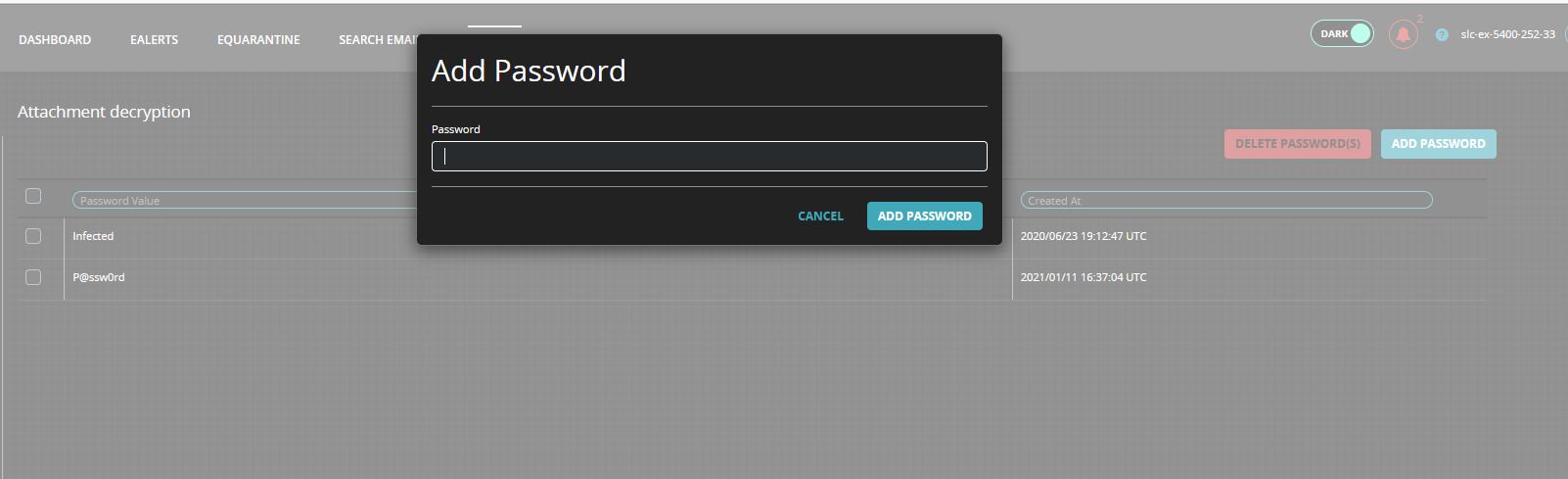
In the Password field, enter an email analysis password.
Click Add Password to add the password to the candidate list.
Click Cancel to cancel the entry.