To access the Alerts module, click the Alerts link on the main navigation menu. Click on the Inbound and Outbound drop-down menu to change between modes. This page allows you to search for alerts, determine if a malicious email is in quarantine, filter for specific email domains, and domain groups, view information about an individual alert, check the type of threat along with its description, and download the alert reports in CSV format.
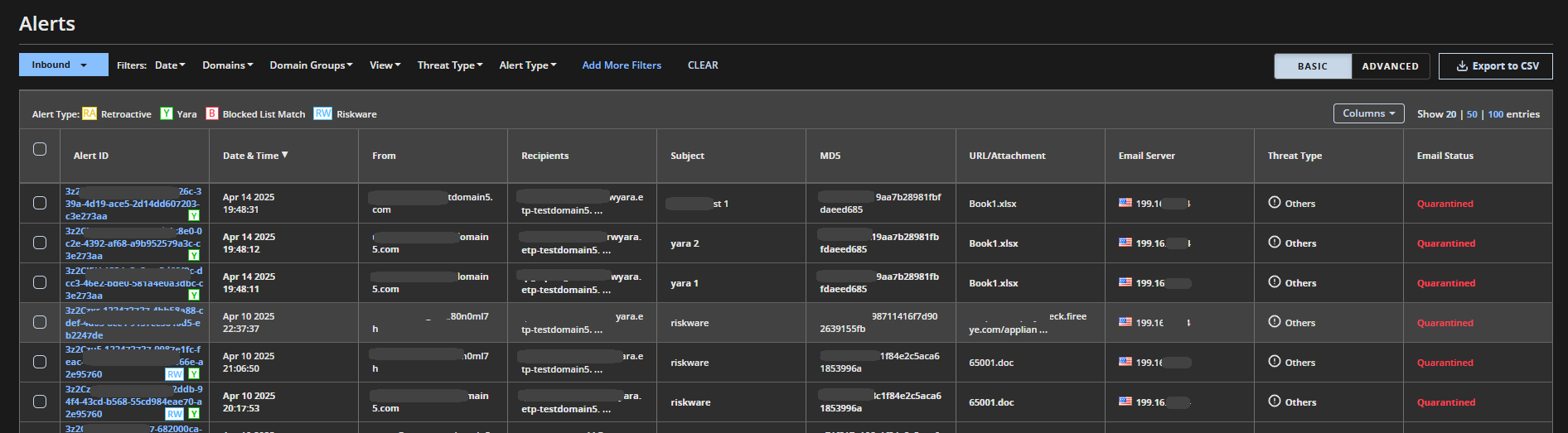
To view the details for an individual alert, click the Alert ID link for that alert. A window pops up with the following alert details:
Email Summary
Hygiene Analysis
Quarantine History
Alerts and Events
Alerts that have not yet been reviewed are in bold type.
To download the alert reports in CSV format, click the Export to CSV button. A maximum of 10000 alerts can be exported to CSV.
Note
This feature is available for Email Security - Cloud Hygiene users only.
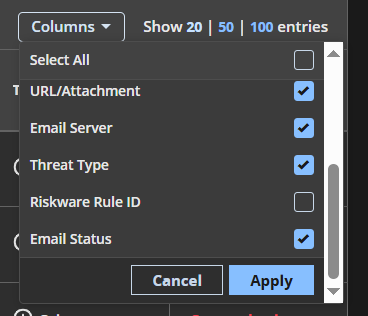
The following table lists the information shown on the Alerts page. You can use the Column drop-down menu to select the columns you want to see.
Alert categories | Category description |
|---|---|
Alert ID | The ID of the detected malicious email and an alert type icon. Alert types include YARA, Retroactive, QR Code, Riskware, Blocked List Match and Other. In outbound traffic mode, alert types include Retroactive and Other. (Alerts having a type other than the ones listed above will be categorised as Other) |
Date & Time | Date and time when the alert is initiated for the malicious email. |
From | Sender's email address |
Recipients | Targeted email addresses |
Subject | Malicious email subject |
MD5 | MD5 hash |
URL/Attachment | Malicious URL or name of the malicious attachment file |
Email Server | Originating email server that sent the malicious email |
Threat Type | Malware group under which the malicious email is classified. Alerts that belong to no malware group are classified as "Others". |
Riskware Rule ID | ID of the riskware rule applied to the alert (This column is not applicable in Outbound traffic mode). |
Email Status | Quarantined, scanned, deleted, or, dropped (OOB). Delivered (retroactive) emails will have status as delivered and dropped (OOB retroactive) emails will have status as dropped (OOB). Retroactive emails can be identified by the alert icon, Retroactive, on the top-left of the table. To know more about retroactive statuses, see Retroactive alerts. |