The Alerts summary widget lists the number of alerts in each attack category detected over the past day, week, or month. You can choose to include or exclude acknowledged alerts.
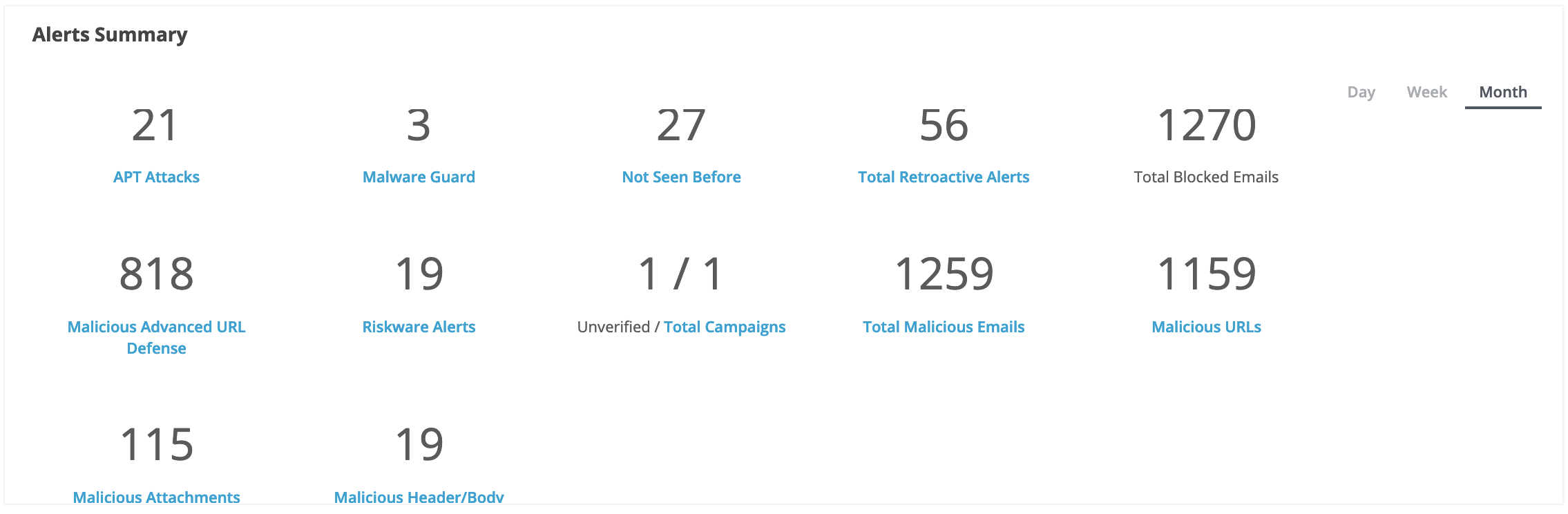
The attack category names are shortcuts to the Alerts page, the Malicious Emails page, and the Campaigns page.
The following table describes attack categories that can be counted in the Alerts Summary widget of the dashboard. In the widget, you can click an attack category name to view the individual alerts in that category for the selected time period.
Attack category counted | To view individual MVX‑correlated alerts |
|---|---|
Advanced Persistent Threats | Click APT Attacks to open the Alerts tab, filtered to list alerts that contain any of the following values in the Malware column:
|
Attacks not seen before | Click Not Seen Before to open the Alerts tab, filtered to show alerts that contain any of the following values in the Malware column:
|
Malware Guard | Click Malware Guard to open the Alerts tab, filtered to show alerts that contain any of the following values in the Alert Type column:
|
Total Retroactive Alerts | Click Total Retroactive Alerts to open the Alerts tab, filtered to show alerts that contain any of the following values in the Badges column:
|
Total Blocked Emails | View the number of blocked emails when block mode is enabled. If block mode is disabled, you will still view the number of blocked emails until the data is no longer available. |
Malicious Advanced URL Defense | Click Malicious Advanced URL Defense to open the Alerts page filtered on the following value in the Malware column:
|
Total Malicious Emails | Click Total Malicious Emails to open the Malicious Emails page to identify the malicious emails. |
Total Campaigns | Click Total Campaigns to open the Campaigns page to view the malicious emails that have been identified as a campaign. The Campaigns page also displays the total number of malicious emails and alerts associated with each campaign. The total number of campaigns and the number of unverified campaigns are shown. |
Malicious URLs | Click Malicious URLs to open the Email Alerts page to identify the malicious URLs. |
Malicious Attachments | Click Malicious Attachments to open the Email Alerts page to identify the malicious attachments. |
Malicious Header/Body | Click Malicious Header/Body to open the Email Alerts page to identify infected headers (sender, recipient, IP address, or domain) or bodies. |
URL Click Missed | Click URL Click Missed to open the Alerts page to identify the malicious URLs that were missed before FAUDE analysis. |
URL Click Blocked | Click URL Click Blocked to open the Alerts page to identify the URLs that FAUDE analyzed with a malicious verdict. |