You configure controlled live mode by using the fields the "Live Interface Configuration" area of the Settings > Email MTA page.
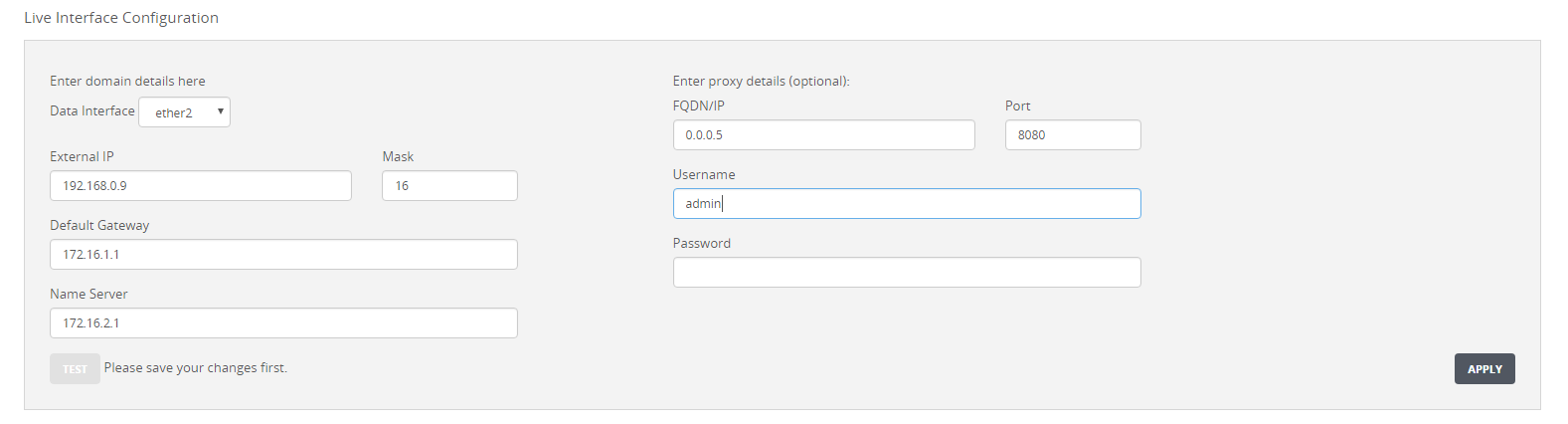
To support controlled live mode, you must configure the live (ether1 or ether2) interface network connectivity settings in the fields that are located under "Enter domain details here."
If the local network accesses the Internet through a proxy server, you also specify the proxy server access information in the fields that are located under "Enter proxy details (optional)."
Prerequisites
Controlled live mode is disabled.
If the live (ether2) data interface is required, verify that the ether2 data interface is cabled for connectivity to the Internet, either directly to an Internet-facing firewall device or through a proxy server.
You have the following network settings for the live ether1 or ether2 interface:
Data Interface—The live ether1 or ether2 data interface.
External IP—External IPv4 address of the live ether1 or ether2 data interface
Important
To prevent the exposure of IP addresses and other information about your network, Trellix recommends that you configure the live ether1 or ether2 interface on a different domain from the main network traffic.
Mask—Mask length for the live ether1 or ether2 interface address.
Default gateway—IPv4 address of the node used by the live ether1 or ether2 interface to access the Internet default gateway. If the live ether2 data interface is required, Trellix recommends that you keep the ether2 interface logically separate from the main network traffic so that the ether1 management interface resides on a different subnet from the ether2 interface.
Name server—IPv4 address of the DNS (Domain Name System) server for the live ether1 or ether2 interface.
If your local network accesses the Internet through a proxy server, you know the following additional settings:
FQDN/IP address—Fully qualified domain name or IPv4 address of the node acting as the proxy server for the live ether1 or ether2 interface.
Port—Port number that the proxy server uses for client connections.
Username—(If the proxy server enforces password-based client authentication) Username for authenticating at the proxy server.
Password—(If the proxy server enforces password-based client authentication) Password for authenticating at the proxy server.
You are logged in to the appliance Web UI as an Admin or Operator.
Go to the Settings > Email MTA page.
In the Data Interface drop-down list, choose the live ether1 or ether2 data interface.
In the External IP and Mask fields, enter the IPv4 address and mask length for the live ether1 or ether2 interface. (In a NAT environment, use the IP address assigned to the interface, not the external-facing NAT IP address.)
In the Default Gateway field, enter the IPv4 address of the default gateway for the live ether1 or ether2 interface.
In the Name Server field, enter the IPv4 address of the Domain Name System (DNS) name server for the live ether1 or ether2 interface.
If your network accesses the Internet through a proxy server, specify the proxy server fully qualified domain name or IP address and the port number that the proxy server uses for client connections. Enter the values in the FQDN/IP and Port fields.
To stop using a proxy server, enter 0.0.0.0 for the address and enter 0 for the port number.
If authentication is required for the proxy server, enter the authentication credentials in the Username and Password fields.
To stop using proxy authentication, clear both fields.
Click Apply to save your changes.
When the configuration changes are saved successfully, the following message appears near the top of the page:

Click Test to check end-to-end connectivity between the live ether1 or ether2 interface and the Internet. If a proxy server is configured for the live ether1 or ether2 interface, the operation checks for connectivity through the proxy server.
If the connectivity test succeeds, the following message appears:

If the connectivity test fails, one of the following error messages appears. Correct the configuration, click Apply, and then retest the connection before you continue.

