Prerequisites
The Email Security - Server appliance must have an established connection to the Internet.
You must have Admin or Operator access to the Email Security - Server appliance.
Configuring event notifications
Use the Notification Settings page to configure event notifications.
To configure event notifications:
Click the Settings tab.
Click the Notifications on the side bar.
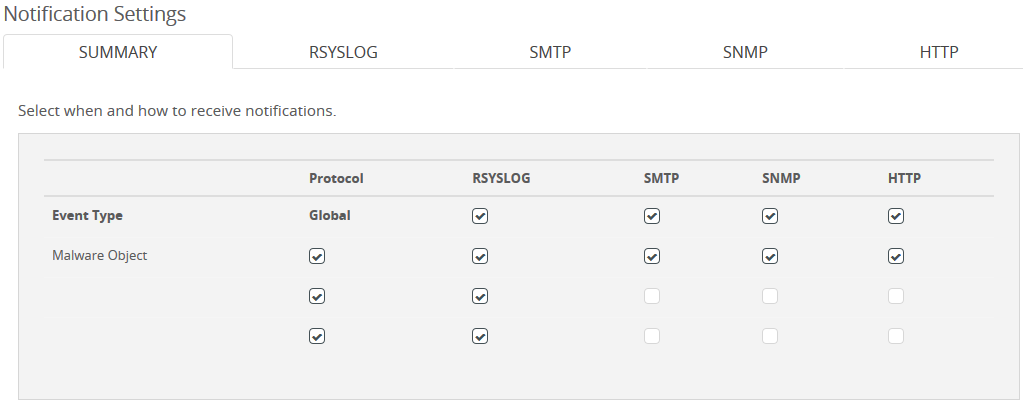
In the Global column, select Malware Object.
Selections in the Global column ensure notifications are sent for this event type. This selection does not affect the display of events in the Web UI.
Select the appropriate protocols in the Global row or Malware Object row.
To configure each selected protocol, click the applicable column heading:
Click the Send Test Message button to send a test notification to verify your settings for all enabled protocols. Recipients are specified in the Email Settings page. See the Email Security — Server System Administration Guide for details.
Note
Test message events generated for malware object event notifications now disappear from the Alerts page within five minutes.
To turn off daily digest notifications for all enabled protocols, uncheck the Daily digest checkbox, and then click the Update Digest button. To turn on daily digest notifications, check the Daily digest checkbox, and then click the Update Digest button.
Note
Trellix recommends using Per Event notifications instead of Daily Digest notifications.
To set the time for the daily notification, specify the hour and minutes in the drop-down list box.
To apply your notification settings, click Update Digest.