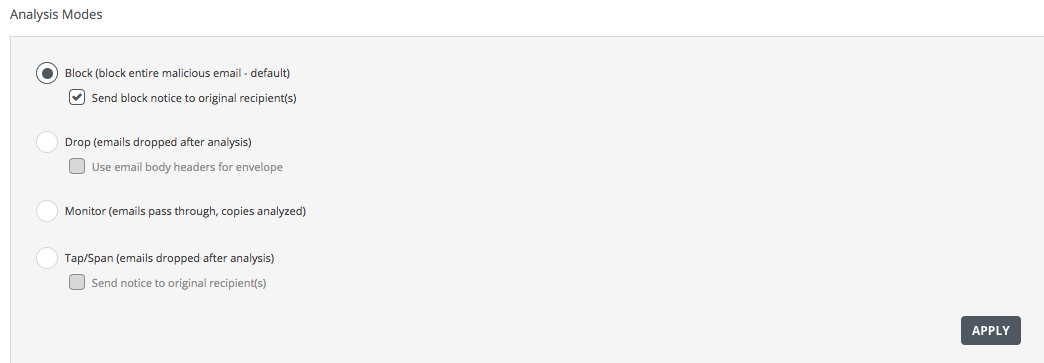
Use the Analysis Modes area in the Email Policy Configuration page to configure the analysis mode.
Important
After you change an analysis mode, use the reload command in the CLI configuration mode to reboot the appliance.
In the Web UI, choose Settings > Email Policy.
Select an analysis mode in the Analysis Modes area.
Block—Select this option for Block mode. When you select this mode, you can allow the Email Security - Server appliance to send an email to notify the original recipient that a malicious email was blocked and not delivered. You can also allow the appliance to send a retroactive email to notify the recipient of a malicious email that was previously undetected as malicious and was missed. By default, Send missed notice to original recipient(s) is enabled.
Click Apply to save your changes. The following message appears:

Reboot the appliance