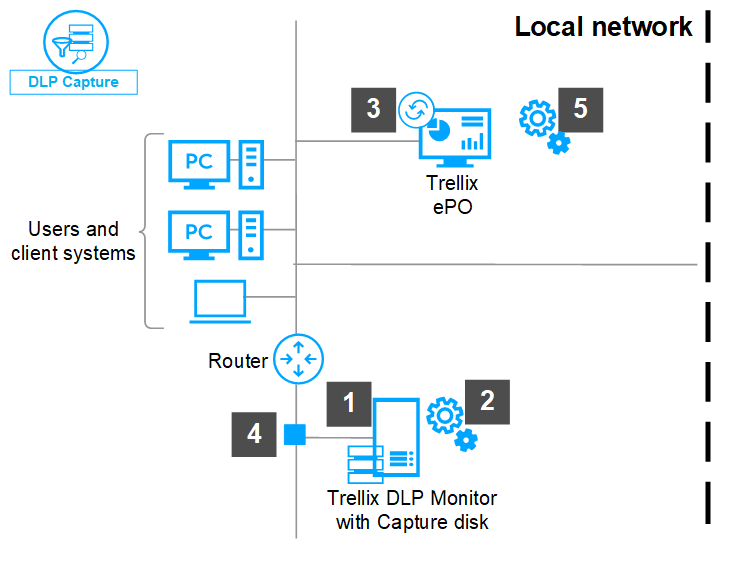
The DLP Capture feature enables you to store and filter email, web, and network data analyzed by your Trellix DLP Network Monitor appliances.
DLP Capture is an optional feature that you enable from ePO - On-prem. On Trellix DLP 8800, Trellix DLP 7700, Trellix DLP 6600 and virtual appliances, there must be sufficient storage disk space available at the time of software installation. If you want to increase the capture disk size later, reinstall the appliance software to detect the capture storage disk.
You can enable the DLP Capture feature for your Trellix DLP Network appliance from the Trellix DLP Appliance Management extension in ePO - On-prem.
Note
The option to enable DLP Capture in ePO - On-prem does not appear on the interface until you add a Trellix DLP Network Monitor license.
The captured data is stored on a disk on a physical or virtual appliance, or on an external storage device.
Appliance type | Capture storage description |
|---|---|
Trellix DLP 8800 appliance model Trellix DLP 7700 appliance model Trellix DLP 6600 appliance model | The captured data is stored in Trellix DLP Capture Storage Array, which is an external storage device and can hold up to 24 TB of data.
|
Virtual appliance | You can use the DLP Capture feature on virtual appliances when deployed using a capture enabled virtual machine. |
Note
If DLP Capture is enabled on an appliance, you might experience some impact on the performance when the appliance copies data during data scanning.
For Trellix DLP 8800, Trellix DLP 7700, and Trellix DLP 6600 appliance, set up the storage disk to save the captured data.
Complete the installation of the Trellix DLP Network Monitor appliance software.
For the appliance to be managed, register the appliance with ePO - On-prem from the Setup Wizard.
Connect the Trellix DLP Network Monitor appliance to your network, for example, a SPAN port or a network tap.
Enable the DLP Capture feature and set how long you want to retain the captured data for.