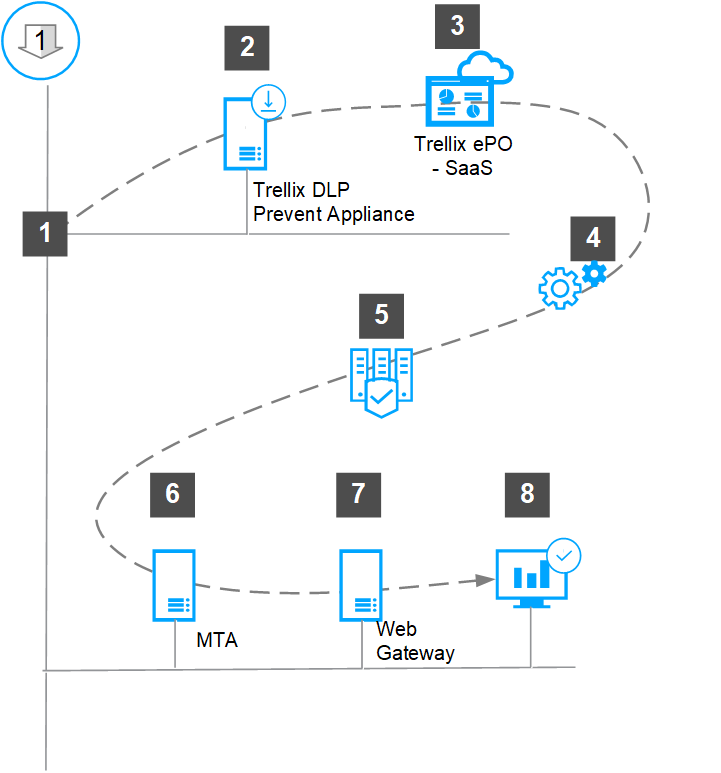
To install Trellix DLP Network Prevent appliance software in your network for the first time, you must prepare the ePO - On-prem server for managing your appliance. You can choose to install the appliance software on a physical hardware appliance or on a virtual machine.
Virtual appliances can run on your own VMware vSphere (deployed on VMware vCenter Server), Windows Hyper-V server, Nutanix Acropolis Hypervisor (AHV), or Amazon Web Services (AWS).
You can install Trellix DLP Network Prevent appliance software on Trellix DLP 8800, Trellix DLP 7700, or Trellix DLP 6600 appliance models.
You can install VMware vSphere (deployed on VMware vCenter Server), or Windows Hyper-V server on Trellix DLP 8800, Trellix DLP 7700, or Trellix DLP 6600 appliance models.
You can make use of the Trellix DLP Network Prevent appliance functionalities by leveraging your existing network infrastructure.
If you are using a hardware appliance, connect the appliance to your local network.
Download and extract the Trellix DLP Network Prevent appliance software and the required extensions from the Trellix download site using a grant number.
Install the extensions in ePO - On-prem.
Install and configure Trellix DLP Network Prevent appliance software.
For the appliance to be managed, register the appliance with ePO - On-prem from the Setup Wizard.
Integrate Trellix DLP Network Prevent with the Smart Host (MTA server) that supports header inspection and configure the policy to work with Trellix DLP Network Prevent.
Integrate Trellix DLP Network Prevent with the web proxy server and configure the policy to work with Trellix DLP Network Prevent.
Choose to use the Trellix DLP Network Prevent appliance for either email analysis or scanning web traffic, but not for both. Web users experience delays (except in small environments) when you use the same appliance for both email analysis and web traffic scanning.
Tip
Use Skyhigh Security Secure Web Gateway (SWG) as your web proxy server.
Confirm that the appliance is connected to the network from the ePO - On-prem interface. In ePO - On-prem, navigate to Menu → Appliance Management, which shows the appliance underneath My Organization within the Lost and Found tree.
Tip
To use Trellix DLP Network Monitor and Trellix DLP Network Prevent on the same network, install Trellix DLP Network Monitor first to analyze how traffic flows through your network.