Use the Generate Report page to generate a consolidated Email Hourly Stat report.
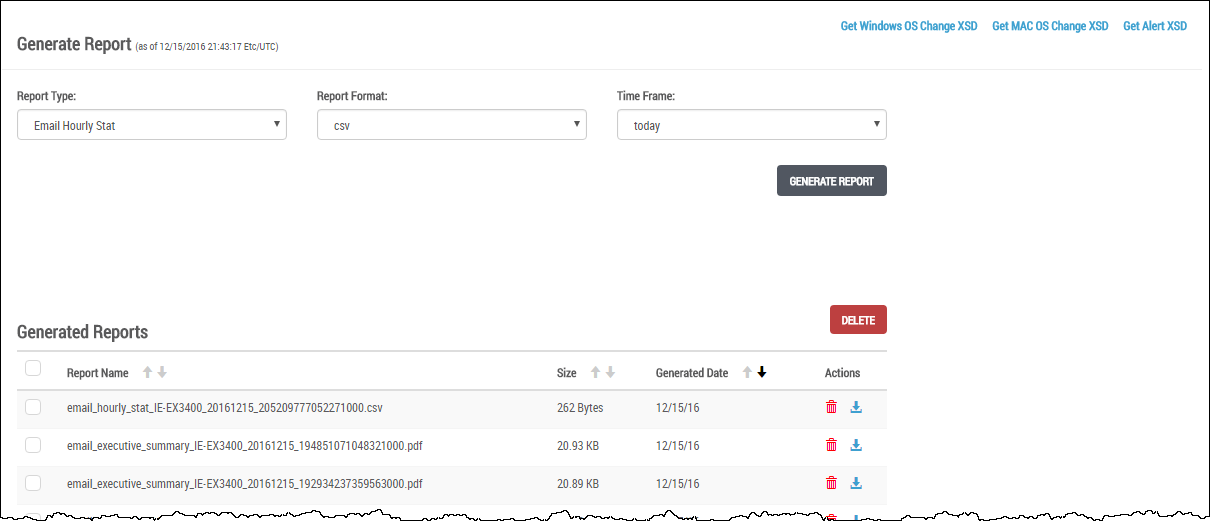
In the Web UI, choose Reports > Reports.
In the Report Type drop-down menu, select Email Hourly Stat Report.
In the Report Format drop-down menu, select the csv output format to write the report to a CSV file.
In the Time Frame drop-down menu, select the time period for this report:
today—Report covers analysis generated from 12:00 A.M. until the current time.
1 day ago—Report covers analysis generated during the past 24 hours.
2 days ago—Report covers analysis generated during the past 2 days.
3 days ago—Report covers analysis generated during the past 3 days.
4 days ago—Report covers analysis generated during the past 4 days.
5 days ago—Report covers analysis generated during the past 5 days.
6 days ago—Report covers analysis generated during the past 6 days.
7 days ago—Report covers analysis generated during the past 7 days.
Click Generate Report. The generated report is added to the top of the generated report list.
When the report generation is complete, the generated report appears in the Generated Reports table.
(Optional) Export the XSD files. These files describe the structure of the Email Hourly Stat report.
To export the Windows OS Change XSD, click the Get Windows OS Change XSD link at the top right side of the page.
To export the MAC OS Change XSD, click the Get MAC OS Change XSD link at the top right side of the page.
To export the Alert XSD, click the Get Alert XSD link at the top right side of the page.
In the Web UI, choose Reports > Reports.
In the Generated Reports table, locate a generated Email Hourly Stat report you want to delete.
Click the Delete (red trash can) icon.
Click OK.
An Email Hourly Stat report is removed. The following message appears:
.png)
Close the message.