Follow these steps to import or export rules that you defined on a blocked list using the Web UI.
To import rules on a blocked list from your local machine:
In the Web UI, choose Settings > Blocked List.
Click Import CSV.
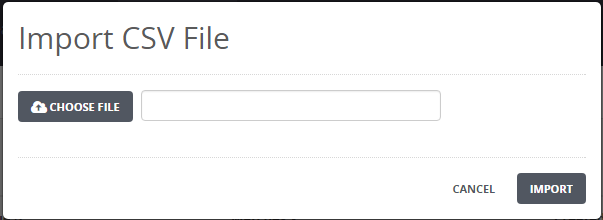
Click Choose File and navigate to the text file that contains the rules on a blocked list you want to import.
Click Import to import the block list rules.
An error occurs if you import a text file that contains the allowed list. You must import a text file that contains a block list. A list that contains many rules might take a very long time to import. A progress bar indicates the status of the import operation.
To cancel the import operation, click Cancel.
To export rules on a blocked list from the appliance:
In the Web UI, choose Settings > Blocked List.
Click Export CSV to export a list of all the rule types on a blocked list.