Follow these steps to import or export rules that you defined on an allowed list using the Web UI.
To import rules on an allowed list from your local machine:
In the Web UI, choose Settings > Allowed List.
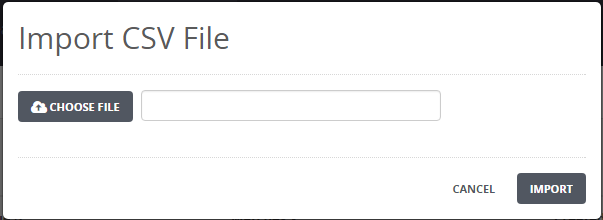
Click Import CSV.
Click Choose File and navigate to the text file that contains the rules on an allowed list you want to import.
Click Import to import the allow list rules.
An error occurs if you import a text file that contains a blocked list. You must import a text file that contains an allowed list. A list that contains many rules might take a very long time to import. A progress bar indicates the status of the import operation.
To cancel the import operation, click Cancel.
To export rules on an allowed list from the appliance:
In the Web UI, choose Settings > Allowed List.
Click Export CSV to export a list of all the rule types on an allowed list.
Email Security - Server > Email Security - Server User Guide Release 11.x > Configuration > Rule configuration on allowed and blocked lists > Configuring rules on an allowed list > Configuring rules on an allowed list using the Web UI
Email Security - Server > Email Security - Server User Guide Release 11.x > Configuration > Rule configuration on allowed and blocked lists > Configuring rules on an allowed list > Configuring rules on an allowed list using the Web UI