Administrators assigned with Trellix Account Administrator role can add and manage other administrators and non-dministrator users in the Email Security - Cloud Web UI.
Important
There are two versions of IAM. If the URL you use to access the IAM UI ends with
fireeye.com, this document pertains to you. If the URL you use to access the IAM UI ends withtrellix.com, see the Trellix IAM Guide for information regarding IAM.
Managing administrators
An administrative user is an IAM administrator who is assigned an Email Security - Cloud administrator role. For more information, see IAM user types and roles. A non-administrative user is a protected member of your organization without an IAM user account.
To access the list of Email Security - Cloud administrators within your organization, click Manage > Administrator. This page displays a table of administrators defined in the IAM portal for the organization.
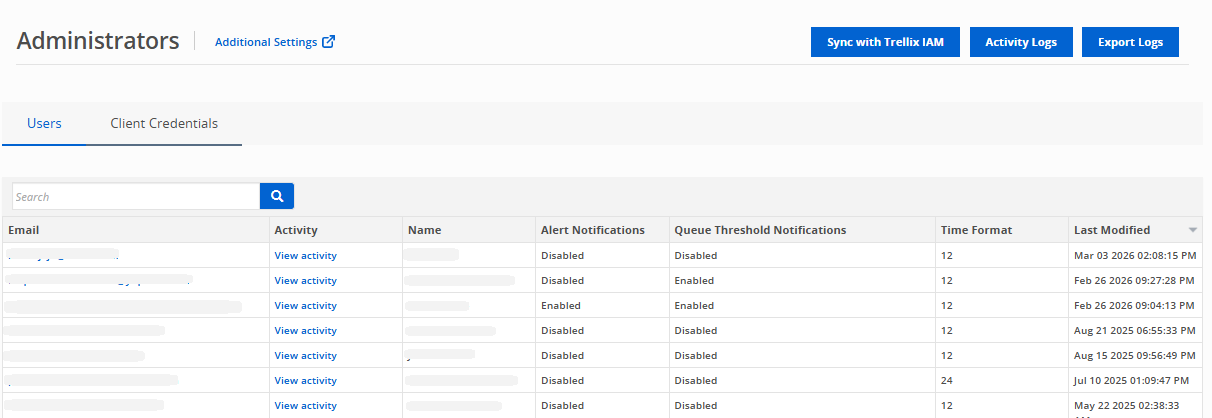
You can perform the following actions on this page:
Delete inactive users and client credentials with the Sync with Trellix IAM button. Email Security - Cloud verifies the users against the Trellix Identity and Access Management (IAM) list to identify and remove inactive accounts.
Note
The sync button is only available to Trellix IAM users.
View the information of 20, 50, or 100 administrators at a time. Administrators are listed by the email address they provided during enrollment. An administrator's nickname, roles, alert notifications status, threshold notification status, time format, and user type are viewable from the list of users.
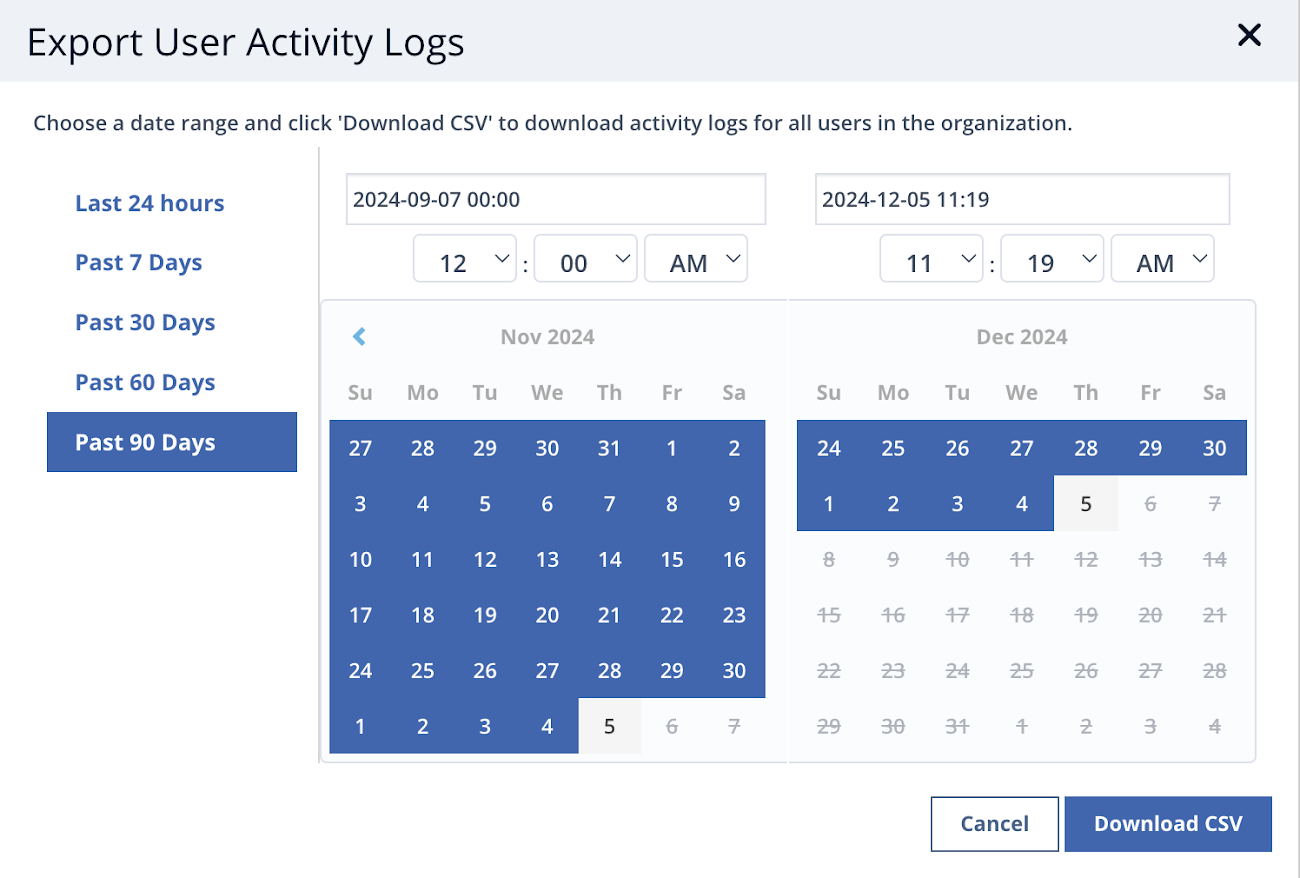
Bulk-download the audit logs of all the users existing in the organization using the Export Logs button on the top-right of the page. The file will be downloaded in .csv format and can contain a maximum of 10000 user records.
Download day-wise or month-wise logs. You can also select a custom time period. If the number of records exceed 10000, modify the selected time period and try again.
Administrators are listed by the email address they provided during enrollment. An administrator's name, alert notifications status, queue threshold notification status, and time format are viewable from the list of users. A list of administrators is visible for users with the Trellix Account Administrator role. If you are not assigned this role, you will only see your own user.
Managing users
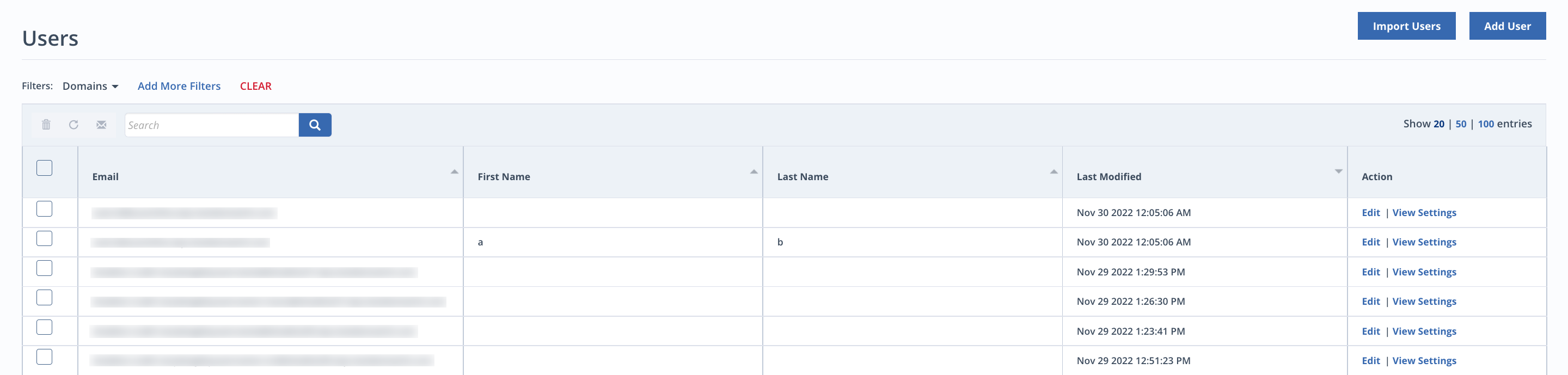
To access the list of of Email Security - Cloud non-administrator users within your organization, click Manage > Users. This page displays a table of non-administrator users added to the organization individually or through CSV files by administrators.
You can view the information of 20, 50, or 100 non-administrator users at a time. Each user is listed by the email address used to add them to the organization. Each non-administrator user's first name and last name are included in the table. You can sort the table of non-administrator users in alphabetical or reverse alphabetical order by clicking on the arrow in a column heading.
Managing client credentials
Use client credentials (client ID/client secret) to communicate with product APIs. You can add client credentials and assign them service scopes in the Client Credentials Management page in the IAM dashboard. Service scopes are linked to specific services provided by products and are assigned to a tenant through a product license.
To create client credentials, refer to Managing client credentials in the Trellix IAM Guide.
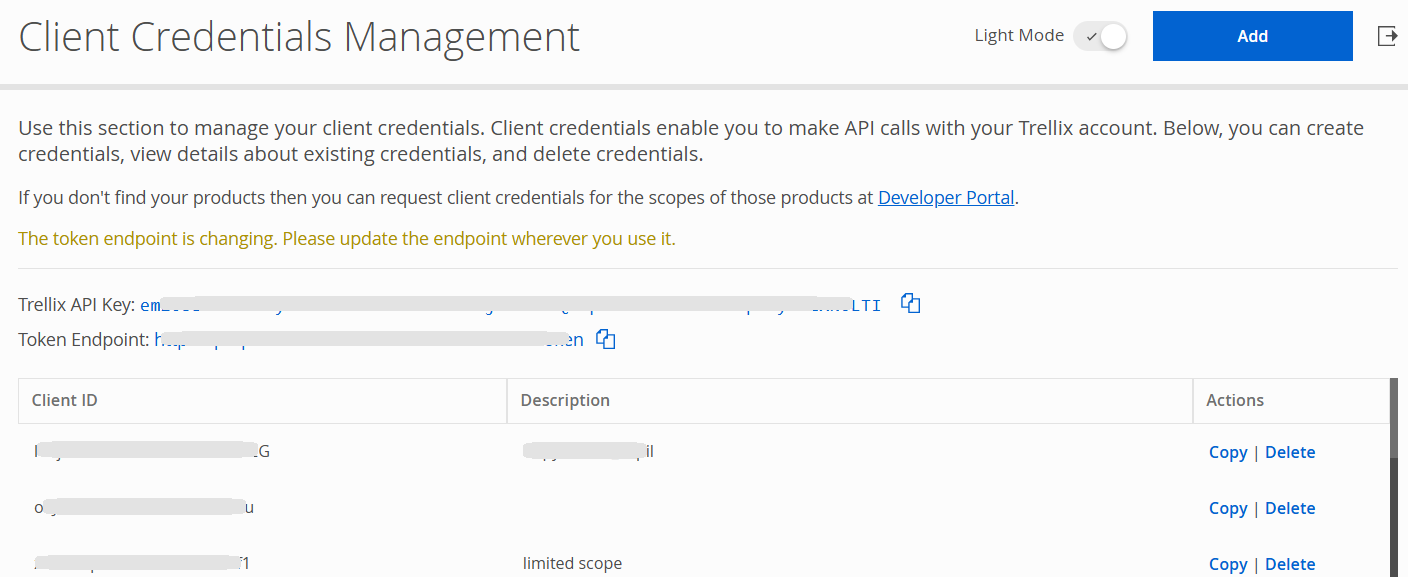
After creating a client credential in the TIAM portal, administrators can view and access them in Manage > Administrator page.
Administrators can then assign domains to a client credential to enable REST API access.
To assign domains, click the client ID (which represents the client credential), select or deselect the required domains, and then click Save.