Manual remediation
Email with a remediation policy set to manual can be manually remediated in the Email Trace page. You can apply a default policy action or choose how the message/s will be remediated. Messages can be moved, quarantined, or permanently deleted. You can move messages to Junk/Email Spam, Deleted Items/Trash, or a custom folder/label.
To apply the default policy action and mark the email as an advanced threat:
Note
SMTP domains only.
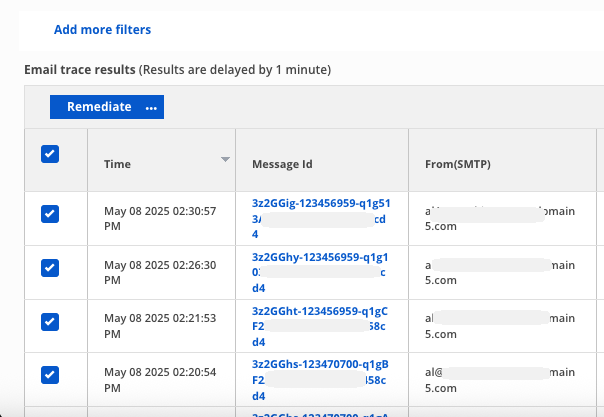
In Email Trace, select messages by clicking the checkboxes in the far left row.
Click Remediate.
Select Yes, Apply Default Policy Action.
To apply the default policy action and choose how the email is marked:
Note
MS365 API and Google Workspace domains only.
In Email Trace, select messages by clicking the checkboxes in the far left row.
Click Remediate.
Select Advanced Threat, Riskware, Virus, or Spam.
Click Yes, Apply Default Policy Action.
To choose how email will be remediated:
In Email Trace, select messages by clicking the checkboxes in the far left row.
Click the drown-down button next to Remediate.
Select Move, Quarantine, or Permanent Delete.
For Move, select a folder.
Note
If you select Custom Folder/Label, you will be prompted to name the folder. The folder will be created if it does not already exist.
For Quarantine, click Yes, Quarantine Email.
For Permanent Delete, click Yes, Delete Email.
Bulk remediation
Emails with a remediation policy can be remediated together in bulk in the Email Trace page. You can apply a default policy action or choose how the message/s will be remediated.
You can bulk remediate emails appearing in a single page together. The maximum emails that can be bulk remediated is 10000.
To bulk-remediate emails:
Select the Select All checkbox in the first column to select all the emails in the current page.
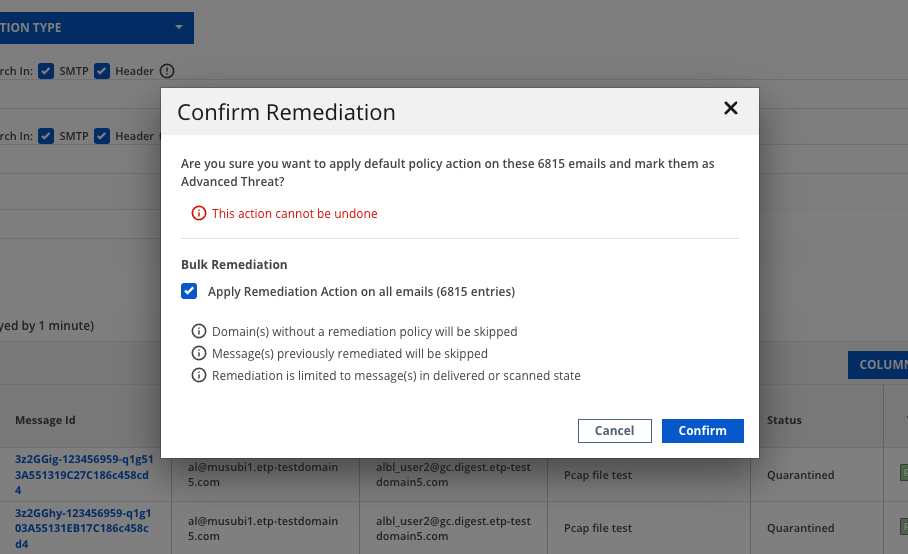
Click Remediate. A pop-up box appears.
Select the Bulk Remediation checkbox to Apply remediation action on all emails (all emails for the applied filters on Email Trace)
If the number of emails on a page exceeds 10000, you will receive a caution message.
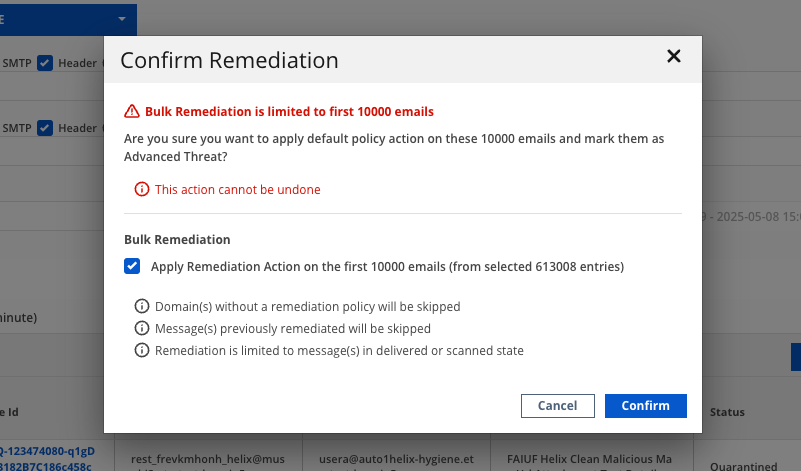
Click Confirm to save the changes.
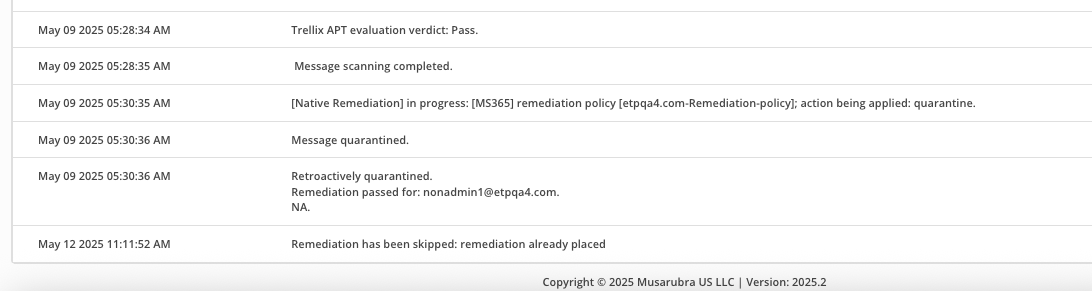
Check the log in message details events tab for messages on which remediation is not applied.
Important
Domains without a remediation will be skipped.
Messages previously remediated will be skipped.
Remediation is limited to messages in delivered or scanned state.