The Email Security - Server appliance Web UI visually flags a retroactive detection alert by displaying a color-coded badge in the eAlerts tab of the appliance. In the eAlerts > Recipient page, eAlerts > Sender page, or eAlerts > Alerts page, if an alert grouping includes a retroactive detection alert, the table row displays a Retroactive Alert badge in the Badges column.
Retroactive alert badges in the eAlerts > Recipient page
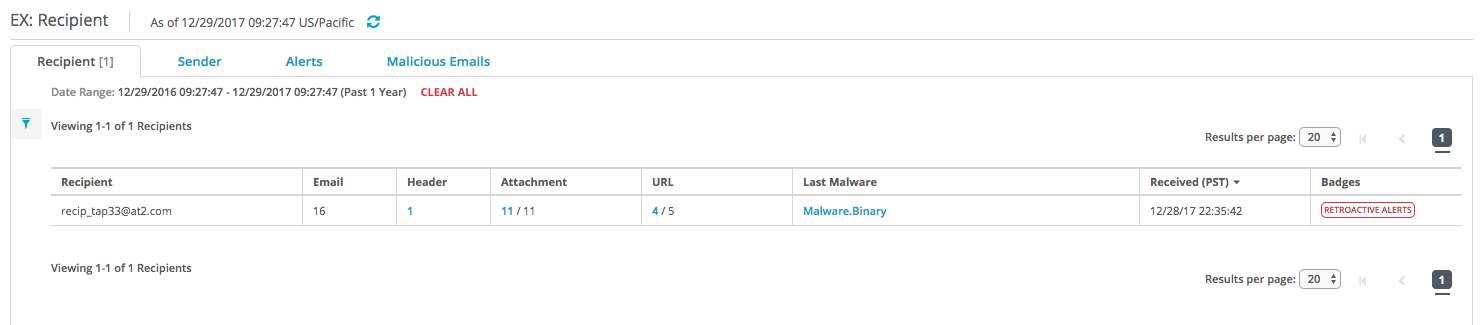
The eAlerts > Recipient page lists retroactive alerts for malware objects, grouped by associated senders, attachments and embedded URLs, time frame, and malware type. A Retroactive Alert badge appears in a table entry if retroactive detection is known for an alert in the grouping.
The following example shows the display of an eAlerts > Recipient page. The default display lists entries in reverse chronological order, shows 20 results per page, and is not filtered on any data column.
Retroactive alert badges in the eAlerts > Sender page
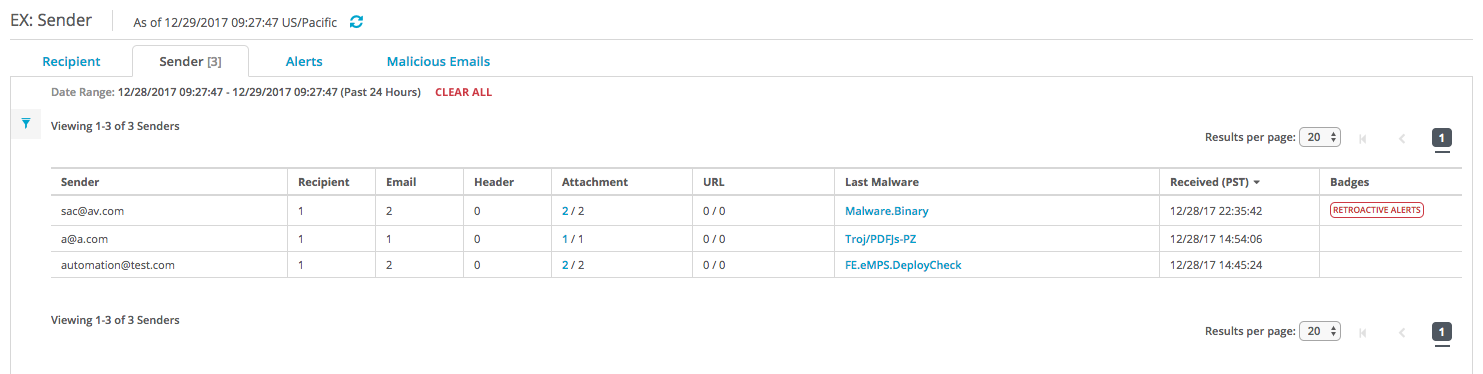
The eAlerts > Sender page lists retroactive alerts for malware objects, grouped by associated recipients, attachments and embedded URLs, time frame, and malware type. A Retroactive Alert badge appears in a table entry if retroactive detection is known for an alert in the grouping.
The following example shows the display of an eAlerts > Sender page. The default display lists entries in reverse chronological order, shows 20 results per page, and is not filtered on any data column.
Retroactive alert badges in the eAlerts > Alerts page
The eAlerts > Alerts page lists retroactive alerts for malware objects, grouped by attack (associated recipients, associated senders, attachments and embedded URLs, time frame, and malware type). A Retroactive Alert badge appears in a table entry if retroactive detection is known for an alert in the grouping.
The following example shows the display of an eAlerts > Alerts page. The default display lists entries in reverse chronological order, shows 20 results per page, and is not filtered on any data column.
