Before you can configure AD sender impersonation detection rules, you must enable Office 365 AD synchronization. The appliance starts a script that queries the AD data for users and groups.
Note
The first time the script runs, it runs continuously to obtain all the group data from Office 365 AD. Thereafter, the script checks Office 365 AD for group and user changes every 24 hours.
After the script completes its initial run, use the Email Security - Server appliance Web UI to view the AD groups in your organization and select the groups to be used in AD impersonation detection rules. The Email Security - Server appliance watches for sender impersonation attacks on the AD groups and users you specify.
Prerequisites
You have administrator access to the Email Security - Server appliance.
Appropriate permission for the Office 365 app have been configured (as described in Configuring the Office 365 app authentication on ).
Log in to the Email Security - Server appliance Web UI as an administrator.
Choose Settings > Impersonation > AD Group Rules.
Click to enable the Enable Active Directory Group Impersonation Rules option.
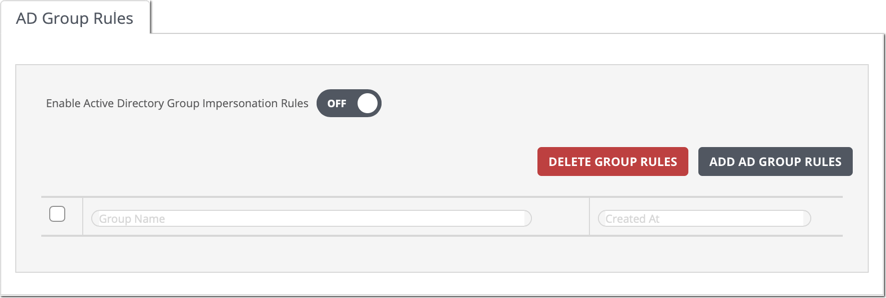
The script begins within one minute.
Wait until the script completes before you configure AD impersonation detection rules. Depending on the size of the active directory, you must allow 10 to 15 minutes for the script to query the Office 365 AD for groups in your organization.
Note
The appliance Web UI does not display the AD synchronization progress or status.
The first time the script runs, it runs continuously to obtain all the group data from Office 365 AD. Thereafter, the script checks Office 365 AD for group and user changes every 24 hours.