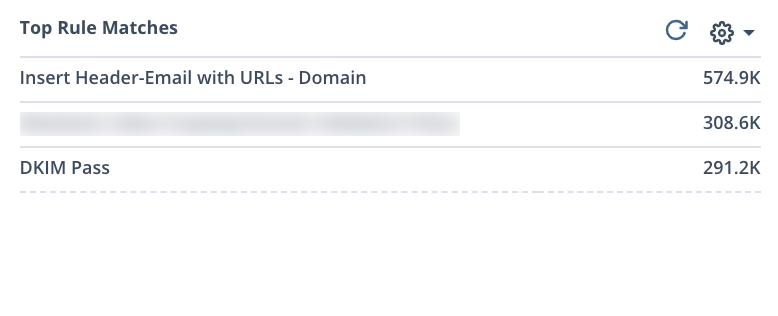
The Top Rule Matches widget displays the five rules most often matched by analyzed email, and the total volume of email matching those rules.
Select a rule name to open the email trace with the custom rule name and time period filter applied. In the graph, clicking any bar will open the Email trace with the rule name and time period filter applied.
Click the  icon in the lower left corner of the widget to view the fifty rules most often matched by analyzed email within the selected time period and the number of messages matching those rules.
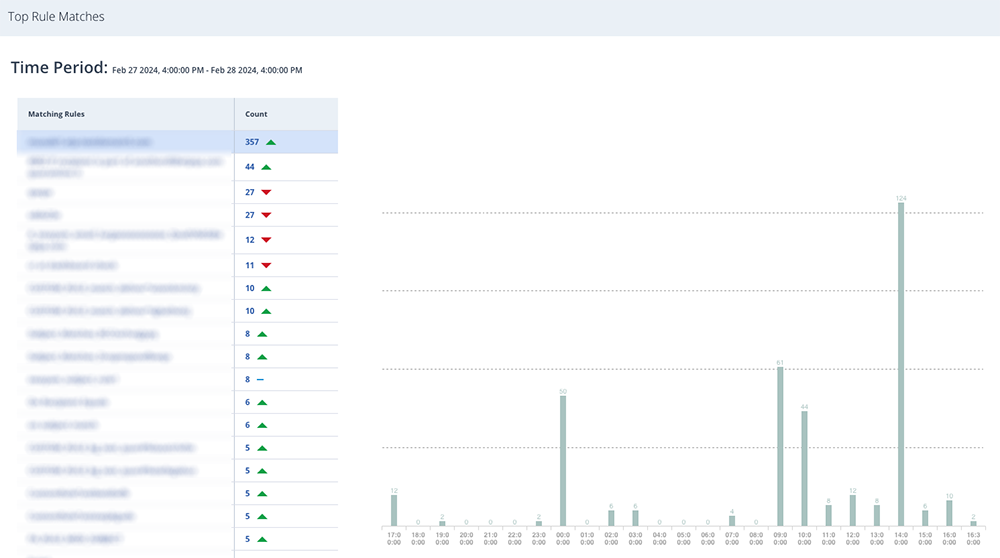
The widget window opens up with the bar graph for the first rule in the table. When you click on the 'Count' of any rule, the graph will change to show the count for the newly selected rule.
You can change the time period in the top left corner of the dashboard (24 hours, 7 days, or 30 days).
The last time period's trend is compared to the current time period's trend. A green triangle next to the count signifies that the count has increased in the current time period, a red triangle signifies that the count has decreased, and a grey dash signifies no change.
Select a rule name to open the email trace with the custom rule name and time period filter applied.