Push Trellix DLP policies to Skyhigh Security Cloud and apply them to emails
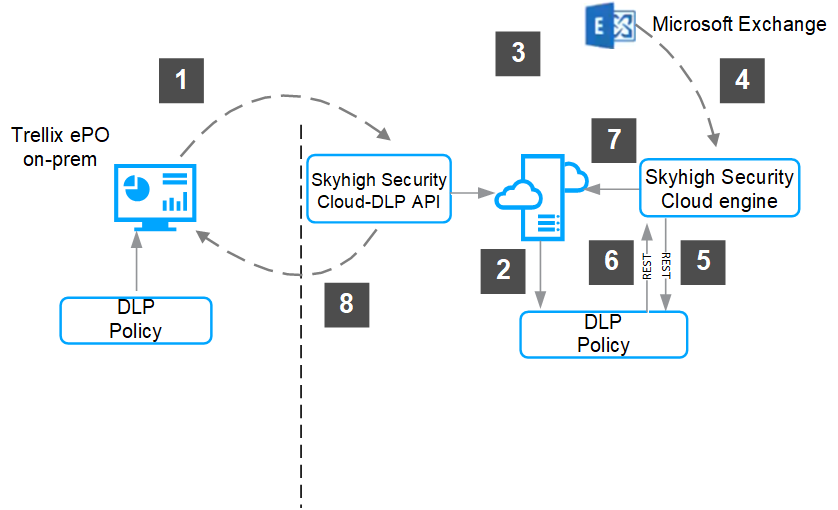
The following diagram describes the high-level process of pushing a Trellix DLP policy to Skyhigh Security Cloud.
Push the Trellix DLP policy to Skyhigh Security Cloud with the Apply Selected Policies command in the DLP Policy Manager.
Skyhigh Security Cloud loads the policy.
A user sends an email from the cloud.
Skyhigh Security Cloud receives the email.
Skyhigh Security Cloud send the email information to the DLP policy.
The DLP service returns the expected action and event metadata.
Skyhigh Security Cloud performs the action and saves the incident to its database.
Trellix DLP pulls incidents to DLP Incident Manager with a frequently scheduled ePO - On-prem server task.
Enforcing email protection rules on Skyhigh Security Cloud
You can apply email protection rules to Microsoft Exchange Online emails by pushing the policy containing the rule to Skyhigh Security Cloud. The Business Requirements setting in Skyhigh Security Cloud determines how the policy is applied: inline mode or passive mode. Inline mode includes the ability to block emails. Passive mode can't block emails. Depending on the settings in Skyhigh Security Cloud, it can monitor, delete, or quarantine.