In the Web UI, go to the What's Happening panel on the Email Security - Server Dashboard. The panel displays the Malware Guard alert count for the past 24 hours.
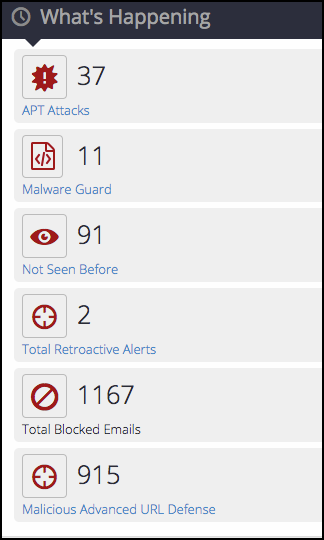
Click Malware Guard.
The EALERTS > eAlerts > eAlerts page lists the Malware Guard alerts. Columns display information such as alert types (malware object and malware callback), file types (.exe, .DLL and .sys files), malware signature, severity, and so forth.
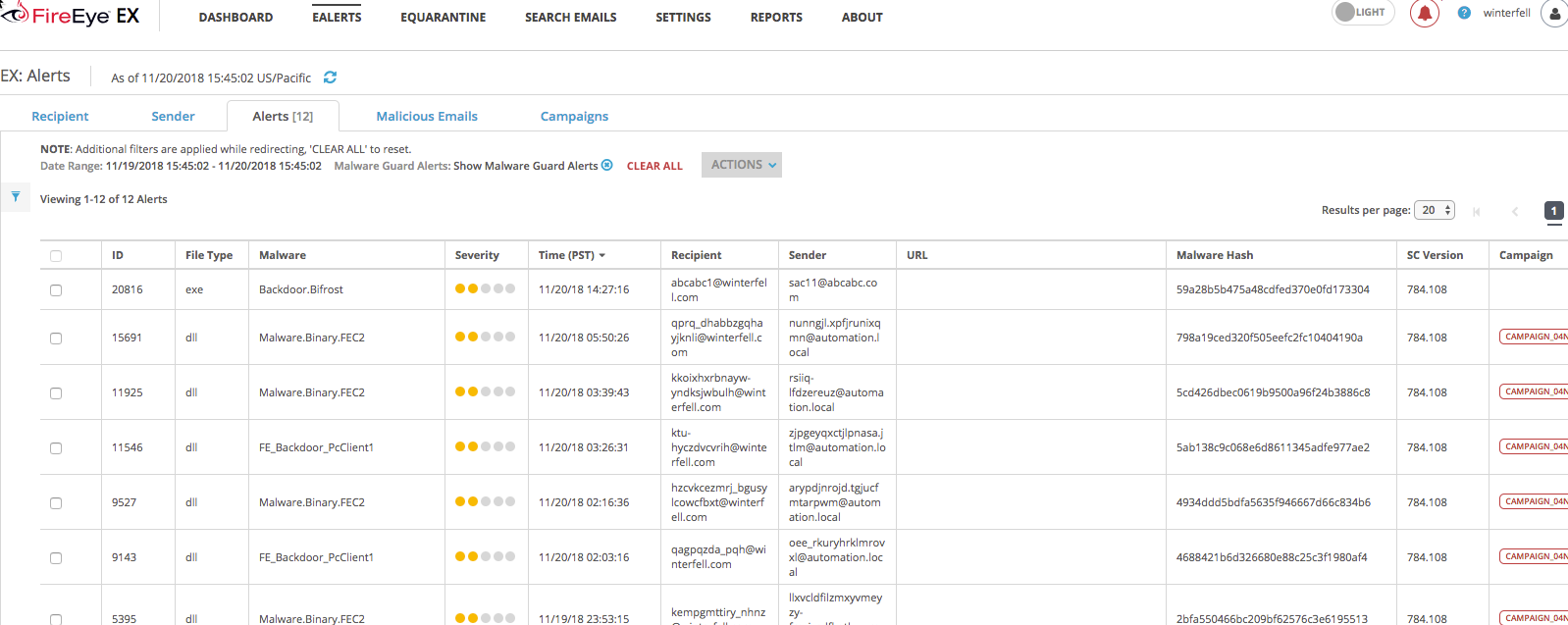
Click on the name of a Malware Guard alert to display the summary section.
Below is an example of the summary section of a Malware Guard alert for a Windows executable malware object.
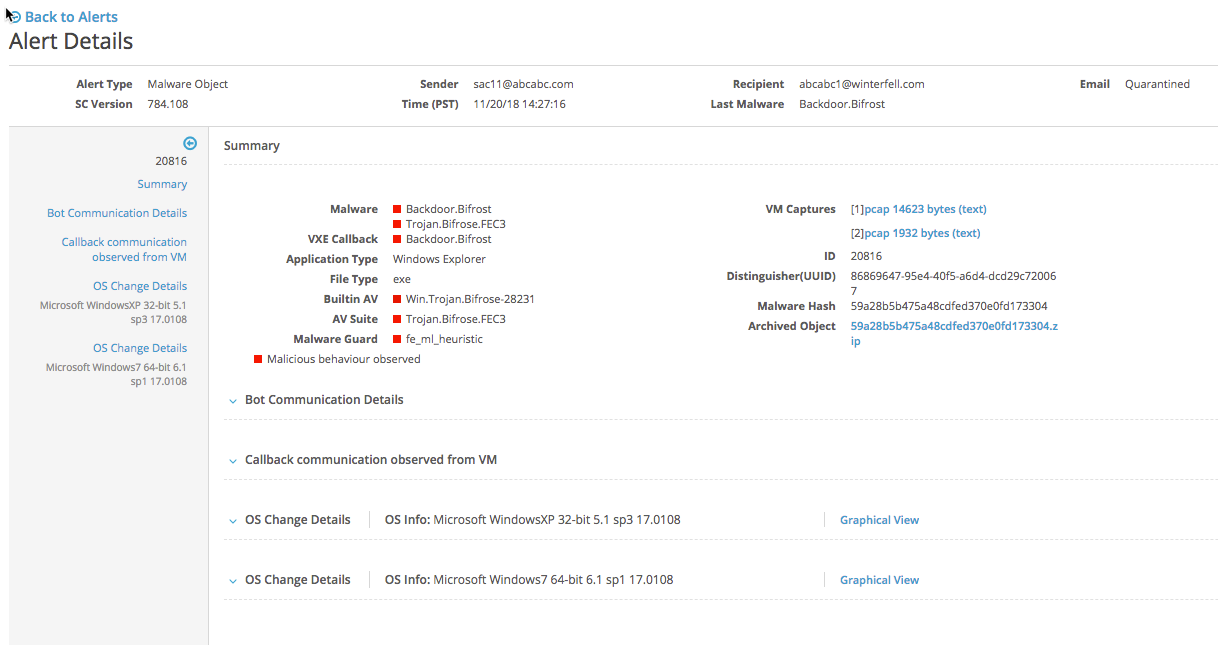
To drill down to investigate details of the alert, select an item from the far left panel. To take action on an alert, select it and click Download XML, Download Email or View Email.
For more information about the fields and items on the Alerts page, see Monitoring alerts.