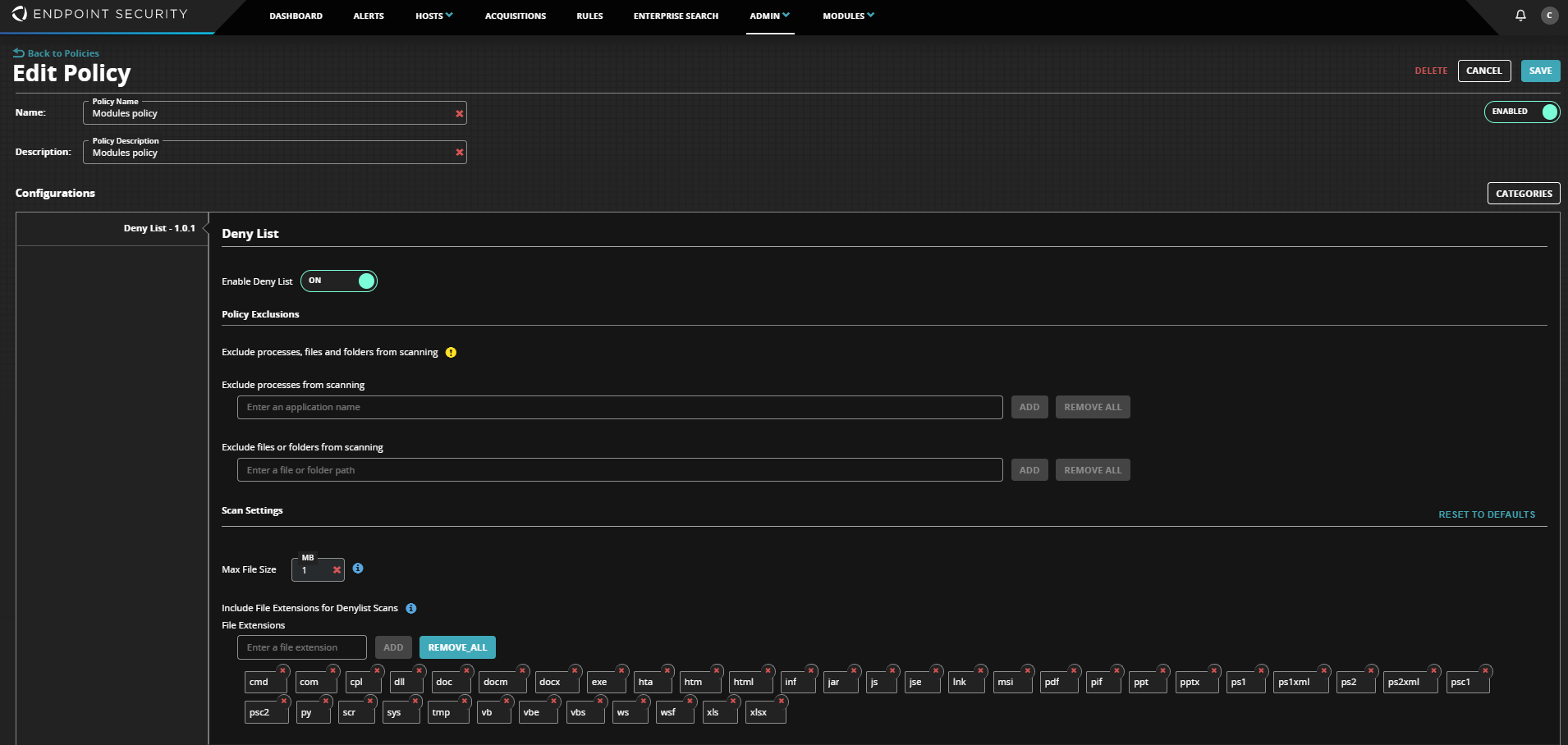
The Deny List policy is configured using the Module Policy page.
Log in to the Endpoint Security Web UI as an administrator.
From the Admin menu, select Policies.
Locate to the policy that you want to edit.
In the Actions column, click the gear icon, and click Edit Policy.
Navigate to the Deny List section and move the Enable Deny List toggle to On.
Optionally, add file paths or process for overall exclusion.
Process Exclusion: Excludes the configured processes. Currently, wildcards are not supported.
Files/Folder Exclusion: Excludes configured files and folders. Wildcards are also supported.
Note
For more information on module exclusion guidelines refer to, Deny List Exclusion Guidelines
Configure Max File Size and file extensions for hash based scans.
Note
Deny List will only consider file which is 0 to configured file size.
Click Save to save the module settings.