This section includes a few troubleshooting methods and FAQs.
How can I efficiently collect all relevant logs and provide them for Trellix support and engineering?
You can use the MER, which is a part of the Self-Service Supportability (SSS) Orchestrator tool, to collect any relevant log and system information and create an archive with all the information, which can be submitted to Trellix. You can download the MER tool here.
How to create a log file on Windows ?
If you want to review EDRF logs, you can extract the logs by running the below command from a command prompt as Administrator.
c:\Program Files\Trellix\XClient\xclient.exe" -g c:\xclient.log
How to create a log file on Linux
If you want to review EDRF logs, you can extract the logs by running the following command.
/opt/Trellix/XClient/bin/xclient -g /tmp/xclient.log
How do I obtain Installation logs for Windows and Linux?
If you encounter any issues, you can obtain the installation log files from the System temp folder located in:
Windows —
C:\Windows\Temp\TrellixLogsLinux —
/var/log/XClientInstall-v<XCLIENT_VERSION>.log
How do I identify the EDRF processes having high CPU consumption?
Windows:
This can be identified by navigating to the task manager for Windows endpoints, where different XClient processes can be viewed and managed.
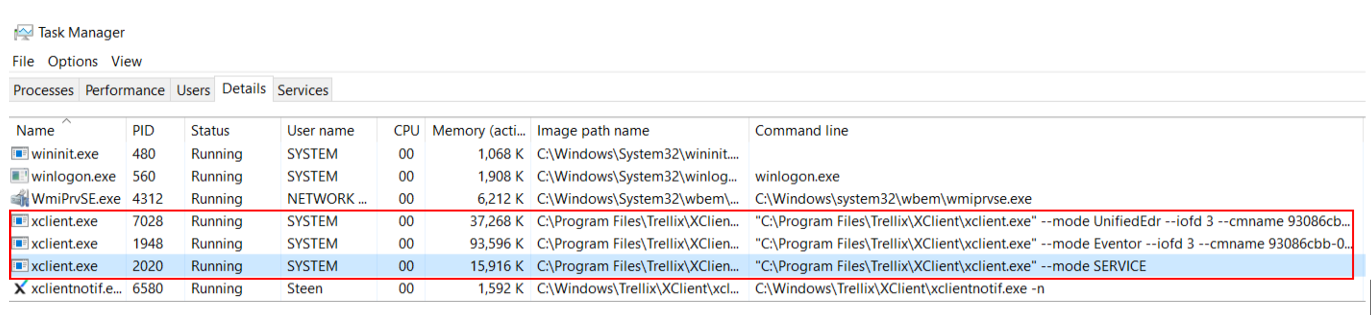
Note
Make sure you have the administrator access to view the Task Manager details.
Run the following command to view the processes consuming high CPU in Command Line.
Get-Process |
Sort-Object -Property CPU -Descending |
Select-Object -First 10 -Property Id,
@{
Name = "PPID"
Expression = { (Get-CimInstance -ClassName Win32_Process -Filter "ProcessId=$($_.Id)").ParentProcessId }
},
ProcessName,
@{
Name = "Memory(MB)"
Expression = { [math]::Round($_.WS / 1MB, 2) }
},
@{
Name = "CPU(TimeSec)"
Expression = { $_.CPU }
} |
Format-Table -AutoSizemacOS:
This can be identified by navigating to the Terminal for macOS endpoints, where different XClient processes can be viewed and managed.
Run the following command to view the processes consuming high CPU.
ps -eo pid,ppid,command,%mem,%cpu | sort -k5 -nr | head
Linux:
This can be identified by navigating to the Terminal for Linux endpoints, where different XClient processes can be viewed and managed.
Run the following command to view the processes consuming high CPU.
ps -eo pid,ppid,command,%mem,%cpu | sort -k5 -nr | head
How do I use the endpoint removal tool?
Endpoint Removal Tool (EPR) can be used if there is any need to perform a clean-up on the endpoint.
Endpoint Removal Tool can remove most Trellix endpoint products, including EDRF, Trellix EDR, Endpoint Security Agent (HX), Endpoint Security, Trellix Agent, and more. The Endpoint Removal Tool can be downloaded from the Software Catalog (ePO - On-prem), and it can be checked into the repository for deployment from ePO.
How do I install Endpoint Security (HX)?
Install Endpoint Security (HX) based on your server type. For details, see Install Endpoint Security (HX).
How do I determine the appropriate Endpoint Security (HX) server size?
To determine the appropriate Endpoint Security (HX) server, identify the server type and review the corresponding sizing requirements. For details, see Install Endpoint Security (HX) server while deploying EDRF using ePO - SaaS or ePO - On-prem.
How do I back up ePO databases and directories?
Back up your databases and directories before you upgrade ePO - On-prem. This ensures you can recover the environment if the upgrade fails. You must also perform a backup before you apply patches, change configurations, or migrate the server. Regular backups allow you to restore the data and system state during maintenance. For details, see Back up ePO - On-prem databases and directories.