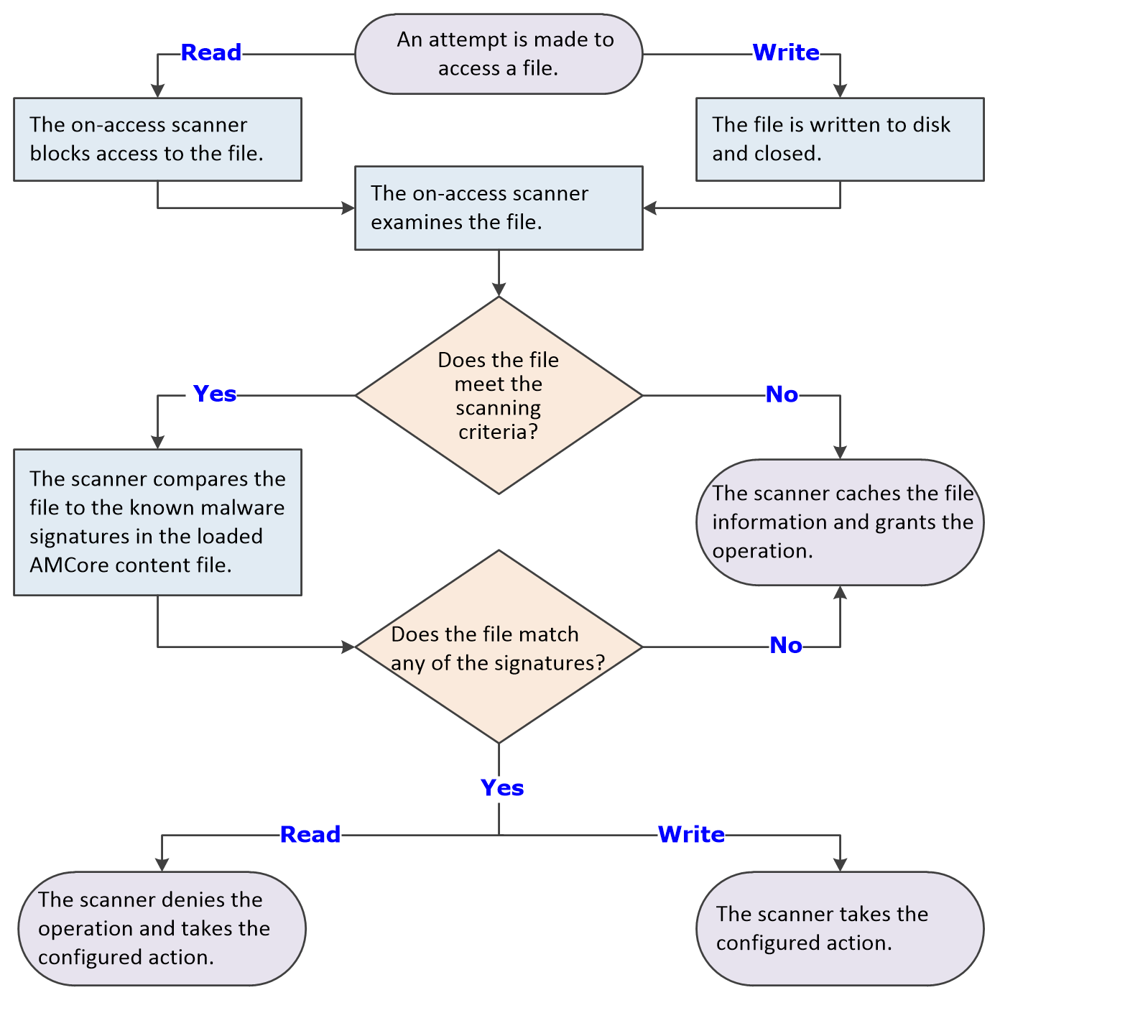
The on-access scanner examines files as the user accesses them, providing continuous, real-time detection of threats.
The on-access scanner integrates with the system at the lowest levels (File-System Filter Driver) and scans files where they first enter the system. When detections occur, the on-access scanner delivers notifications to the Service Interface.
You can also configure the on-access scanner to integrate with AMSI, a generic interface standard, provided by Microsoft and supported on Windows 10, Windows Server 2016, and Windows Server 2019 systems. AMSI allows applications and services to integrate with Threat Prevention, providing better protection against malware. Integrating with AMSI provides enhanced scanning for threats in non-browser-based scripts, such as PowerShell, JavaScript, and VBScript.
The on-access scan detection list is cleared when the Endpoint Security service restarts or the system reboots.
If you configure Trellix GTI, the scanner uses heuristics to check for suspicious files.
Windows 8 and Windows 10 — If the scanner detects a threat in the path of an installed Windows Store app, the scanner marks it as tampered. Windows adds the tampered flag to the tile for the app. When you try to run it, Windows notifies you of the problem and directs you to the Windows Store to reinstall.
The scanner uses this criteria to determine whether to scan an item:
The file extension matches the configuration.
The file information isn't in the global scan cache.
The file hasn't been excluded or previously scanned.
Read scan
When Read scan is selected and an attempt is made to read, open, or execute a file:
The scanner blocks the request.
The scanner determines whether the item must be scanned.
If the file doesn't need to be scanned, the scanner unblocks the file, caches the file information, and grants the operation.
If the file needs to be scanned, the scan engine scans the file, comparing it to signatures in the currently loaded AMCore content file.
If the file is clean, the scanner unblocks the file and caches the result.
If the file contains a threat, the scanner denies access to the file and responds with the configured action.
For example, if the action is to clean the file, the scanner:
Uses information in the currently loaded AMCore content file to clean the file.
Records the results in the activity log.
Notifies the user that it detected a threat in the file, and prompts for the action to take (clean or delete the file).
Write scan
The scanner examines the file only after it is written to disk and closed. When Write scan is selected and a file is written to disk:
The scanner determines whether the item must be scanned.
If the file doesn't need to be scanned, the scanner caches the file information, and grants the operation.
If the file needs to be scanned, the scan engine scans the file, comparing it to signatures in the currently loaded AMCore content file.
If the file is clean, the scanner caches the result.
If the file contains a threat, the scanner responds with the configured action.
The scanner doesn't deny access to the file.