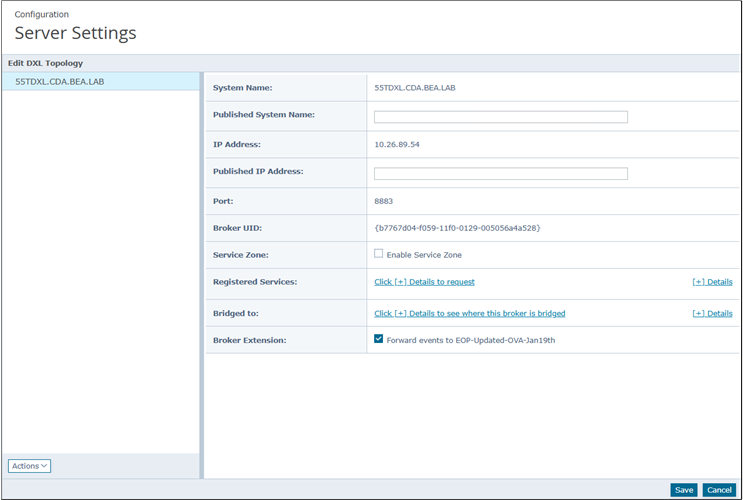
Configure the new registered server to enable communication between the DXL Broker and the EDR Telemetry Store virtual appliance.
Note
If you have upgraded to EDRF extension 2.1.2 or later and DXL Broker extension 6.1.3 or later, you must create a new registered server instance to replace the one deleted during the upgrade.
In Trellix ePO, navigate to Menu → Configuration → Registered Servers.
Click New Server.
From the Server type drop-down list, select EDR Telemetry Store.
Enter a logical name for the server, add any optional notes, and click Next.
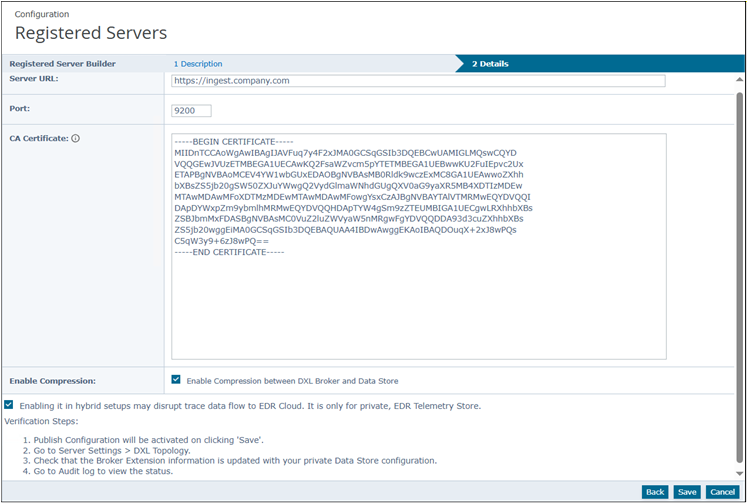
Configure the connection details:
Server name: Enter the full URL of the EDR Telemetry Store.
For example:
https://<IP_address> or https://ingestion.company.comImportant
Do not create multiple registered servers with the same URL. Duplicate configurations conflict and prevent data ingestion.
Port:
9200
In the Certificate field, paste the EDR Telemetry Store server certificate.
To get the EDR Telemetry Store certificate:
Connect to the EDR Telemetry Store via SSH.
ssh admin@<IP_address>
Run the following commands:
enable show certificates opensearch
From the output, copy the entire certificate block.
Important
You must include the
-----BEGIN CERTIFICATE-----and-----END CERTIFICATE-----lines.
(Optional) Select the Enable Compression between DXL Broker and Data Store checkbox.
Note
This enables compression between the DXL Broker and the EDR Telemetry Store. Enable this setting only if you have high bandwidth constraints, as it adds additional load to the DXL Broker.
Select Enabling it in hybrid setups may disrupt trace data flow to EDR Cloud. It is only for private, on-premise Data Store servers.
Note
This approves the configuration of DXL Brokers to redirect trace data to your on-premise EDR Telemetry Store.
Click Save.
The configuration is saved and automatically published to the connected DXL Brokers.
If you use a custom certificate for Trellix ePO console, mTLS connections can fail. For more information, see How do I update the OpenSearch truststore for custom ePO certificates.
Configure DXL Topology
Select Menu → Server Settings → DXL Topolgy.
Click Edit.
Under Broker Extensions, ensure that the Forward events to [Your-EDR Telemetry Store-Server-Name] checkbox is selected.
This option is selected by default.
Important
Select the EDR Telemetry Store cluster designated to receive trace data. EDRF supports forwarding trace data to a single active cluster.
Click Save.