Use the Certificate Management page to activate the web-cert certificate on the Web server, and on the Email Security — Server appliance to activate the mta-cert certificate on the MTA.
Note
The VX Series appliance has a CLI, but it does not have a Web UI. The recommended method for this configuration on a VX Series appliance is through the managing Central Management System appliance Web UI.
Perform this procedure only if the system self-signed certificate is currently active on the Web server or MTA.
Click the Settings tab on all appliances except the HX Series. On the HX Series appliance, select Appliance Settings from the Admin menu.
Click Certificates/Keys in the sidebar and locate the HTTPS Configuration section.
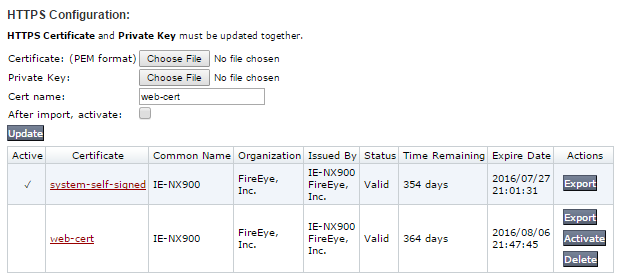
Click Activate in the Actions column for the web-cert certificate.
Note
To reactivate the system-self-signed certificate, click system-self-signed in the list, or click Activate in the column for the system-self-signed certificate.
Click the Settings tab.
Click Certificates/Keys in the sidebar and locate the MTA Certificate Configuration section.
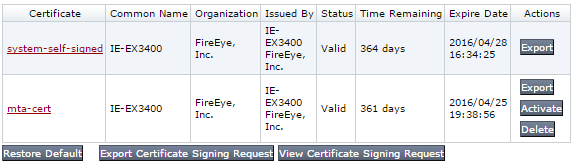
Click Activate in the Actions column for the mta-cert certificate.
Note
To reactivate the system-self-signed certificate, click system-self-signed in the list, or click Activate in the column for the system-self-signed certificate.