Follow these steps to add a rule to match a condition for a particular IP address using the Central Management System appliance Web UI.
You can configure a rule to match traffic from a particular target, identified by the victim IP address. You can also configure a rule to match traffic from a particular source, identified by an attacker appliance. You can add the relevant tag to this rule for all incoming alerts that contain the specified source IP address or target IP address.
Note
You can add rules to match a condition for a particular IP address only using the Web UI.
In the Web UI, choose Settings > CM Settings > Alert Management > Rules.
Click Create Rule. The Create Rule window opens.
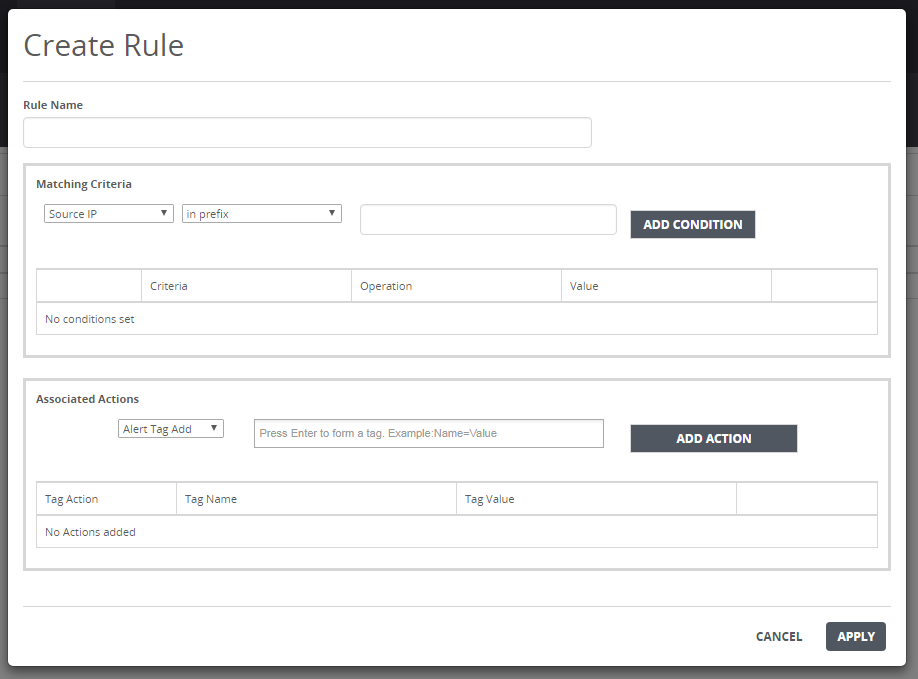
In the Rule Name field, enter the name of the rule.
In the Matching Criteria area:
Choose Source IP or Target IP.
Choose in prefix, not in prefix, present, not present, equal to, or not equal to as the operation to match the particular IP address.
Enter the IP address of the source or target.
Click Add Condition. The source IP address or target IP address condition is added to the match criteria table.
In the Associated Actions area:
Choose Alert Tag Add to add a tag to an alert that includes the rule that contains the matched condition. Or choose Alert Tag Delete to delete a tag from an alert that includes the rule that contains the matched condition.
Enter any value you want to associate with the tag. Select an existing tag or tag/value pair, or enter a new tag or tag/value pair.
Click Add Action. The rule action is added to the associated tag table.
Click Apply.
The following message appears: