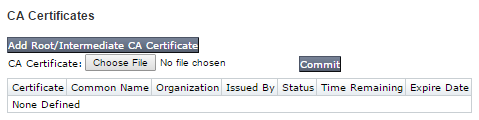
Use the CA Certificates section of the Certificate Management page to add a supplemental CA certificate to the default CA list.
Note
The VX Series appliance has a CLI, but it does not have a Web UI. The recommended method for this configuration on a VX Series appliance is through the managing Central Management System appliance Web UI.
To add a supplemental CA certificate:
Click the Settings tab on all appliances except the HX Series. On the HX Series appliance select Appliance Settings from the Admin menu.
Click Certificates/Keys in the sidebar.
In the "CA Certificates" section of the page, click Add Root/Intermediate CA Certificate.
Click Choose File.
In the dialog box that opens, go to the certificate file in your local file system.
Network Security (NX) > Common Security Platform Product Docs > System Security Guide Release 2026.1 > Certificates > Managing CA certificates > Configuring a Web server CA certificate chain
Central Management System (CMS) > Central Management System System Administration Guide Release 11.x > Appliances > Configuring managed appliances > Configuring managed appliances using the Web UI