Follow these steps to clone a graph section of an existing custom report and save it as a new section for managed appliances using the Central Management System appliance Web UI.
You can create a new graph section based on a clone of an existing section. The new graph section inherits the match characteristics from the graph section of the existing report. When you clone the characteristics of an existing report, the updated report will not overwrite the existing section.
Note
You can clone a graph section of a generated custom report only using the Web UI.
Note
If you want to completely delete a section of a custom report, click Delete in the Configure Section page.
Note
To preview your report, click the toggle button ( ) in the custom report configuration page. Click the button again to return to edit mode.
Access to the Web UI of the Central Management System appliance as Admin, Analyst, or Monitor
You have defined the settings for the custom report. For details about how to define the settings for the custom report, see Defining custom report settings using the Web UI .
You have generated one or more custom reports for a managed appliance using the Central Management System Web UI.
In the Web UI, choose Reports > Custom Reports.
In the Generated Custom Reports table, locate the custom report you want to clone.
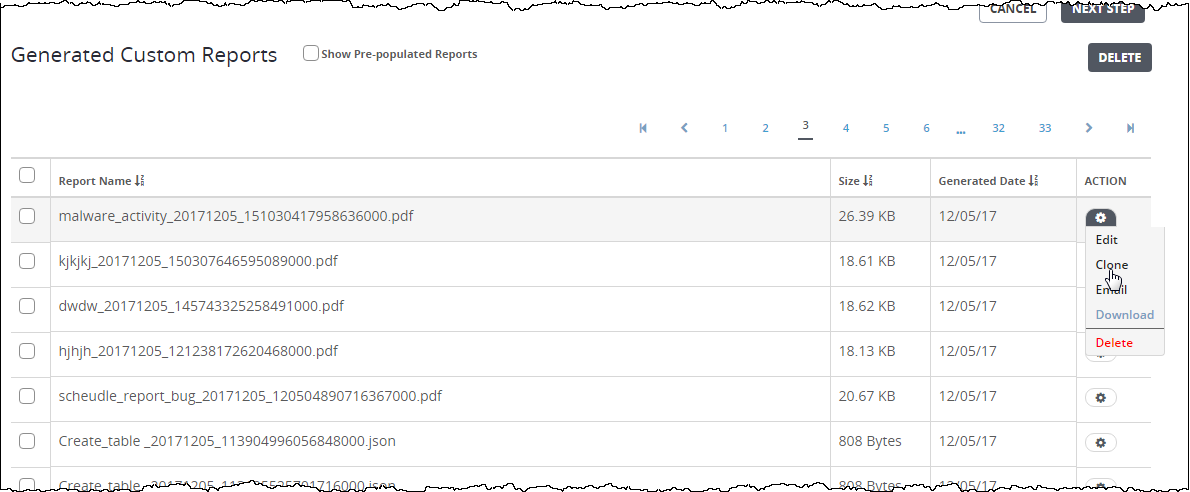
Click the action icon (
.png "CM_AlertMgmtAction_icon.png") ) in the Action column.
) in the Action column.Click Clone. The characteristics for each section of the report appears.
For details about how to clone a graph section in a custom report, see Cloning a graph section of a custom report using the Web UI .