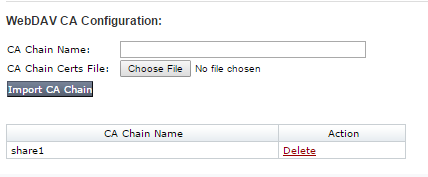
Enter a unique name for the CA chain in the CA Chain Name field. This is the name you specify when you mount the secure WebDAV share. The name must begin with a letter or number. The remaining characters in the name can be letters, numbers, periods (.), dashes (-), and underscores (_).
Select the certificate chain file:
Click Choose File in the CA Chain Certs File field.
In the dialog box that opens, navigate to the file in your local file system that contains the chain of PEM strings.
Click Import CA Chain.
To delete a SharePoint CA certificate chain:
Click the Settings tab.
Click Certificates/Keys in the sidebar.
Locate the certificate in the CA Chain Name column.
Network Security (NX) > Common Security Platform Product Docs > System Security Guide Release 2026.1 > Certificates > Managing CA certificates > Configuring a Web server CA certificate chain
Network Security (NX) > Common Security Platform Product Docs > System Security Guide Release 2026.1 > Certificates > Managing CA certificates > Configuring a Web server CA certificate chain