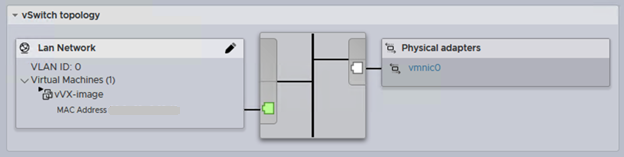
After you create a virtual appliance, by default, all its virtual ports are connected to vSwitch on the ESXi host. The vSwitch virtual switch should include:
The Management Network, which includes the physical management interface for the ESXi host (VMkernel Port)
The Virtual Machine (VM Network) port group, which includes the virtual appliances
In the following example, the VM Network port group in vSwitch includes one Intelligent Virtual Execution - Server sensor.
Intelligent Virtual Execution networking
To configure virtual networking for an Intelligent Virtual Execution - Server sensor, you must do the following:
For each submission/cluster port, create a virtual port group on an ESXi Host standard switch that is bound to a physical adapter on the ESXi server.
Move the adapters on the virtual sensor from the VM Network port group to the associated virtual port groups you created in this procedure.
Important
The procedures in the following sections use VMware ESXi versions 6.7.0 and 7.0.3. The navigation instructions and user interface may vary based on your version of these products.
Creating a port group for an interface
Log in to ESXi Host Client.
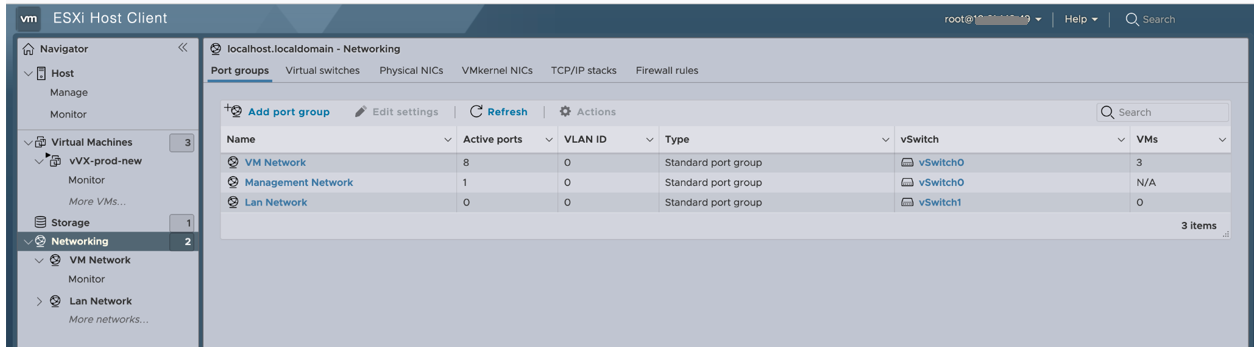
In the left pane, select Networking.
Select Port groups tab.
Click Add port group in the top-right of the window.
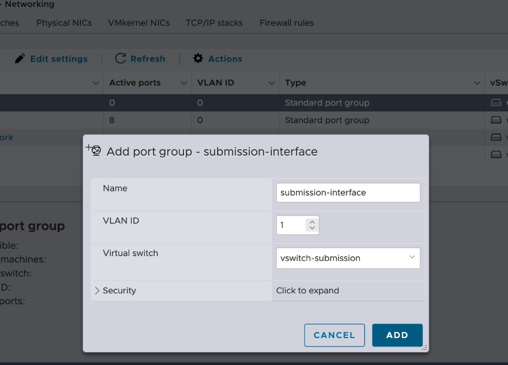
The Add port group popup window will appear.
Enter a Name for the new port group.
Select the VLAN ID for the new port group from the scroll box.
Select the required Virtual switch from the drop down menu.
Click Add button to add the new port group.
Creating a submission/cluster interface
Log in to ESXi Host Client.
In the left pane, select Networking.
Select Virtual switches tab.
Click Add standard virtual switch in the top-right of the window.
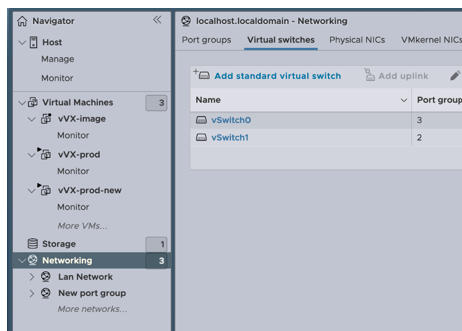
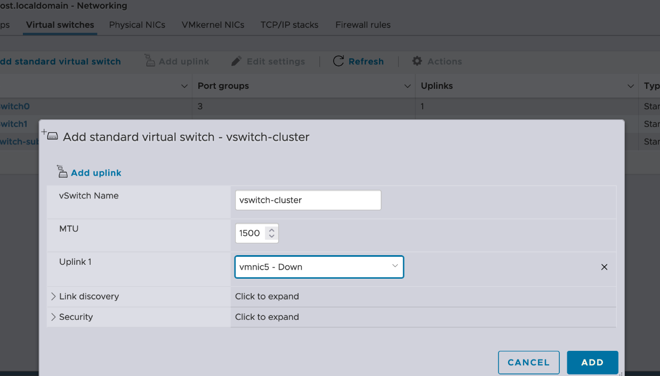
The Add standard virtual switch popup window will appear.
Enter a vSwitch name.
Select the value of MTU from the scrollbox.
Select the Uplink 1 value from the drop down menu.
Click Add button to add the new interface.
Moving the submission/cluster port to the new port group
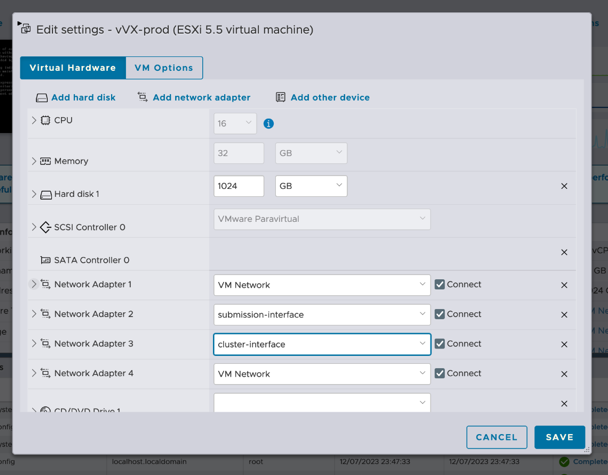
The network adapter number on the Hardware tab maps to the number of the interface on the virtual appliance. For example, Network adapter 1 maps to the ether1 interface, Network adapter 3 maps to the ether3 interface, and so on.
Login to ESXi Host Client.
In the left pane, select vVX-prod to open the vVX-prod page in the right pane.
Right-click on the vVX-prod page and select Edit settings.
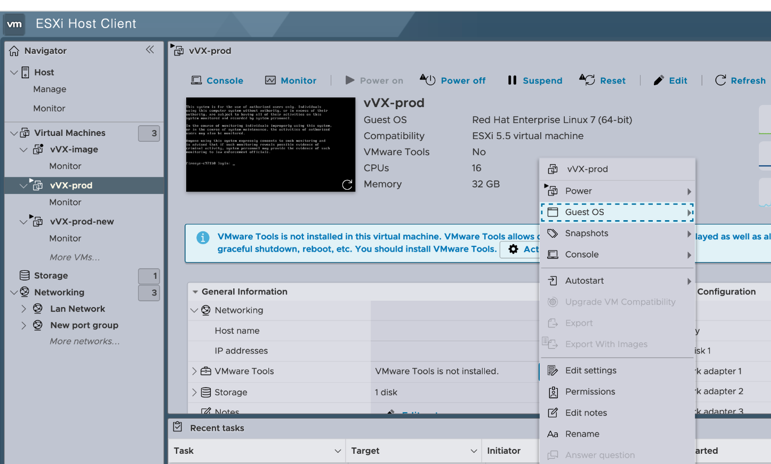
The Edit settings popup window will appear.
Assign the required interfaces to the respective Network Adapters from their dropdown menus.