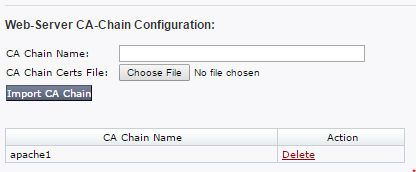
Use the Web-Server CA-Chain Configuration section of the Certificate Management page to configure a Web server CA certificate chain. After you configure the CA chain, you must activate it so the Web server can use it.
Important
See Configuring a Web server CA certificate chain for details about how to bundle the certificates in the chain.
Note
The VX Series appliance has a CLI, but it does not have a Web UI. The recommended method for this configuration on a VX Series appliance is through the managing Central Management System appliance Web UI.
Click the Settings tab on all appliances except the HX Series. On the HX Series appliance, select Appliance Settings from the Admin menu.
Click Certificates/Keys in the sidebar.
Enter a unique name for the CA chain in the CA Chain Name field. The name must begin with a letter or number. The remaining characters in the name can be letters, numbers, periods (
.), dashes (-), and underscores (_).Select the certificate chain file:
Click Choose File in the CA Chain Certs File field.
In the dialog box, navigate to the file in your local file system that contains the chain of PEM strings.
Click Import CA Chain.
Activate the CA chain as described in Activating a web server CA certificate chain using the CLI.
Click the Settings tab on all appliances except the HX Series. On the HX Series appliance, select Appliance Settings from the Admin menu.
Click Certificates/Keys in the sidebar.
Locate the certificate in the CA Chain Name column.
Click Delete in the Action column.