Helix Enterprise users with the required entitlements can use the Appliance Setting pages in the Helix Enterprise Web UI to perform the following tasks on Trellix on-premises appliances:
Configure policy-related and other settings.
Update to the latest system image, guest images, and security content.
Specify the types of data to stream.
Note
The Helix Enterprise policy-related pages and the Helix Enterprise Updates page provide the same functionality as their associated pages in the appliance Web UI, but there may be variations in appearance.
The following illustration is from a connected Network Security appliance.
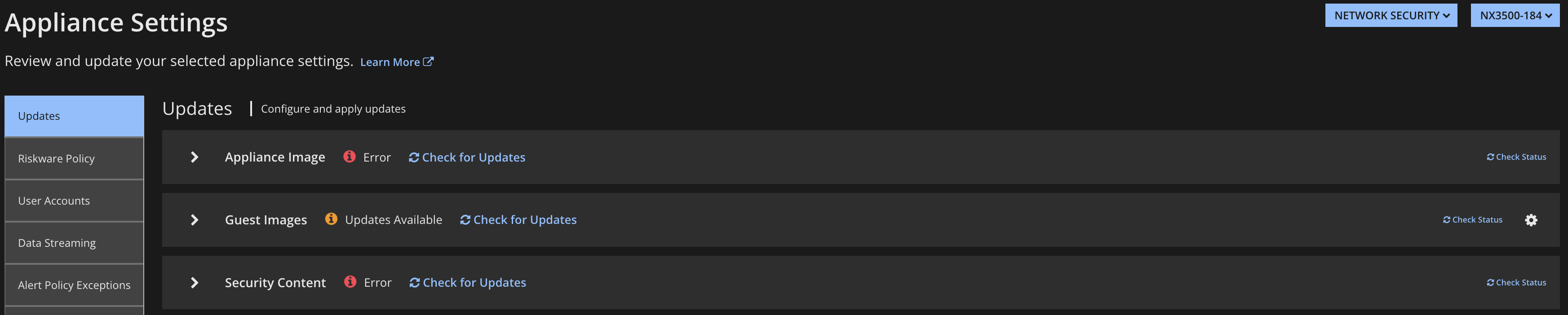
You can use the Write to Group switch on some Appliance Settings pages to apply changes to a group of appliances, either a Trellix system group or a custom group. For information about groups, see Working with appliance Groups.
Configuration changes are reflected in both the Helix Enterprise Web UI and the appliance Web UI, CLI, or both. For example, a YARA rule file you upload from the Helix Enterprise Web UI for a Network Security appliance will be also listed on the YARA Rules page of the Network Security Web UI.
Settings include the following:
Network Security | Network Security Evidence Collector | Email Server | Endpoint Security (HX) |
|---|---|---|---|
Updates Riskware Policy User Accounts Data Streaming Alert Policy Exceptions Whitelists YARA Rules SmartVision Config Certificates/Keys ICAP Event Filters 3rd Party Feeds IPS Configure | Updates User Accounts Data Streaming Whitelists Certificates/Keys Event Filters | Updates Riskware Policy User Accounts Data Streaming Email Server Email MTA Email Policy Live Interface Impersonation YARA Rules Certificates/Keys Allowed List Blocked List Attachment Decryption 3rd Party Feeds | Updates |
Note
The settings pages that are available depend on the system image running on the appliance. The Write to Group switch does not apply settings to appliances in the group that are not running the minimum system image. For the minimum system image for each settings page, see the "Software Requirements" section of the Helix Integration Guide.
To configure appliance settings:
Log into the Helix Enterprise Web UI.
From the main menu, select Manage > Appliance Settings.
Select the appliance from the drop-down list.
Click the appropriate tab on the sidebar.
Configure policy-related and system configuration settings as described in the User Guide for the appliance.
Configure custom feeds on the 3rd Party Feeds page as described in the "Custom IOC Feeds" information in the Central Management Administration Guide.
Configure IPS policies on the IPS Configure page as described in the Network Security IPS Feature Guide.
Configure certificates and keys as described in the Trellix System Security Guide.
Enable data streaming as described in Enabling data streaming on appliances.
Update the appliance as described in Updating appliances.
To apply settings to all appliances in a group:
Move the Write to Group switch at the top of the page to the "on" position.
Configure settings on an Appliance Settings page for a selected appliance.
Save your changes.
When prompted, confirm that you want to apply the settings to all appliances in the group to which the selected appliance belongs.