Note
Perform this procedure for the manual deployment method only. Do not perform this procedure if you are using the AWS CloudFormation template method.
This topic describes how to apply the activation code to the virtual appliance instance and configure a password for the initial admin user.
Important
This procedure is optional and should only be used with the manual deployment method. (It should not be performed with the AWS CloudFormation template method.) If you skip this procedure, you will be prompted to enter the activation code and change the password when you log into the initial SSH session to perform the initial configuration of the appliance.
Open the EC2 Management Console.
Select Instances > Instances in the left pane.
Select the instance, right-click, and then select Instance Settings > View/Change User Data.
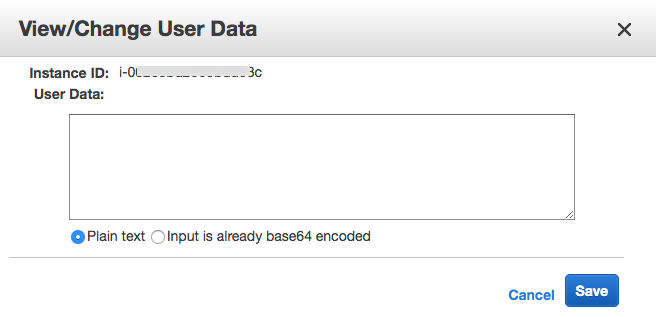
Copy and paste the following script in the User Data field. Replace
<code>with the activation code for the instance that was included in the onboarding email from Trellix and replace<password>with the new password for the initial admin user.{ "va_bootstrap": { "activation_code": "<code>", "reset_admin_password": "<password>"} }
Important
The syntax (including the indentation) must match what is shown in this step. Otherwise, you will be unable to establish a password-authenticated SSH session with the instance.
Click Save.
Right-click the instance, and select Instance State > Start.
Note
Trellix recommends that you clear the user data field after the virtual Network Security appliance is deployed.