You can add up to five widgets to a custom dashboard. A custom dashboard requires at least one widget.
Open your custom dashboard.
Click Add Widget.
In the Configure Widget window, enter a title and optional description for your widget.
Select the type of widget that represents how you want to display the data: Table, Pie, or Bar.
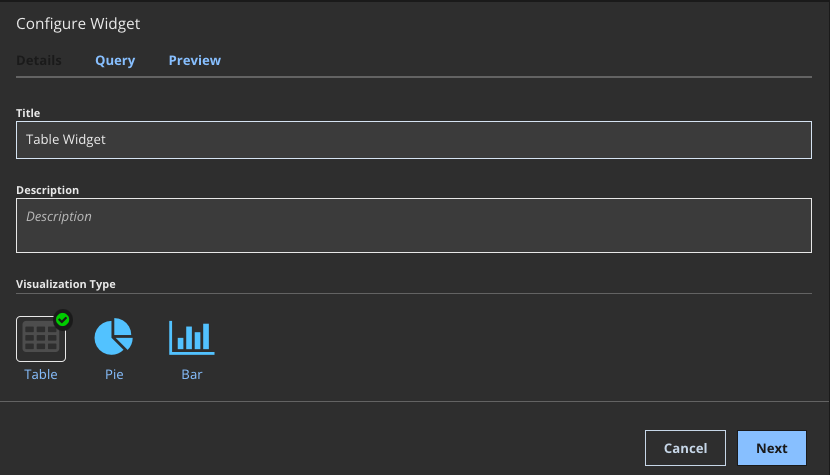
Click Next. The second page of the Configure Widget wizard appears.
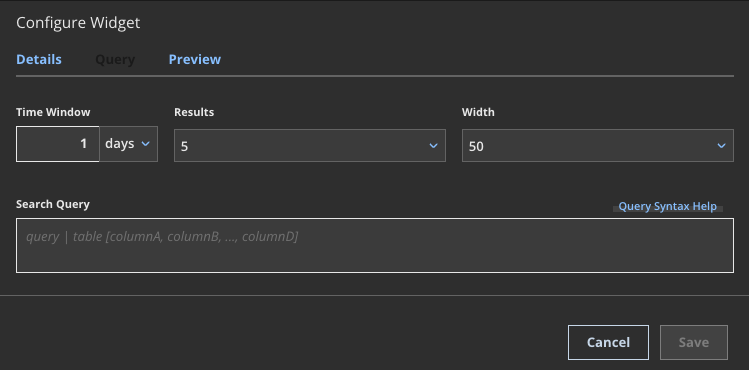
In the Time Window field, specify the period of time in which your query should search. The time window must be between 1 hour and 7 days. Select units of time (hours, days, or weeks) from the drop-down list in the field.
In the Results field, specify the number of results that should be displayed in the widget. You can view 5-25 results per widget. The default is 5 results.
In the Width field, select the horizontal size of the widget as a percentage of screen size in increments of 25%. When you select the width, the dashboard updates to show how it will appear when you choose that setting for your widget.
Enter a TQL query in the Search Query field. If you selected a table widget, your query must contain a
tableorgroupbytransform.Note
Your MQL query must resolve successfully before you can create your widget. If Helix Enterprise finds errors, feedback messages help you resolve them. For more information, see the TQL Reference Guide.
Click Preview to preview the widget.
Click Save.
Sample widgets
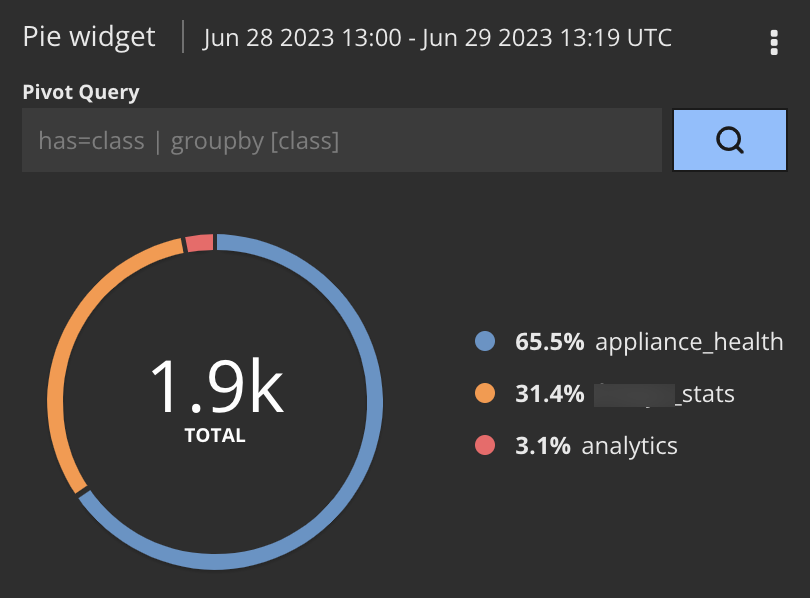
The following is a pie widget. The TQL query used for this widget is:
has=class | groupby [class]
The chart shows that there are 5700 events represented by the top 5 classes, but there may be many more events in classes not listed. You can mouse over the Limited (5) to see how many additional events matched the query.
The following shows a custom dashboard with the two types of widgets. Both widgets display the results of the same query.
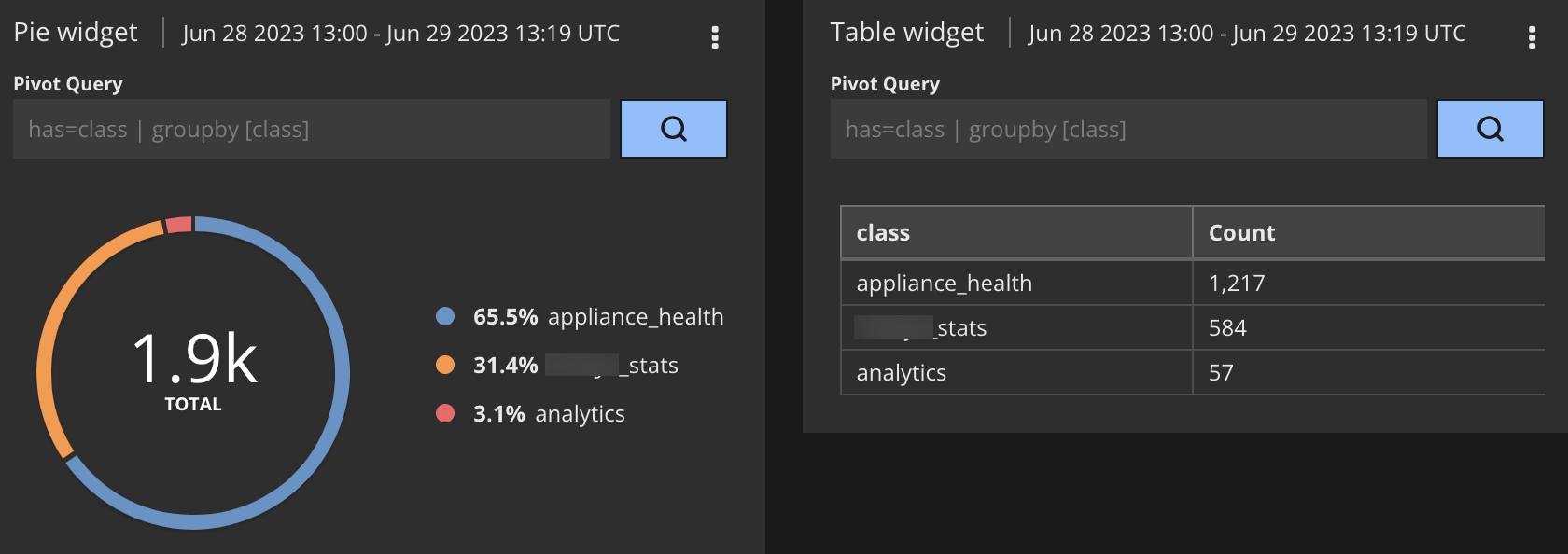
Table widgets can include a potentially unlimited number of columns. If some columns are not visible, increase the width of the widget or scroll left and right in the widget.
You can arrange the widgets in your custom dashboard to better suit your needs. See Arranging widgets.