The calendar widget in the Helix Enterprise Web UI allows you to select a date range for a search. For example, you can enter class=fireeye_nx in the search bar, select Past Hour from the calendar, and run the search. The results will include only Network Security events that Helix Enterprise received within the past hour. For details about using the calendar widget, see the Helix Enterprise Product Guide.
The calendar widget is the recommended method for selecting a date range. However, you can also enter date and time taxonomy in the search bar to refine the selected calendar range or specify a range that exceeds what the calendar accepts.
For example, you can do the following:
Search for events from the first three months of 2022. This is useful because Index search stores alert data for a longer period than you can select in the calendar widget in the Helix Enterprise Web UI.
Limit the search to a maximum of 23 hours of data starting 24 hours ago.
Match against events within a specific time range, such as 10 minutes.
Search for user activity that occurred outside normal working hours, such as connecting to a VPN.
Commonly searched timestamp fields include eventtime and meta_ts.
eventtime(oreventtimeutc) is created when a log event (such as a user opening a PDF file) occurs in your network. This timestamp is a parsed taxonomy field in the event details section in the Helix Enterprise Web UI.Note
An event may not include either timestamp.
meta_tsis created when a log ingestion device or service receives that log event from your environment and sends it to Helix Enterprise. This timestamp is displayed in the UTC field at the top left of the event details. Themeta_tstimestamp tracks the event through the Helix Enterprise lifecycle. Search results are displayed inmeta_tstimestamp order by default.The
meta_tstimestamp is used to evaluate start and end expressions. Start and end expressions in TQL queries take precedence over the date and time range defined in the calendar widget.
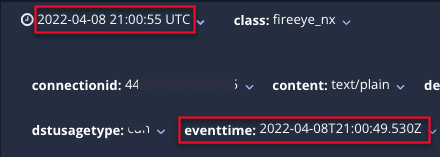
To simplify referencing, Helix Enterprise converts timestamps in taxonomy fields into UTC. The Helix Enterprise uniform timestamp format follows:
YYYY-MM-DDThh:mm:ss.sssZ
where:
Tindicates that the next value will be a time value.Zindicates that the timestamp is Zulu (UTC) time.
For example:
2022-03-20T19:33:12.000Z refers to March 20, 2022, 7:33:12 p.m. Zulu time.
Note
If there is no time zone indicator, times are formatted in UTC.