Follow these steps to delete a rule completely for an alert tag on a managed appliance using the Central Management System appliance Web UI.
Note
You can delete rules for an alert tag only using the Web UI.
Prerequisites
Log in to the Web UI of the Central Management System appliance as Admin or Analyst
You have added one or more tags to a database on a managed appliance. For details about how to add a tag to an alert, see Adding Tags Using the Web UI .
You have added one or more rules to a managed appliance. For details about how to configure rules to manage a tag, see Configuring Rules to Manage Alert Tags .
To delete a rule for an alert tag:
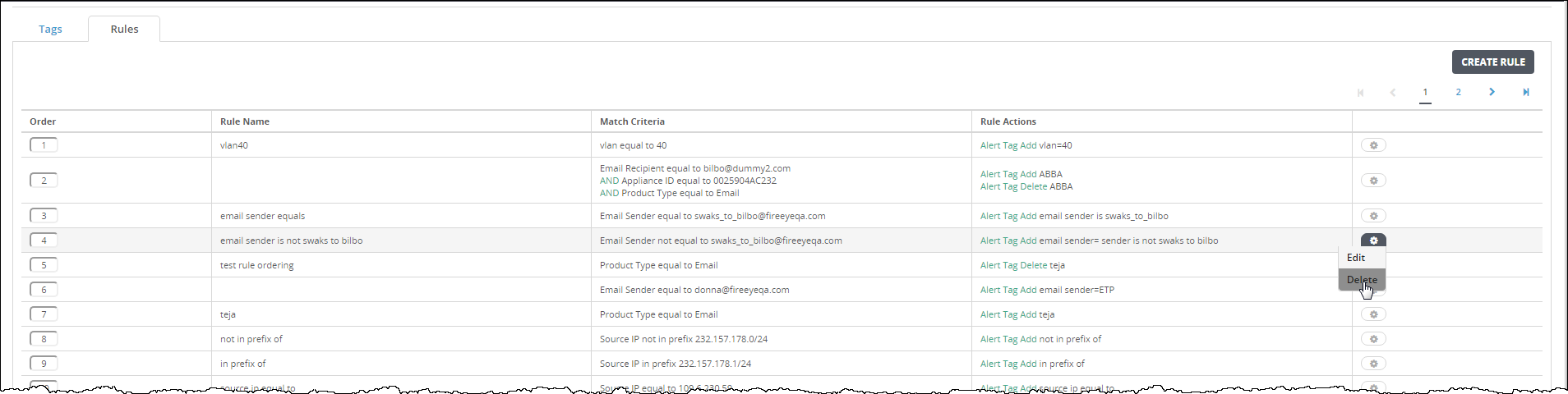
In the Web UI, choose Settings > CM Settings > Alert Management > Rules.
In the table, locate the rule you want to delete.
Click the action icon () in the Actions column.
Click Delete. A dialog box prompts you to confirm your changes.
Click Yes.
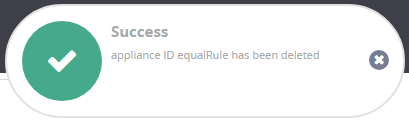
The applicable rule is removed from the table. The following message appears:
Central Management System (CMS) > Central Management System System Administration Guide Release 11.x > Appliances > Filtering alerts using tags and rules > Configuring rules to manage alert tags
Central Management System (CMS) > Central Management System System Administration Guide Release 10.x > Appliances > Filtering alerts using tags and rules > Adding tags to alerts manually for managed appliances using the Web UI
Central Management System (CMS) > Central Management System System Administration Guide Release 10.x > Appliances > Filtering alerts using tags and rules > Configuring tags and values
Central Management System (CMS) > Central Management System System Administration Guide Release 10.x > Appliances > Filtering alerts using tags and rules > Configuring rules to manage alert tags
.png "CM_AlertMgmtAction_icon.png") ) in the Actions column.
) in the Actions column.