Follow these steps to delete a table section from a custom report for managed appliances using the Central Management System appliance Web UI.
Note
You can delete a section from a custom report only using the Web UI.
Prerequisites
Access to the Web UI of the Central Management System appliance as Admin, Analyst, or Monitor
You have added one or more table sections to a new custom report for a managed appliance using the Central Management System Web UI. For details about how to add a table to a section of a custom report, see Adding tables to a custom report using the Web UI .
To delete a table section from a custom report:
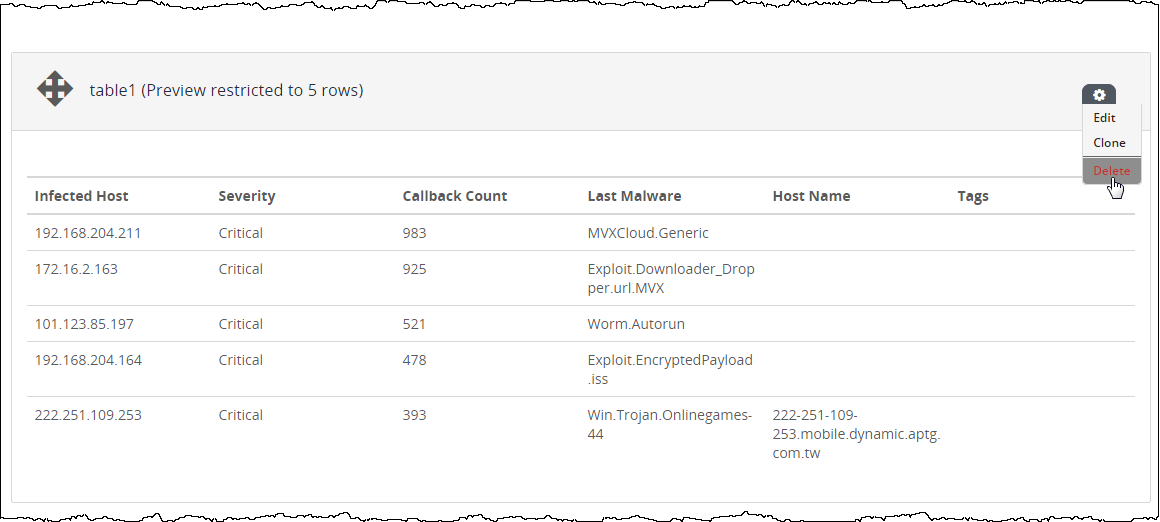
In the Custom Reports page, locate the table section you want to delete.
Click the action icon ().
Click Delete.
The table section is removed from the custom report.
Note
You must generate the report for the changes to take effect.
Central Management System (CMS) > Central Management System System Administration Guide Release 10.x > Appliances > Working with reports for managed appliances > Customizing reports for managed appliances > Sending, downloading, and deleting custom reports
Central Management System (CMS) > Central Management System System Administration Guide Release 10.x > Appliances > Working with reports for managed appliances > Customizing reports for managed appliances > Configuring tables for custom reports
Central Management System (CMS) > Central Management System System Administration Guide Release 11.x > Appliances > Working with reports for managed appliances > Customizing reports for managed appliances > Editing and cloning reports that have been generated
Central Management System (CMS) > Central Management System System Administration Guide Release 10.x > Appliances > Working with reports for managed appliances > Customizing reports for managed appliances > Editing and cloning reports that have been generated
.png "CM_AlertMgmtAction_icon.png") ).
).