Keysight CloudLens
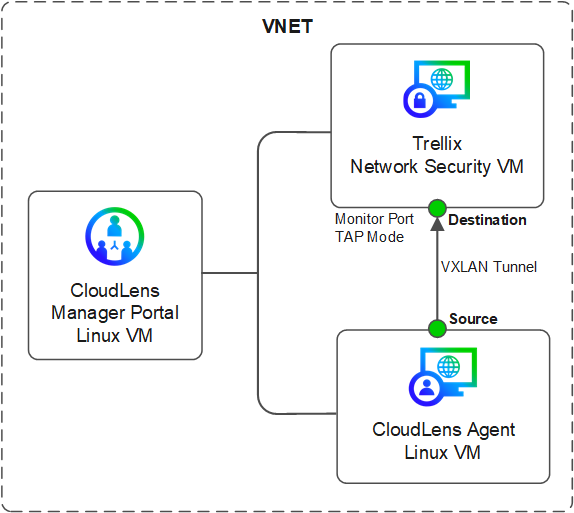
Deploy Keysight CloudLens and Network Security virtual machines in TAP or SPAN mode as shown in the below figure. In this integration, traffic flows from the CloudLens sensors to the Network Security virtual machine.
Note
This topic provides high-level integration steps. For details, see the Microsoft Azure and CloudLens documentation. For assistance with the CloudLens configuration, contact cloudlens@keysight.com.
Make sure that the Network Security monitor port (destination) is set up in the TAP mode and has been allocated an IP address.
Verify if the destination port and the source port (the VM where the CloudLens agent is installed) are reachable and has the required routes configured.
CloudLens 6.0 or later.
In Azure Networking, make sure the following rules are added to allow the VXLAN tunnel traffic to flow: On the source, an outbound allow rule for UDP 4789, and on the Trellix destination monitor port, an inbound allow rule for UDP 4789.
CloudLens Manager Portal and CloudLens agent are installed using the commands and instructions provided in the CloudLens documentation.
Task list
Traffic mirroring in Azure requires the following basic tasks:
Make sure the prerequisites listed in the previous section are met.
Go to the CloudLens portal.
Create a project.
Create a source group and a tool group for the project, based on the filters that meet your requirements. When creating the tool group, give the aggregation interface the same name as the Trellix monitor port NIC, for example: pether3.
Create a static destination specifying the IP address of the Trellix destination monitor port.
Define a secure visibility path between the source and tool groups. A VXLAN tunnel is automatically established after the path is defined.
Gigamon GigaVUE
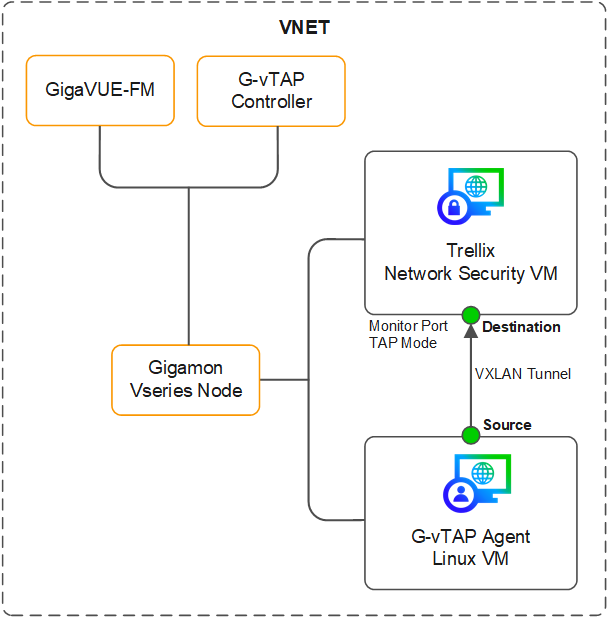
Use the Gigamon Azure-GigaVUE V Series VMs and Network Security virtual machines in TAP mode. All traffic is mirrored from the G-vTAP Agent to the Trellix Network Security virtual machine.
Note
This brief overview provides a summary of the integration steps. For comprehensive instructions, refer to the Cloud Suite for Azure-GigaVUE V Series Guide. For additional assistance, reach out to Gigamon support.
Prerequisites
Make sure that the Network Security monitor port (destination) is set up in the TAP mode and has been allocated an IP address.
Verify if the destination port and the source port (the VM where the G-vTAP agent is installed) are reachable and has the required routes configured.
Ensure that you have configured GigaVUE and deployed the following components:
Important
For configuration instructions, see the latest GigaVUE documentation.
GigaVUE-FM
G-vTAP controller
GigaVUE-Vserier node
Task list
Login to the GigaVUE-FM.
Define the source and destination ports. Set the source port mtu 1450 or lower.
Establish VXLAN mirror tunnel and monitoring session.