Follow these steps to download a third-party IOC feed from the Central Management System appliance using the Web UI.
Note
You can download a custom IOC feed only using the Web UI.
You cannot download the local feed.
Prerequisites
Log in to the Web UI of the Central Management System appliance as Admin.
Upload one or more third-party feeds to a managed Network Security appliance from a flat file or an XML-based file in STIX 1.2 format. For details about how to upload a feed, see Uploading a Third-Party Feed .
To download a third-party IOC feed:
In the Web UI, choose Settings > Appliance Settings.
Select the managed Network Security appliance and then select 3rd Party Feeds.
The page lists the custom feeds that are uploaded.
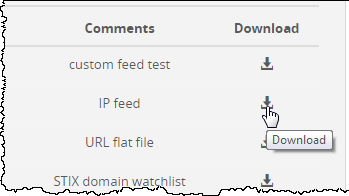
In the table, locate the third-party feed you want to download to your local desktop.
Central Management System (CMS) > Central Management System System Administration Guide Release 11.x > Appliances > Configuring custom IOC feeds > Uploading a third-party feed