To configure ERPM to send logs to the Comm Broker Sender:
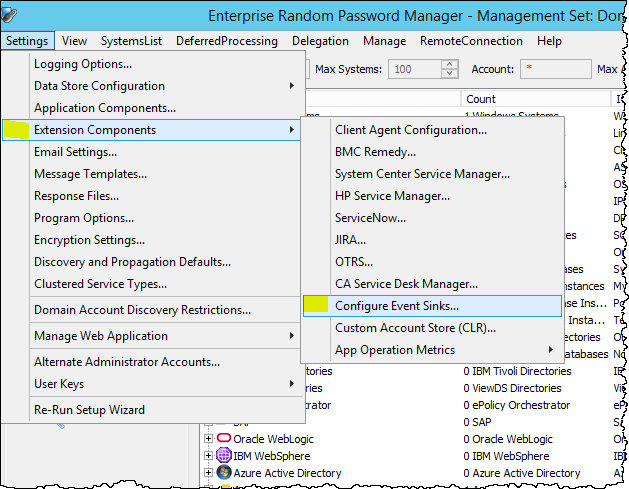
From the ERPM console, select Settings > Extension Components > Configure Event Sinks…
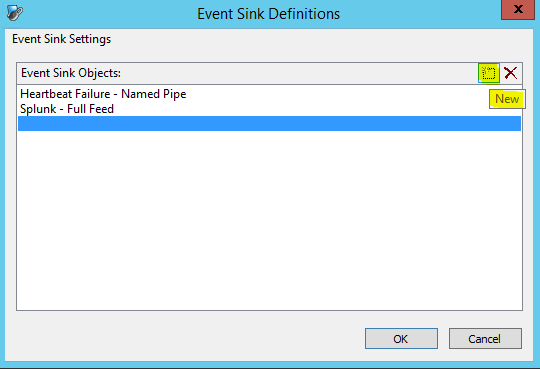
Click New:
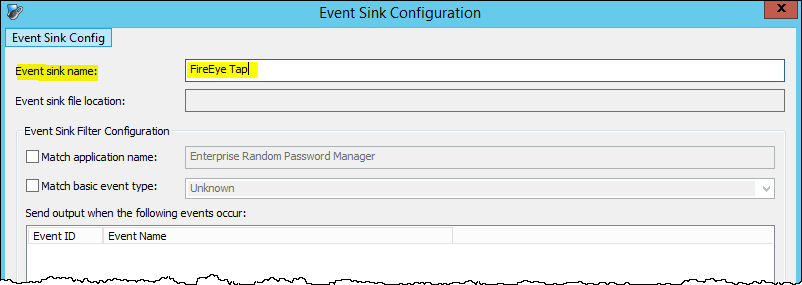
Enter a name for your new Event Sink:
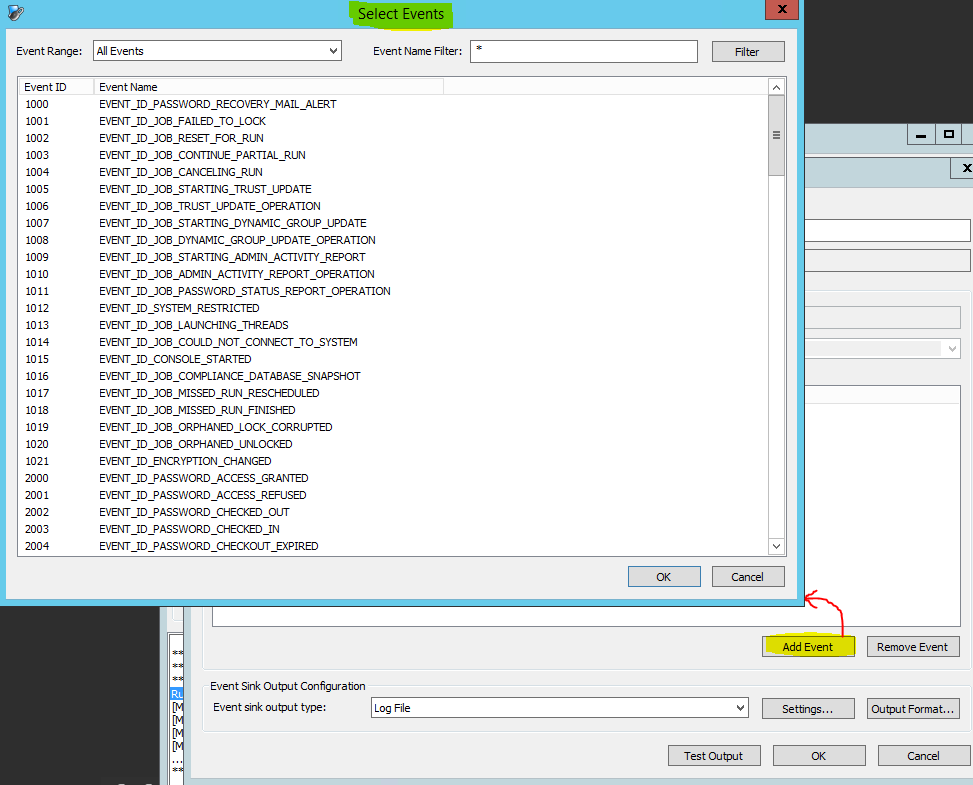
Click the Add Event button in the Event Sink Configuration window.
Select the events you want ERPM to forward to the Comm Broker and click OK:
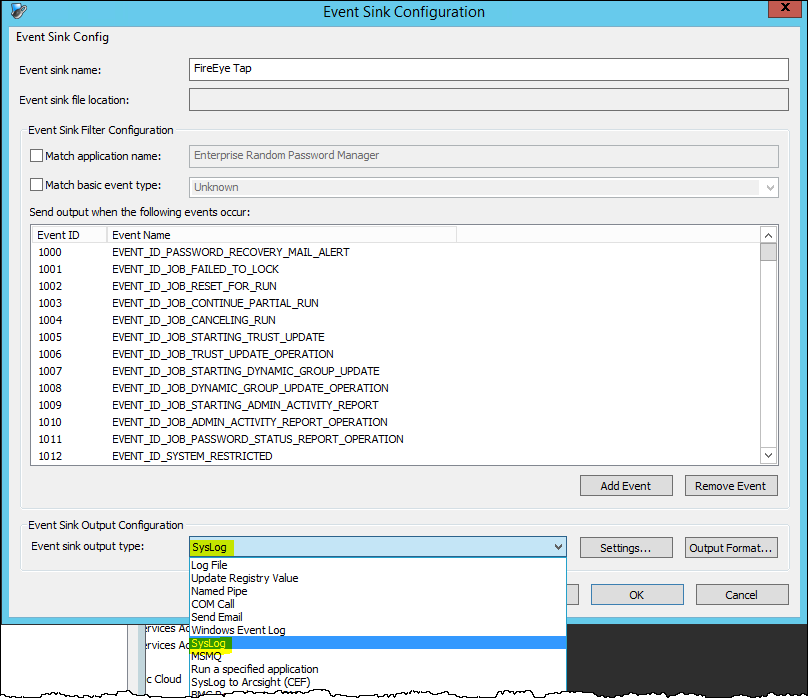
In the Event Sink Configuration window, select Syslog from the Event sync output type dropdown menu:
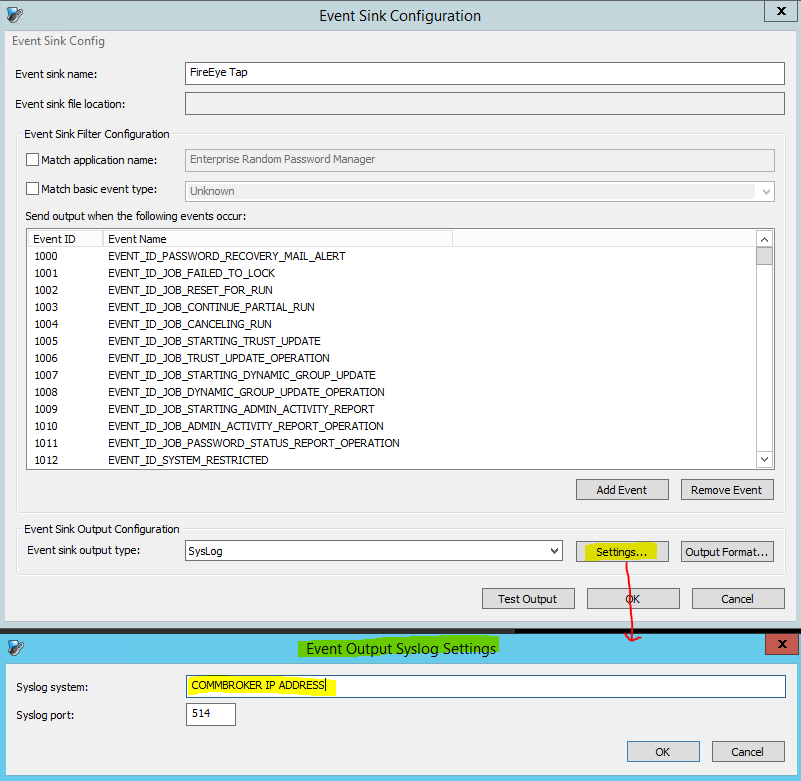
Click the Settings… button.
In the Event Output Syslog Settings window, enter the Comm Broker's IP Address and the port. Use the default port 514 unless you previously configured a different port.
Click the Output Format… button in the Event Sink Configuration window.
Change the Output Data Format to "JSON for FireEye Helix".
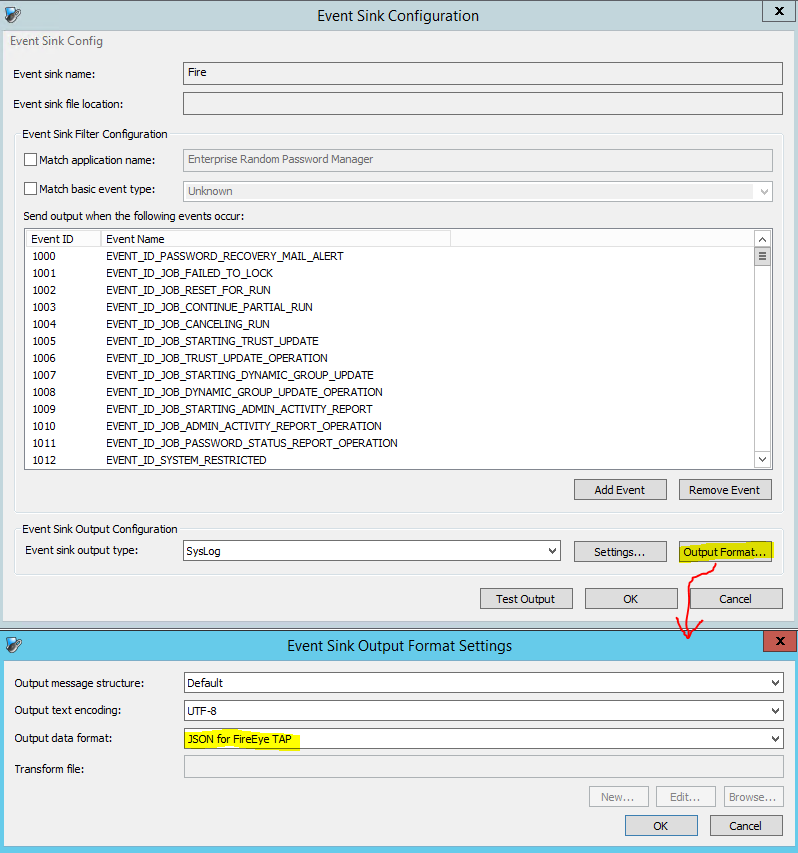
Click OK to save the format settings.
Click OK in the Event Sink Configuration window to save your configuration.
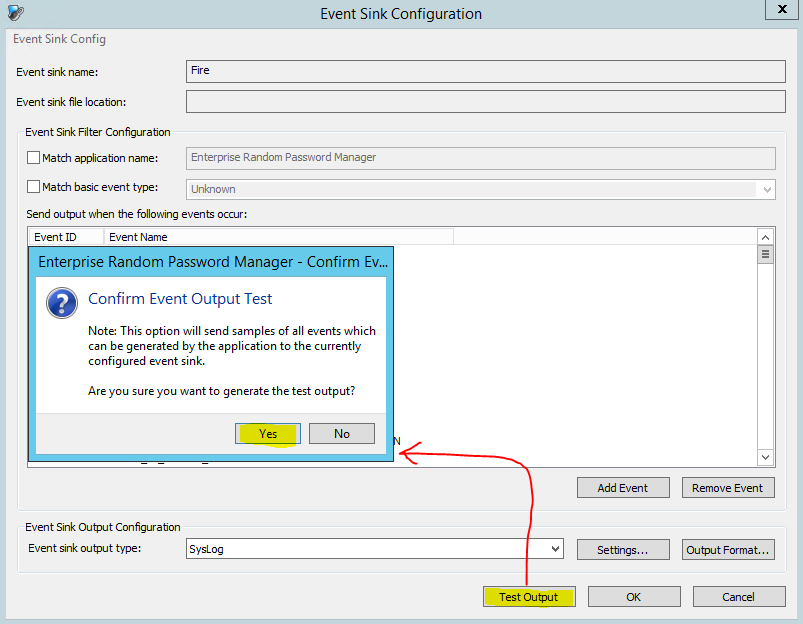
For validation purposes, you can re-enter the Event Sink configuration at any time and test the output by clicking the Test Output button: