Follow these steps to filter and sort the alerts based on retroactive detection on the eAlerts page using the Web UI.
To filter and sort the alerts for retroactive detection:
In the Web UI, click the Analysis tab.
Choose the retroactive detection alert organized by recipient, sender, and alert that you want to view.
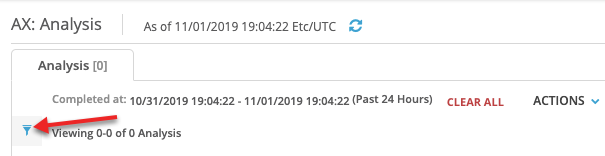
Click the Show/Hide Filters button. You can modify the time duration that is displayed in the list. You can sort the list based on the other columns.
In the Badges column drop-down, select the Retroactive Alert checkbox.
Click Apply to filter and sort the list based on retroactive detection.