The default IAM organization administrator and the IAM Admin users log in to the IAM Web UI to configure IAM organization settings, user access control policies, user groups, and user accounts. Other users―users who have been assigned the IAM User role―log in to the IAM Web UI to manage their own accounts: update personal information, set user preferences, manage their password, and generate backup codes for two-factor authentication.
Terms of service
The Trellix end user license agreement (EULA) governs the use of Trellix products. After logging in to the IAM Web UI, users must read and accept the EULA if the previously accepted agreement is older than the current version. User acceptance of the EULA is logged as a IAM audit event.
You can view the current terms of service at any time in the Legal Terms & Conditions page of the Trellix corporate website:
Logging in to the IAM Web UI
End users log in to the IAM Web UI so that they can authenticate to resources registered in the team's IAM organization. Users with IAM Admin accounts use the IAM Web UI to manage their team's IAM organization in the private cloud. Users with IAM User accounts use the Web UI to manage their own user accounts.
Note
The enrollment process for new IAM accounts includes initial login to the IAM Web UI. See Enrolling your new IAM user account.
In a browser, go to the IAM login page for your geographical location:
The IAM login page appears.
Enter your IAM account user name (your email address) and password.
If two-factor authentication (2FA) is enabled, enter a one-time passcode.
In the following example, the user is entering a one-time passcode that was sent in an SMS text message.
For a general description of 2FA, see Security in a IAM organization.
For information about enabling 2FA, see the following topics:
For information about logging in to the IAM Web UI when 2FA is enabled, see the following topics under Managing your own IAM user account:
If the Terms and Conditions For Trellix Offerings appears, you can click the Expand icon (
 ) next to the document update date to open the Trellix Legal Terms & Conditions in a separate browser tab.
Read the EULA terms, then select I have read and agree to the Terms of Service in the main browser tab and click Next.
The Trellix IAM Web UI opens.
If you are the default IAM organization administrator and you are logging in to the IAM Web UI for the first time, proceed to IAM initial configuration task list.
Logging out of the IAM Web UI
A Logout menu item is located under your avatar:
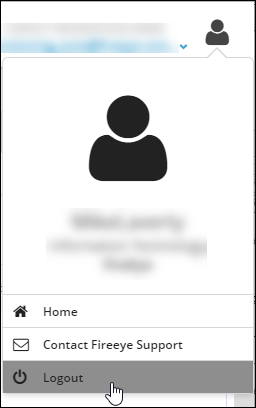
Click your avatar (or the default avatar) in the upper right corner of any page.
Select Logout.