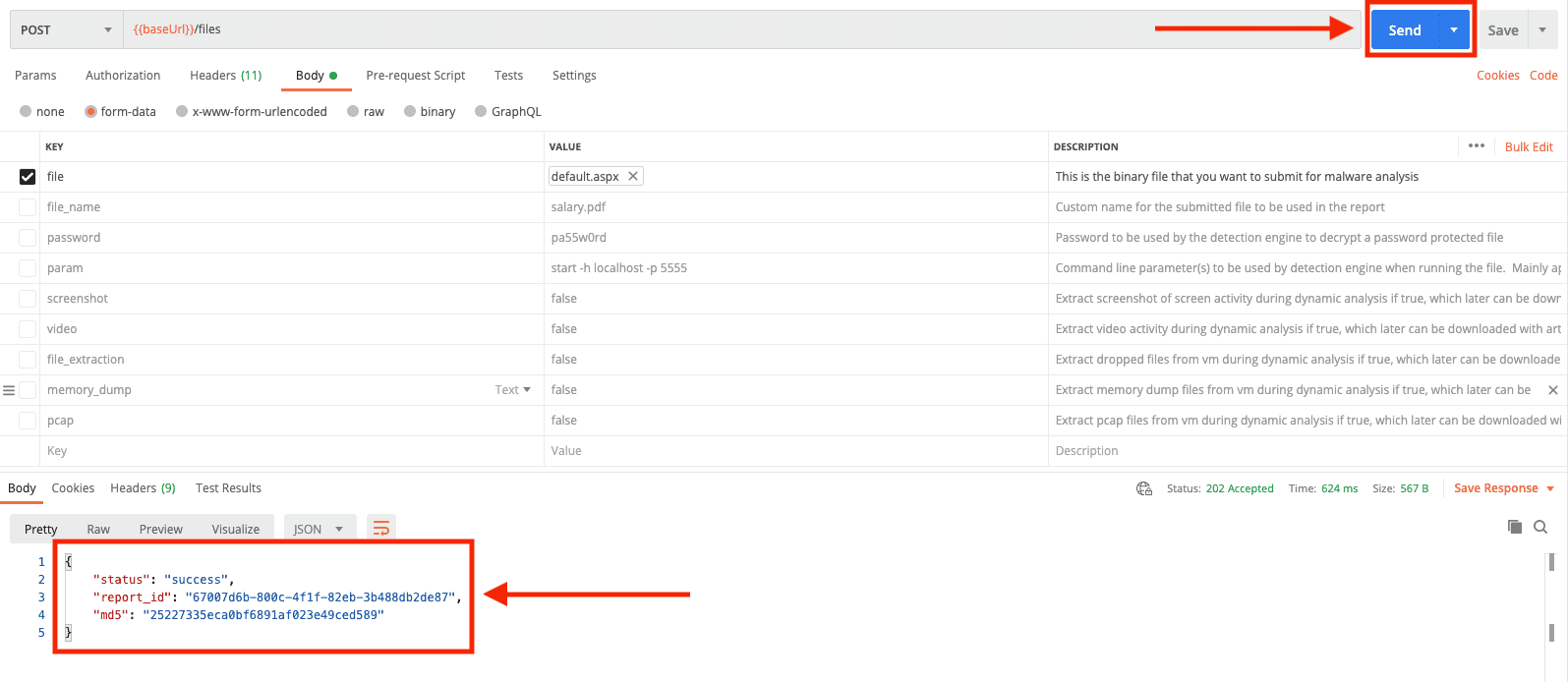
The Trellix IVX Cloud RESTful API allows you to submit files for malware analysis, search hash values, and retrieve reports. You can import the OpenAPI specification into Postman to test and integrate IVX Cloud API into your workflow.
The IVX Cloud API documentation is available only through the Web UI. To access it, navigate to Resources → API within the UI.
Note
For customers in the EU or Japan, ensure you use the correct regional endpoint URL in your environment settings to avoid request failures.
An active Trellix IVX Cloud account.
The Postman desktop application.
Your API key from the IVX Cloud web UI.
Obtain the API specification
Access the YAML file URL from the IVX Cloud web UI.
Log in to the Trellix IVX Cloud web UI.
Navigate to Resources → API.
Copy the Trellix IVX Cloud API YAML file URL.

Import the IVX Cloud collection to Postman
Link the IVX Cloud schema to your workspace.
Open the Postman application and click Import in the top-left.
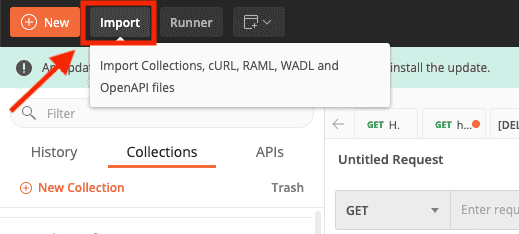
Select the Link tab and paste the YAML file URL that you copied before.
Click Continue. Postman automatically creates the collection.
Configure authentication
Authorize your Postman environment using your API key.
In Postman, right-click the new Trellix collection and select Edit.
Navigate to the Authorization tab.
Paste your API key into the Value field and click Update.
Validate the integration
Test the connection by submitting a sample file for analysis.
Within the Trellix collection, select the first POST request: Submit a single file for analysis.
Click the Body tab.
Locate the file key. Change the type from Text to File using the dropdown menu.
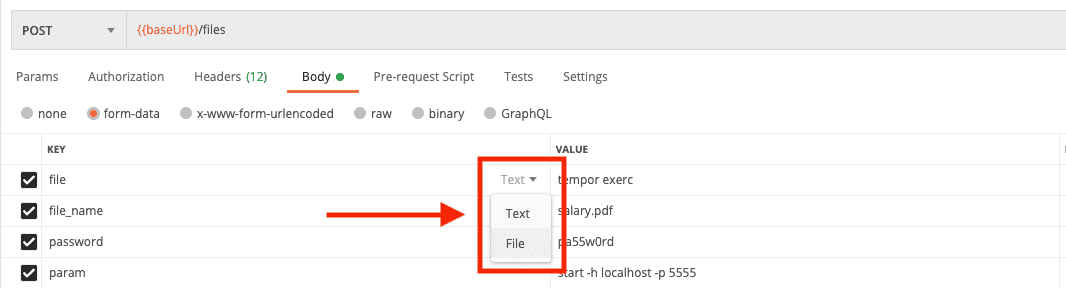
In the Value field, click Select Files and choose a sample file from your computer.
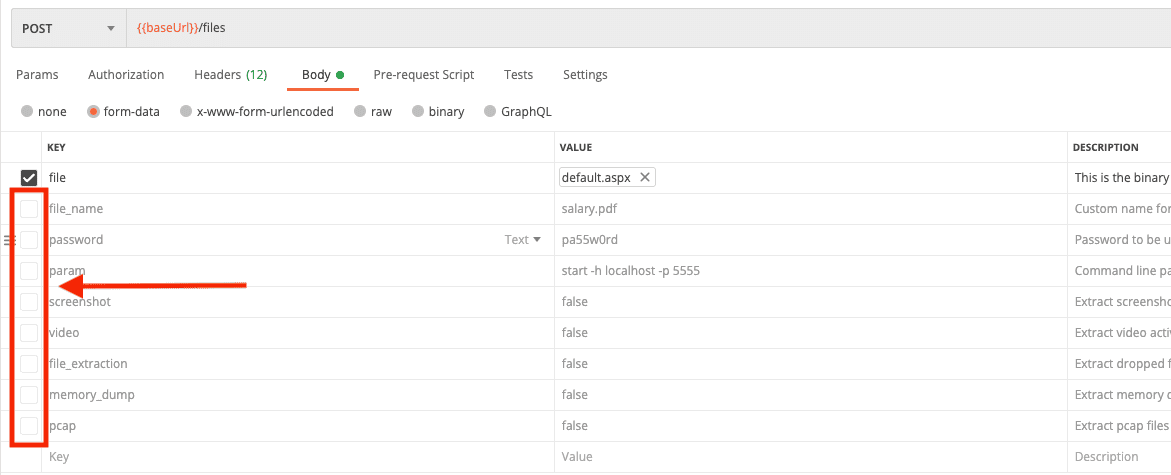
Uncheck optional parameters to exclude them from the analysis submission.
Click Send. A successful response appears in the bottom pane.