The Intelligent Virtual Execution - Server appliance has a CLI and a Web UI.
If you want to configure Intelligent Virtual Execution - Server settings using Central Management System, follow the steps:
Log in to the managing Central Management System Web UI.
Click the Settings tab.
Select Appliance Settings from the Admin menu.
Click the Appliance Settings subtab.
Use the Groups drop-down list to select a Intelligent Virtual Execution - Server appliance or MVX cluster group.
By default, all appliances in the group are selected, and the page shows the settings for the first appliance in the group only.
(Optional) Use the Appliance drop-down list to select a specific Intelligent Virtual Execution - Server appliance. The "Showing" field shows the name of the selected appliance.
If you want the changes you make to the current appliance to be automatically applied to all other appliances in the group, select the Write changes to group checkbox.
Click a sidebar option
Sidebar option
Central Management System Platform Web UI procedures
Time and Date
See Time Zone Configuration .
▪ Set system date, time, and time zone.
▪ Synchronize with DTI server.
▪ Configure NTP servers.
User Accounts
See the System Security Guide.
▪ Add a user account.
▪ Change a user account password.
▪ Remove a user account.
DTI Network
See The DTI Network .
▪ View the DTI content source.
▪ View security content version and update information.
▪ View information about system statistics updates.
▪ Configure automatic updates of security content.
▪ Configure automatic updates of system information.
Network
See Network Administration .
▪ Configuring basic network settings:
▫ Configure DNS server IP addresses.
▫ Add and remove domain names.
▫ Enable and disable IPv6 routing.
YARA Rules
See YARA Rules .
▪ Upload or download file of custom YARA rules.
▪ Download an error log.
▪ Delete a file of custom YARA rules from the Intelligent Virtual Execution - Server appliance.
Guest Images
See Guest Images .
▪ View the name, version, type, and status of installed guest images.
Certificates / Keys
See the System Security Guide.
▪ View certificates.
▪ Regenerate the system self-signed certificate.
▪ Activate named certificates.
▪ Add supplemental CA certificates.
Licenses
See License Management .
▪ Install and removing licenses.
▪ View license notifications.
Login Banner
See Login Banners and Messages .
▪ Change the remote banner text.
▪ Change the local banner text.
▪ Change the message-of-the-day text.
Selecting a Intelligent Virtual Execution - Server appliance in the Central Management System Web UI
The following example describes how to select a Intelligent Virtual Execution - Server appliance in the Settings tab of the Central Management System Web UI.
To select a Intelligent Virtual Execution - Server appliance in the Settings tab of the Central Management System Web UI:
Click the Settings tab.
Click the Appliances subtab.
Use the Groups drop-down list to select a group of Intelligent Virtual Execution - Server appliances.
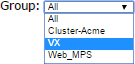
All appliances in the group are selected by default. The "Showing" field displays the first appliance in the group:

(Optional) Use the Appliances drop-down to select a specific Intelligent Virtual Execution - Server appliance.
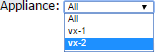
To have the changes you make to the current appliances to propagate to all other appliances in the group, select the Write changes to group checkbox.
