Providing your Mandiant Incident Response Consultant with access to your Cloud IAM products
This section covers the following information:
About External User Accounts below
Adding an External User Account on the next page
About external user accounts
A user account defined in a different IAM organization can be invited to enroll in your IAM organization. After the external user enrolls, the account is visible in the Trellix - FireEye IAM Web UI. For example, you might add an external account to allow a Customer Support engineer to access your organization. You can disable this access later by removing the external user account from your IAM organization.
Permissions assigned in this organization
An external user's access privileges in your organization are specified when you create the account and invite the user to enroll. The user's permissions within your IAM organization cannot be viewed or modified in the user's primary organization or in any other organization in which the user is enrolled. To terminate an external user's access to your organization, you delete the account from your list of users.
Limitations on managing an external user account
The following limitations apply to managing external user accounts:
You cannot re-enroll an external user. This must be done from the user's primary organization.
You cannot reset the password for an external user. This must be done from the user's primary organization.
Deleting an external user account removes the account from the list of External Users in this IAM organization. The account remains intact in its primary organization.
Adding an external user account
To allow a user defined in a different IAM organization to access resources in your own IAM organization, you can add an external user account to your organization, assigning roles that grant the account selected access privileges in your organization. An external user account can be used to allow a partner or Customer Support engineer to access your appliances.
To give the external user account access to your IAM organization, you need to know the email address for that user account. To specify the access privileges granted to the external user, you assign the account one or more roles for each product the user is allowed to access in your organization. User accounts can be assigned roles for more than one product type, and they typically are. A user can be assigned multiple roles for accessing the FireEye Web UI or Helix Web UI. For access to FireEye appliances, a user is typically assigned a role for each product type in the IAM organization.
An external user account retains the access privileges granted in your organization until you edit the account's role assignments or remove the account from the list of external users in your organization.
To add an external user account, you start at the Users page. The main view of the Users page lists internal users and external users separately. After the external user account is added, it appears in the External Users panel.
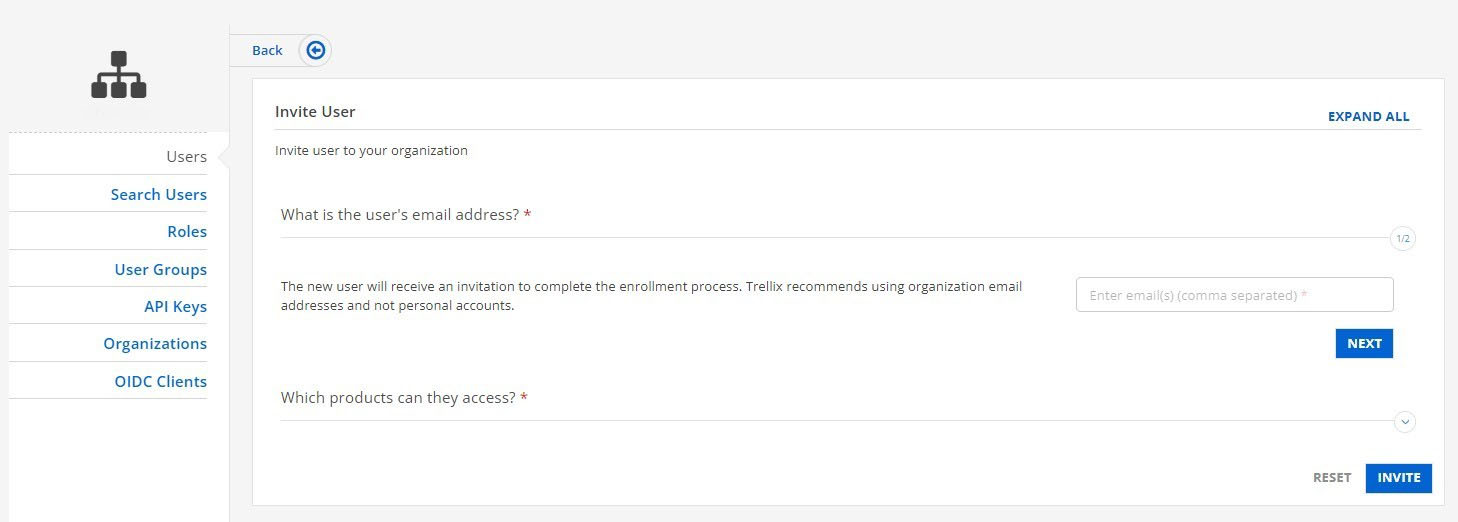
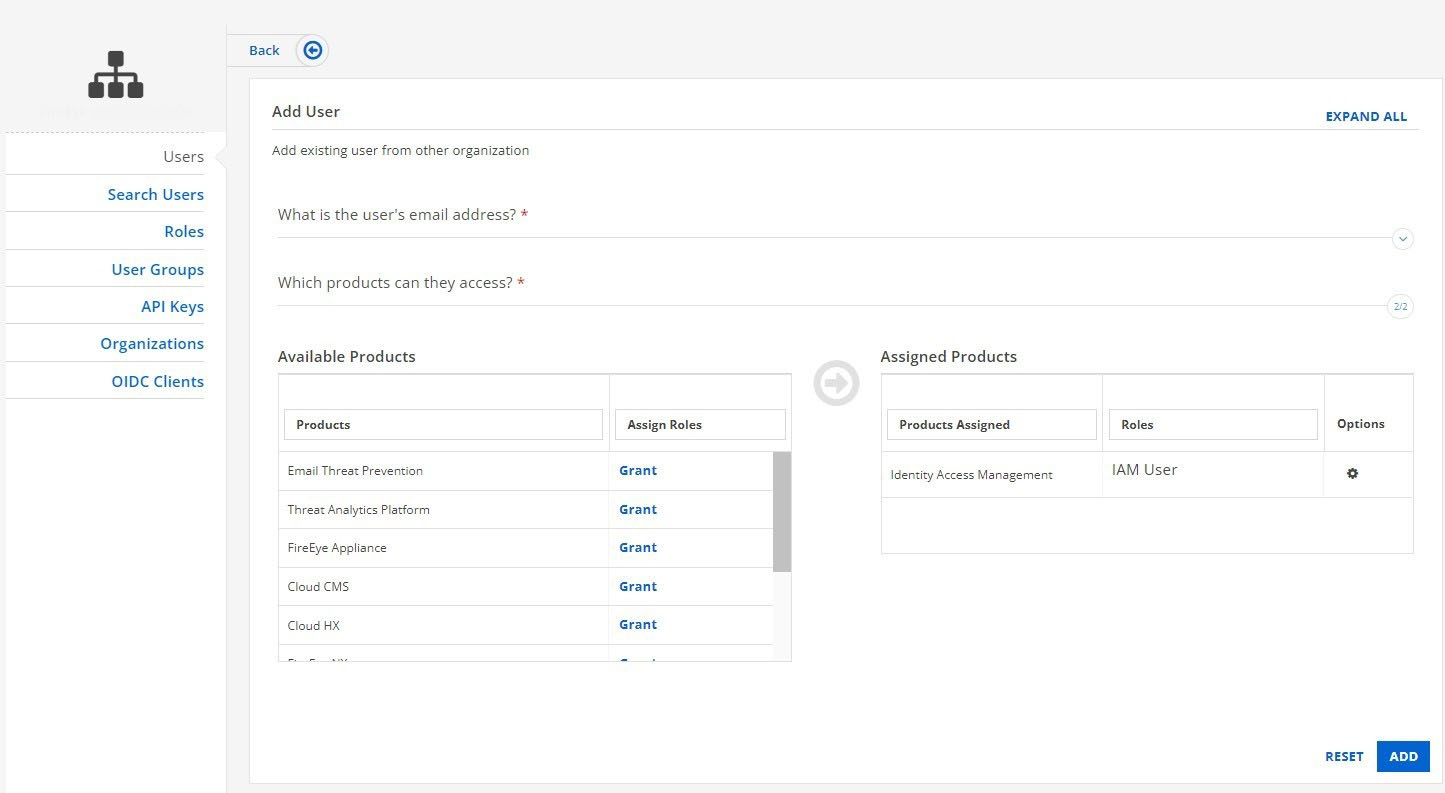
The following table describes the fields in the Invite User view (used to create a new internal user account) and the Add User view (used to add a user account from another organization):
Field | Description |
|---|---|
Enter the user's email address. In FireEye IAM, the account user name is an email address.
NOTE: When you view the lists of all user accounts, the Internal Users list and the External Users list can be sorted and filtered on the Email column. |
Field | Description |
|---|---|
Available Products | |
Products | A product type for which the user currently is not assigned roles. |
Assign Roles | If you want to assign the user roles for a product in this list, click Grant in this column. |
Assigned Products | |
Products Assigned | A product type for which roles are assigned to the user. |
Roles | The roles that the user is currently assigned for this product type. |
Options | Operations you can perform on this role:
|
Prerequisites
IAM Admin access to the FireEye IAM Web UI.
The email address by which the user is enrolled in the other IAM organization.
You will enter the email address of one or more Mandiant Consultants.
The Products and Roles in which to grant access (as applicable to your environment):
Threat Analytics Platform --> TAP Analyst
Cloud HX --> HX Admin
Email Threat Prevention --> ETP Org Read Only Admin
To add a user account from a different organization:
Log in to the FireEye IAM Web UI.
Select Organization Settings > Users.
The Users page lists all FireEye IAM user accounts known to your IAM organization.
The Internal Users panel lists user accounts that are defined in your organization.
The External Users panel lists user accounts that are defined in other organizations but which the organization administrator has added and assigned roles.
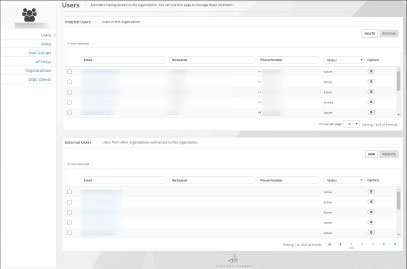
Click Add in the External Users panel.
Enter the email address under which the user is enrolled in their primary IAM organization, and then click Next.
In the Available Products list, locate the product type and click Grant.
In the Roles tab of the Assign Access for Product dialog box, select the checkbox for each product-specific role you want to assign the user.
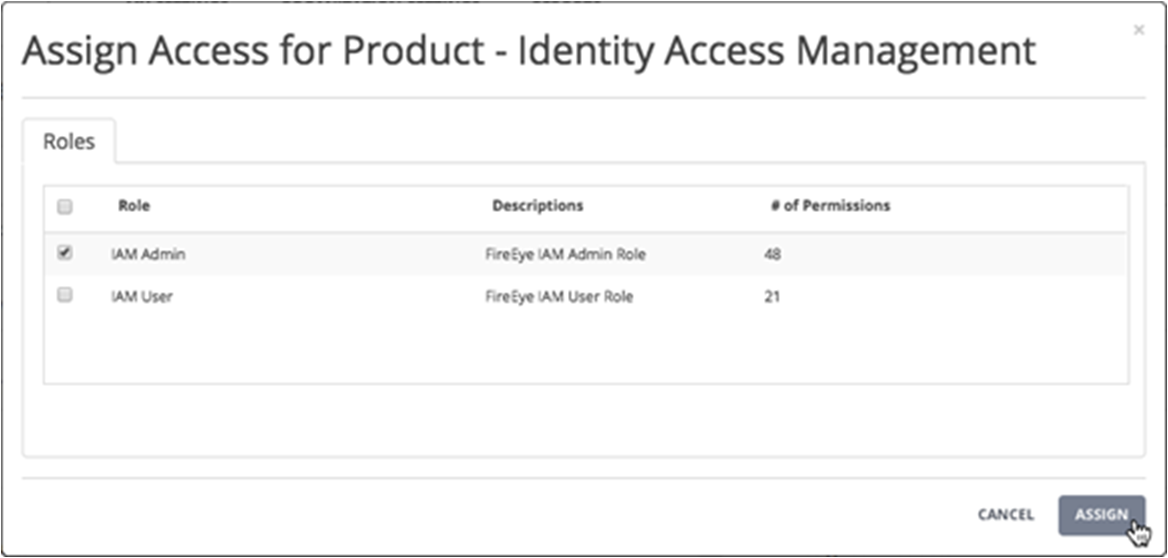
Click Assign.
To assign the external user roles for another product type, repeat steps 5 through 7.
After all roles have been assigned, click Add. The user account appears in the External Users panel of the Users main view