You can configure the Central Management System appliance dashboard to monitor email alerts from the Email Security - Cloud.
On the Central Management System appliance, you need a license with your client ID. To see if it is configured, log in to your Central Management System appliance and look for Customer ID (under the username drop-down) in the Web UI, or enter the show version command in the CLI.
If you do not have a customer ID, contact Trellix Support.
The protocol is Web Socket over TLS using port 443.
The access points are us1.fireeyecloud.com and us2.fireeyecloud.com. These are both needed and back each other up.
Note
The Central Management System appliance has a 1-hour idle connection timeout and therefore will disconnect from Email Security - Cloud occasionally.
Enabling the Email Security - Cloud endpoint using the CLI
The Email Security - Cloud endpoint has to be enabled before the Central Management System appliance can monitor alerts from Email Security - Cloud. The following are the CLI provisioning commands to enter from the CLI. You will create two access points using the destination URLs, (one endpoint and the URL). You will specify a nickname, such as, "email-server" and specify the URL. The nickname you define for the access point has local significance, so you can use whatever you like as long as it is consistent.
Go to CLI configuration mode:
cm-1 > enable cm-1 # configure terminal
Specify the endpoint name and access point:
cm-1 (config) # cloud etp endpoint <etp-endpoint-name> uri <cloud etp uri>If you are prompted, enter your username and password:
cm-1 (config) # cloud etp endpoint <etp-endpoint-name> username <fenet_username> password <fenet_password>Enable the endpoint:
cm-1 (config) # cloud etp endpoint <etp-endpoint-name> enableSave your changes:
cm-1 (config) # write memoryVerify the configuration:
cm-1 (config) # show cloud etp status Endpoint: everest: Address: wss://iad-cc-api-vip-stage-1.cso.fireeye.com:443 Enabled: yes JobWorker Connected: yes NotifHandler Connected: yesTo show the configured Email Security - Cloud instances:
cm-1 (config) # show cloud etp configuration
To remove the configuration and all its associated objects and alerts from the Central Management System:
cm-1 (config) # no cloud etp endpoint <etp-endpoint-name>Email Security - Cloud aggregation
An aggregator process receives data from the Email Security - Cloud and aggregates it into the Central Management System appliance database for display on the Central Management System appliance web UI.
To display the configuration of the aggregator:
cm-1 (config) # show aggregator configurationTo display the configuration of the aggregator endpoints:
cm-1 (config) # show aggregator endpoints configurationSolving connection issues
The following commands are used to troubleshoot connection issues and used only when asked to do so by Trellix Support.
To enable/disable SSL certification verification in the aggregator:
cm-1 (config) # [no] aggregator ssl cert-verifyTo set the aggregator log level:
cm-1 (config) # aggregator consumer logging level [debug|info|notice|warning|error]To set the SSL cipher list to use with the WebSocket connection:
cm-1 (config) # aggregator ssl cipher-listTo set the minimum TLS version to use with the WebSocket connection:
cm-1 (config) # aggregator ssl min-versionViewing email alerts from the Email Security - Cloud in the Web UI
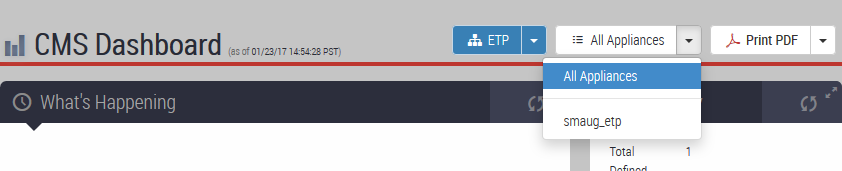
On the Central Management System appliance dashboard, you can select Email Security - Cloud from the All Groups menu or an Email Security - Cloud instance from the All Appliances menu.
For the selected groups and instances, you can view:
Total Malicious emails
Malicious URLs
Malicious Attachments
Email Security - Cloud Alerts
You can view email alerts on the Central Management System dashboard by going to the Alerts tab and selecting one of the categories displayed under What's Happening:
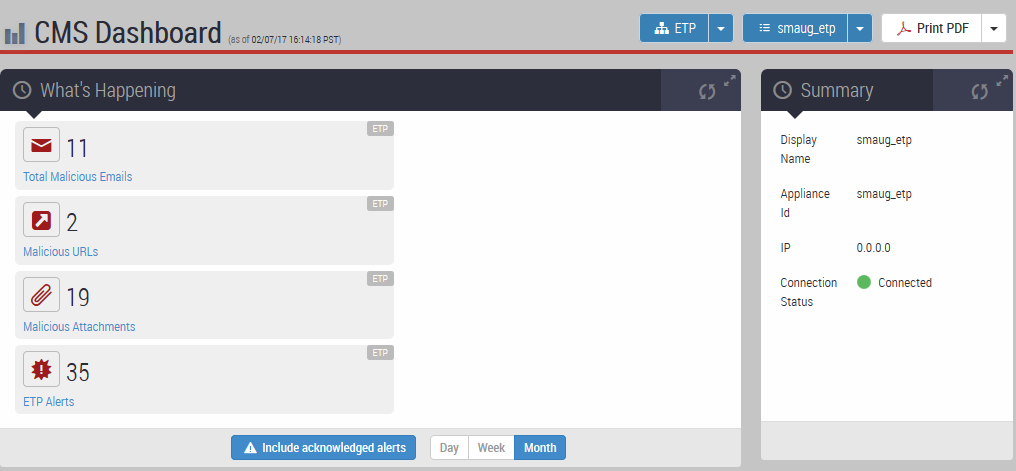
You can view detailed status of the Email Security - Cloud instance's connection by selecting an instance from the All Appliances drop-down to view the Summary. Note that Email Security - Cloud instances are not listed on the Appliances tab: