Newer versions of Windows have granular control over what is audited by the operating system. We recommend you carefully plan out your policy to collect logs for the events that matter. The Microsoft Security Compliance Manager has templates that can guide you through creating a robust baseline policy for all Microsoft operating systems.
See http://technet.microsoft.com/en-us/library/cc677002.aspx for additional information.
At a minimum, we recommend the following Event IDs be sent to Helix Enterprise:
4624 | 551 | 592 | 680 | 528 | 4648 |
4689 | 4778 | 540 | 552 | 593 | 682 |
4634 | 4672 | 4698 | 4779 | 538 | 576 |
602 | 683 | 4647 | 4688 | 4776 |
DNS logs are critical to the ability to find and detect malicious activity, and query logs attribute those requests to the inside host. We recommend you enable DNS query logging, and send those logs to Helix Enterprise using NXLog.
Find the DNS server in the Server Manager console.
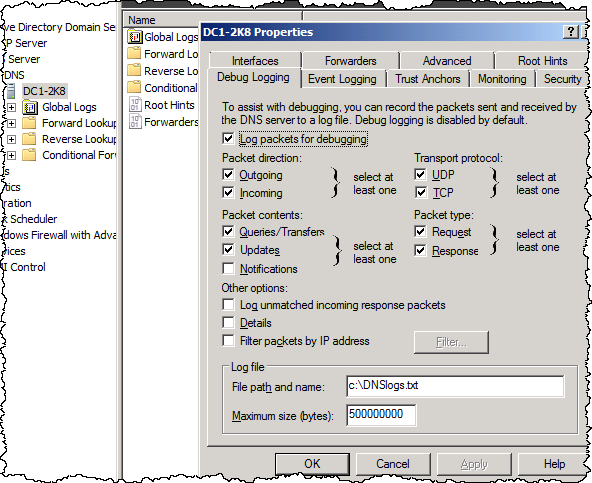
Expand DNS, right-click the server, and choose Properties.
On the Debug Logging tab, click or confirm that:
Outgoing and Incoming are both checked
UDP and TCP are both checked
Queries/Transfers is checked
Details is not checked
DHCP logs help connect the dots from perimeter activity (such as a firewall event showing a connection to a C2 server) to the inside host. As hosts are dynamically assigned IPs via DHCP or roaming between wireless access points, tracking who is where becomes difficult without DHCP logs.
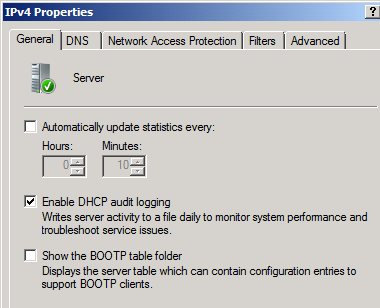
We recommend enabling DHCP audit logging and sending those logs to Helix Enterprise using NXLog. You must change the logging path from the default in order to forward with NXLog.
Find the DHCP server in the Server Manager console.
Expand DHCP, right-click the server, and choose IPv4 Properties.
On the General tab, click Enable DHCP audit logging.
On the Advanced tab, verify the path to the log files for the Audit log file path option. Note the path has been changed from
c:\Windows\system32\dhcp.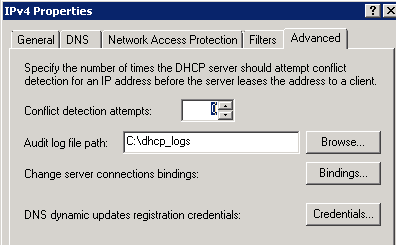
Enabling netlogon debug logging provides detailed activity about authentication beyond what is normally contained in security event logs. These logs can also be shipped using NXlog.
For more information, see http://support.microsoft.com/kb/109626.
Internet Information Server (IIS) logs do not provide much information by default, but they can be very verbose. Trellix recommends you enable logging to capture important information for detecting malicious activity, such as the method, bytes transferred, and other critical data. IIS logs can be sent to Helix Enterprise using NXLog.
The system requirements are:
Open the Internet Information Services (IIS) Manager, select the IIS server that is to be configured, and then select Logging.
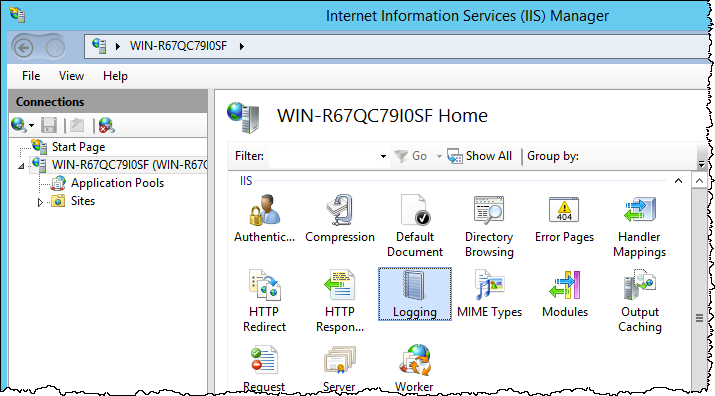
Configure the log settings to reflect the following configuration:
For the One log file per option, select Site.
For the Format option, select W3C.
Click Select Fieldsand check all field options.
For Log Event Destination, select Log file only or Both log file and ETW event.
For Schedule under Log File Rollover, select Daily
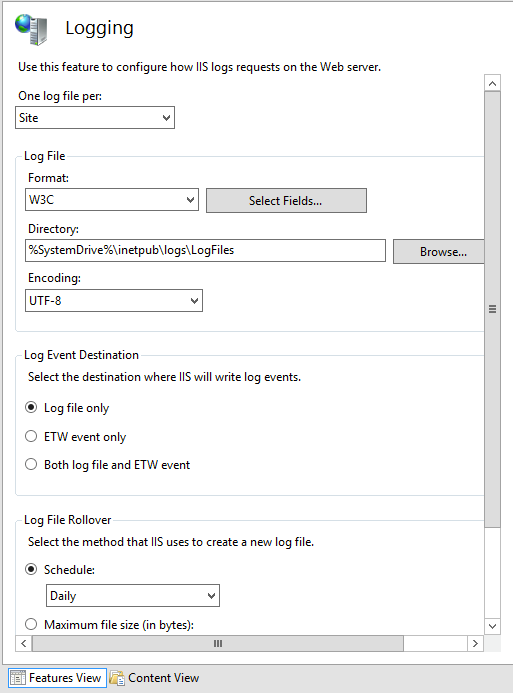
Apply the changes to the logging configuration.
IIS 6, 7, or 8
A reliable NTP source