After completing a search, you may find data of interest within a parsed field of an event in your search results. You may want to refine your search or run a new search for the same data in other events. When events appear in the search results, the parsed fields provide pivoting and drill-down options. Pivoting through data is how you add context to an event so you can determine what to do next.
From the main menu, select Investigate > Alerts and open an alert.
Click the down arrow (
 ) next to a field value in the Most Recent Event area of the alert details or on the Events tab of the alert details.
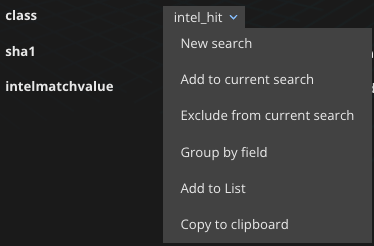
One or more of the following pivot and drill-down options are available.
Option | Description |
|---|---|
New search | To search for the same field and data in other events, select New search. A new query appears in the Search box, which you can either run as is or modify. |
Add to current search | To add another field and data to the current query in the Search box, click Add to current search. |
Exclude from current search | To add a field and data to the current query as a “not” statement, click Exclude from search. |
Group by field | To use a field and its data in a |
Add to List | To add the data of a field to a Helix Enterprise list, click Add to list. In the Add to List dialog, select the list to which the data should be added. |
Copy to clipboard | To copy the field and its data to the clipboard for use in another application or for your notes, click Copy to clipboard. |
Query VirusTotal | If the type of data in the field is an IP address, domain, or hash, click Query VirusTotal to link to the VirusTotal website and view the VirusTotal information for the field value. |
Query DomainTools | If the type of data in the field is a domain, click Query DomainTools to link to the DomainTools website and view the DomainTools information for the field value. |