A search query can be saved as a new search or as a rule. For information on saving a search as a rule, see Creating Customer Rules.
Note
You must run the search query to validate its syntax before saving it as a rule.
If you save a search query as a new search, it can be recalled later and used again.
To save a search query:
From the main menu, select Configure > Searches.
Select New Search. In the dialog, enter a name for the search query and, optionally, a description.
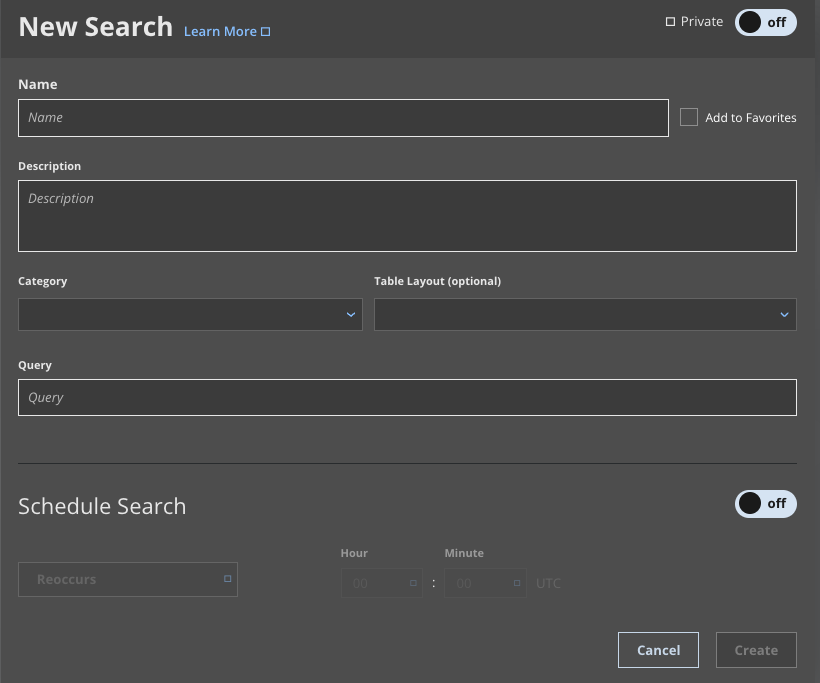
(Optional) Select a category (Investigation, Hunting, or Compliance) in the drop-down menu underneath the search description. Categories provide a way for you to organize and filter your saved search queries.
(Optional) Select a table layout using the drop-down menu underneath the search description.
Enter or modify the search query in the Query box. If you are saving a search query in the search query bar, the query appears automatically in the Query box.
(Optional) Set the visibility for the search. Toggle the Private switch at the upper right corner on to make your query private. Private search queries are only visible to you and the organization admin.
(Optional) Select the Add to Favorites checkbox to make the search query accessible from the Favorites menu under the Search box.
(Optional) Specify a schedule for the saved search query. See Scheduling a Saved Search.
Click Create to save your search query.