In the IVX Server 11.0.x release, several key software components used in the Multi-Vector Virtual Execution (MVX) Cluster service are significantly upgraded. Due to these component upgrades, it is not possible to directly upgrade an IVX Cluster from 9.1.x or 10.0.x version to 11.0 seamlessly. To upgrade to version 11.0, you must first dismantle your existing IVX cluster, then upgrade each IVX node individually to version 11.0.
Before you begin
Central Management (CM) starting from version 9.1.x with MVX Cluster
MVX Cluster starting from version 9.1.x in a healthy state
CM connected to FireEye Cloud and version 11.0 images for both CM and IVX available for download
Cluster downtime.
Backward compatibility
CM should be first to upgrade to 11.0
CM 11.0 can manage MVX Clusters and Sensors 9.1.x and later
Sensors running version 9.1.x or later can be enrolled with an MVX Cluster that is also running version 9.1.x or later.
Sensors and MVX Cluster versions are backward compatible.
Supported IVX Hardware
VX-5500
VX-5600
VX-12550
VX-12600
Virtual VX
VX Baremetal
Upgrade IVX Clusters
Upgrade the Central Management Appliance to version 11.0. For instructions, refer to the “Upgrading the FireEye Software” section in the Central Management System Administration Guide.
Dismantle the existing IVX Cluster.
These steps must be executed using the ACTION dropdown menu corresponding to the MVX Cluster.
Disable Brokers:
Ensure the Cluster is in a healthy state. If the Cluster is in a healthy state, the Status column displays Ready.

To see the current number of Nodes and the Roles assigned to each Node, click the Cluster Name and go to the Details tab. Roles can be broker or compute.
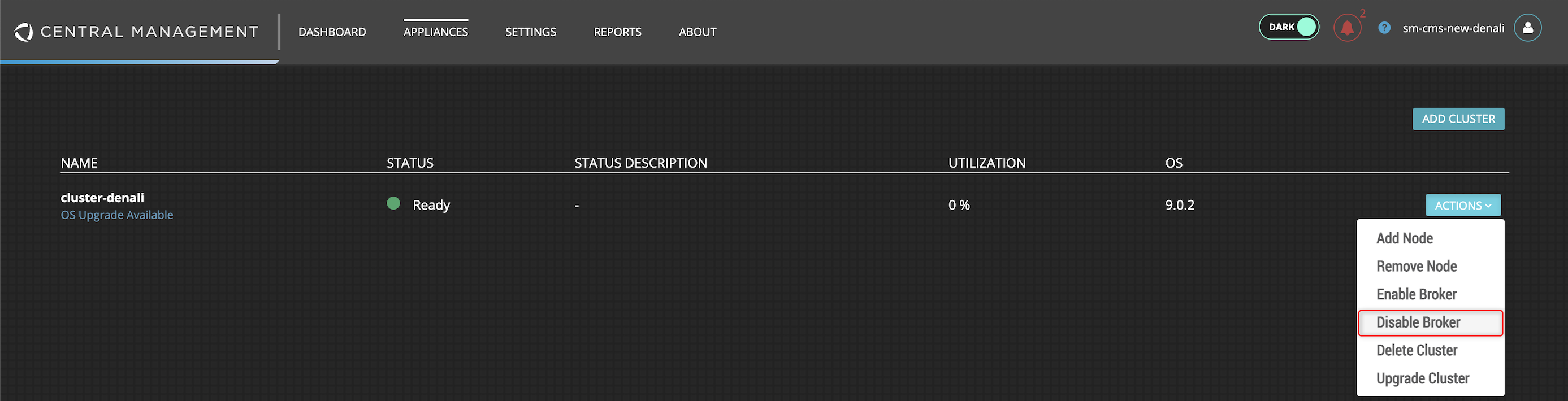
Select the Cluster, then select ACTIONS → Disable Broker.
Note
If you choose Delete Cluster without disabling the broker, this will result in the following error: "Please disable broker before deleting cluster".

In the Disable Broker in Cluster [Cluster-Name] pop-up, select the Broker to be disabled and click Disable Broker.
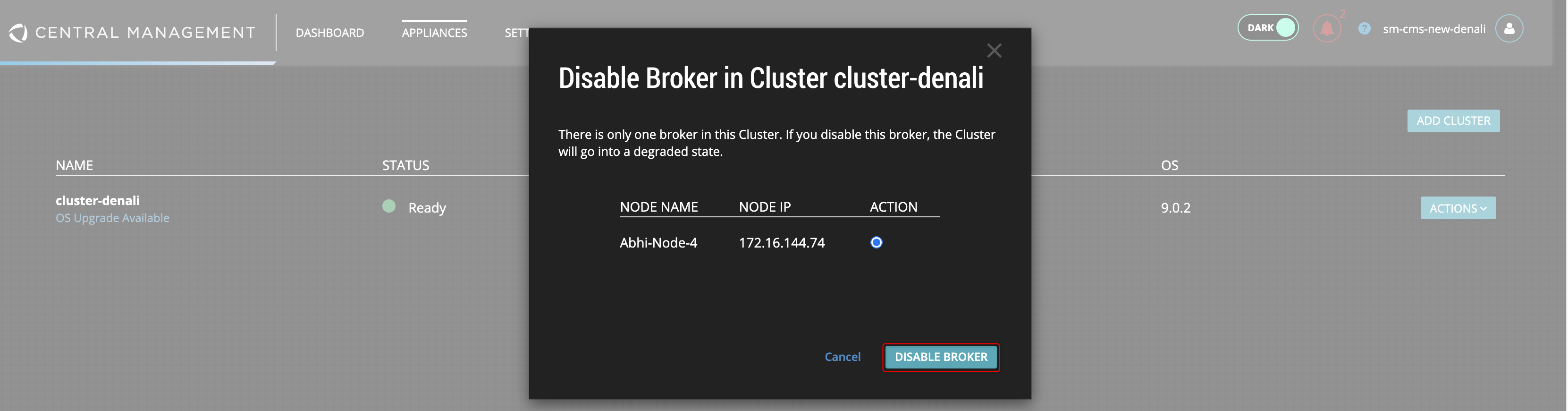
Wait for the Broker to be disabled.

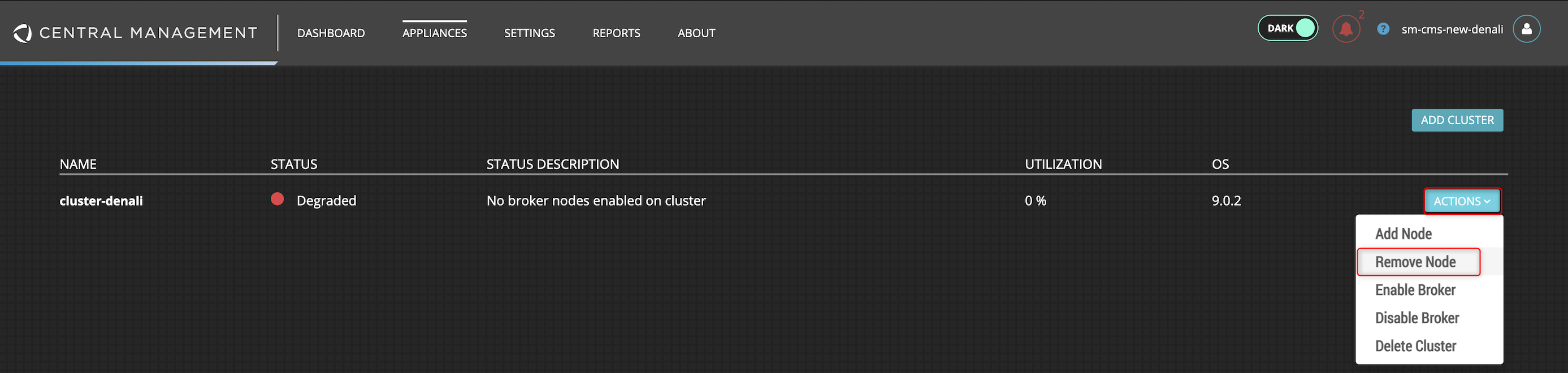
If the selected Broker is the only Broker in the Cluster, the Status column displays as Degraded, if not, the Status column displays as Ready.

Repeat these steps to disable each Broker one at a time.
Remove Nodes:
Once all Brokers are disabled, remove the Nodes within the Cluster.
Select the Node to be removed and go to ACTIONS → Remove Node.
In the Remove Node from Cluster [Cluster-Name] pop-up, select the Node to be removed and click REMOVE NODE.
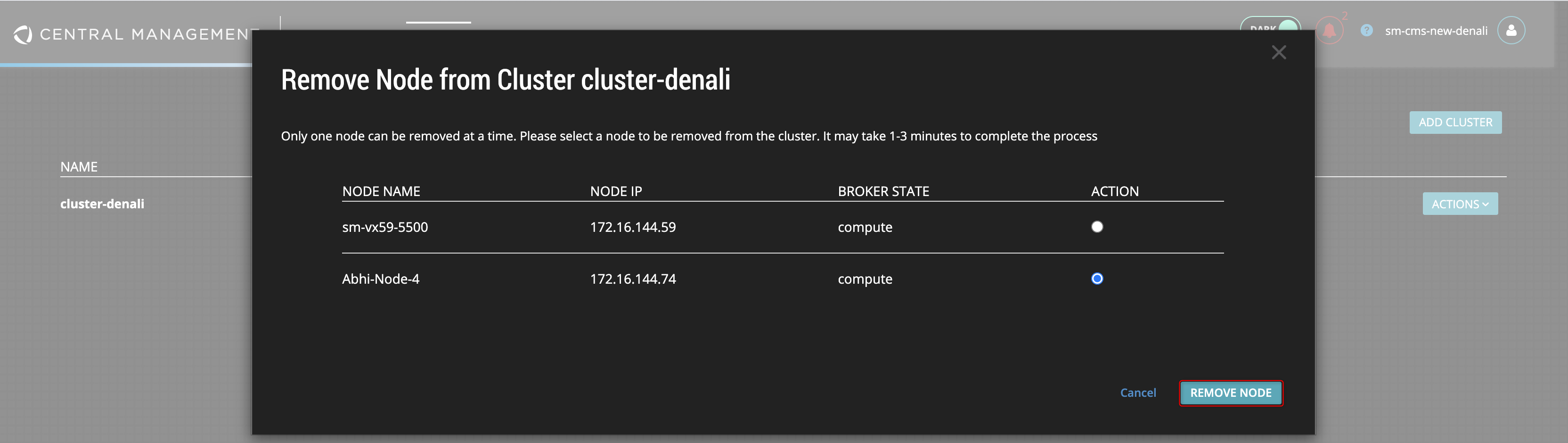
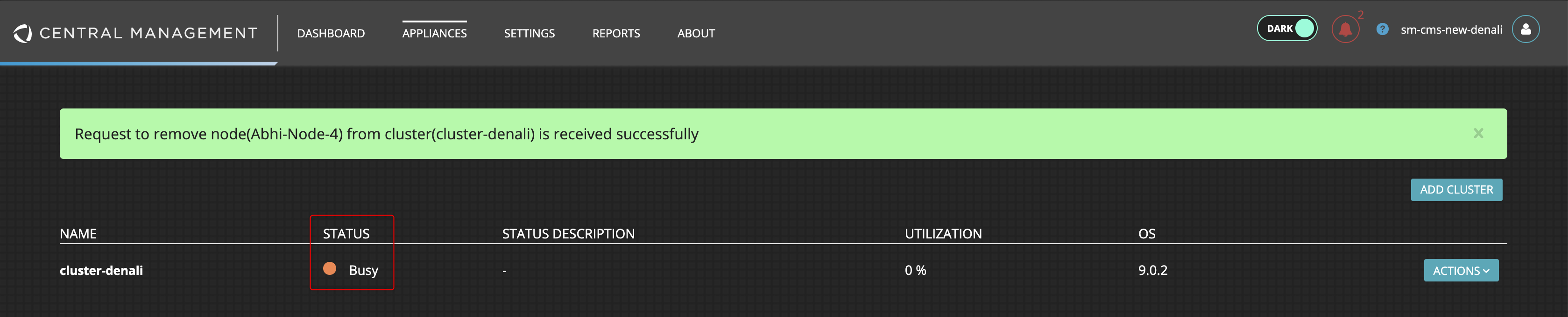
Wait for the node to get removed. While this action is processing the Cluster Status column displays Busy.
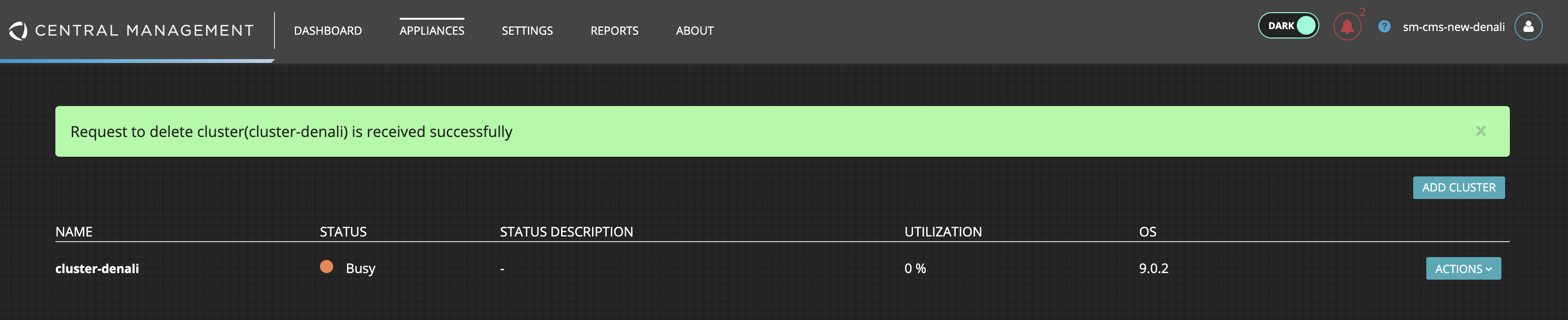
Note
Deleting a cluster with multiple nodes will cause the following error: "Cluster must have exactly one node to be deleted".

Repeat this step until all but one Node is removed from the Cluster. If the Cluster has only one Node remaining, removing the last Node prompts a message to delete the Cluster instead of deleting the last Node.
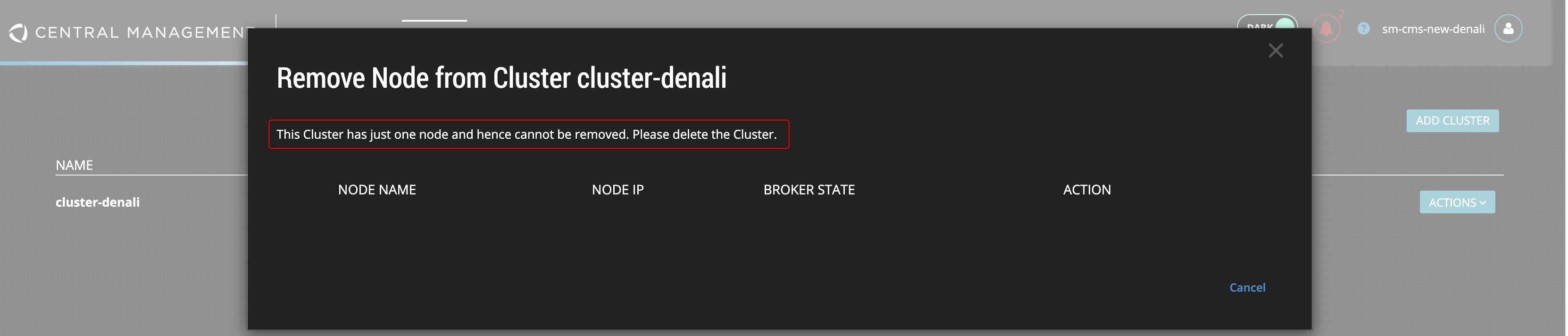
Delete the Cluster:
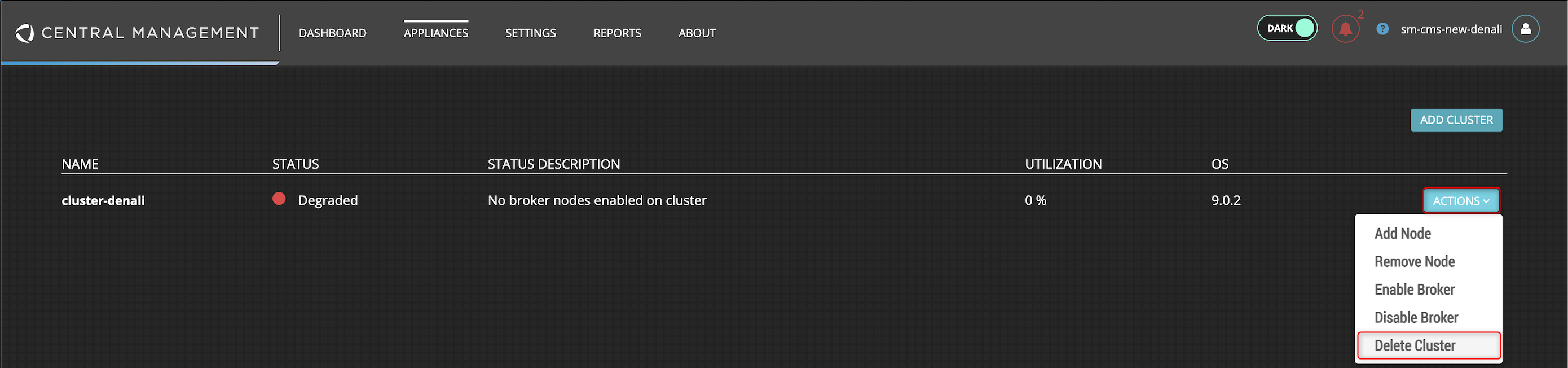
Go to ACTIONS → Delete Cluster.
In the Delete a Cluster pop-up, click DELETE. The Cluster is now successfully deleted from the CM appliance and the VX nodes are now available in the Nodes tab as available Nodes.
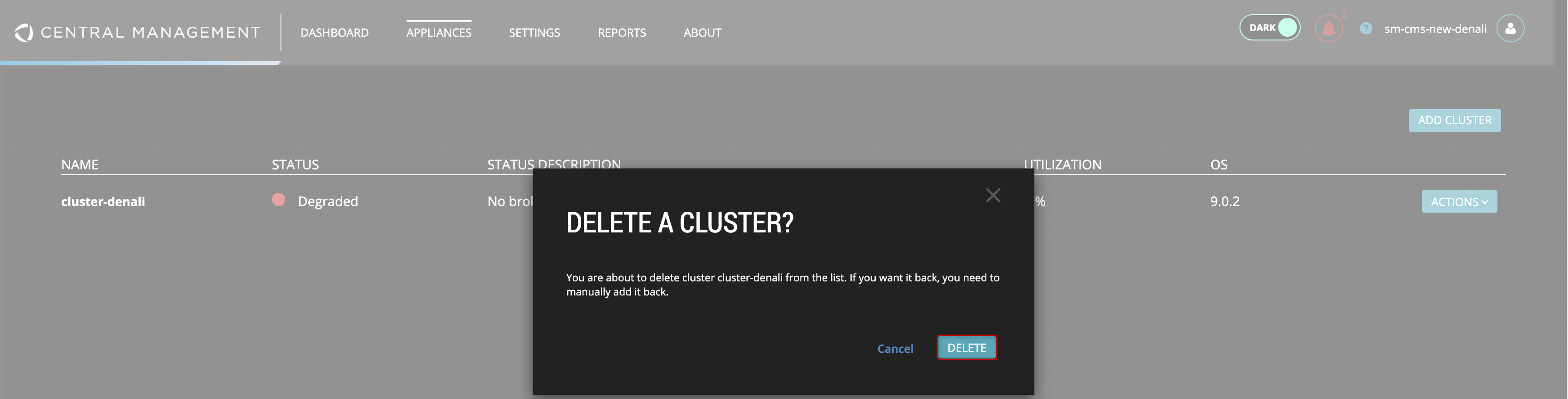
The VX nodes are now available in the Nodes tab as available Nodes
Upgrade IVX Nodes to version 11.0.x
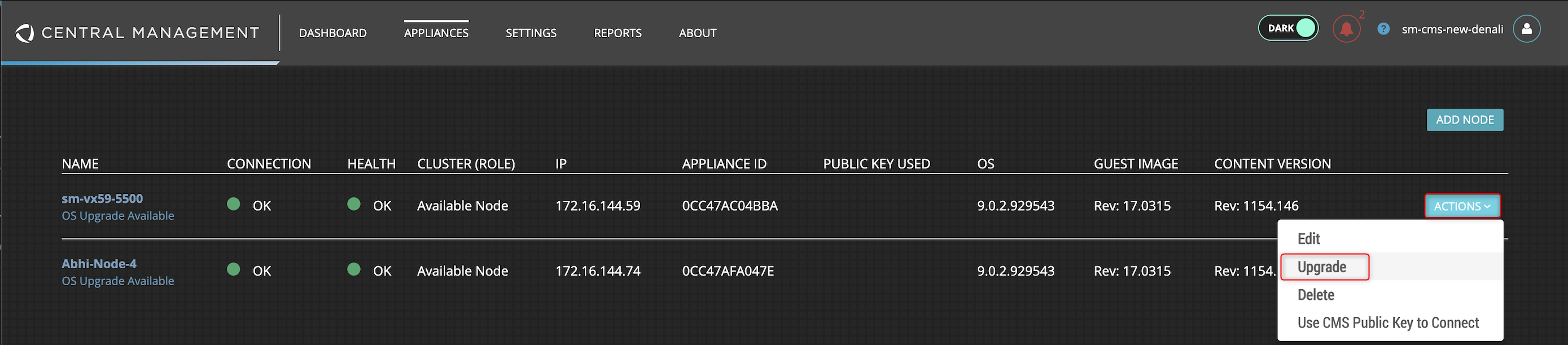
Navigate to the Nodes tab.
Go to ACTIONS → Upgrade.
Wait for the upgrade process to complete before proceeding.
Create a new IVX Cluster on version 11.0.x
Cluster creation on 11.0 follows the same process as earlier releases. For detailed information on how to create a cluster, refer to the Creating a Cluster section in the Distributed Network Security MVX Smart Grid Guide 2021.2.