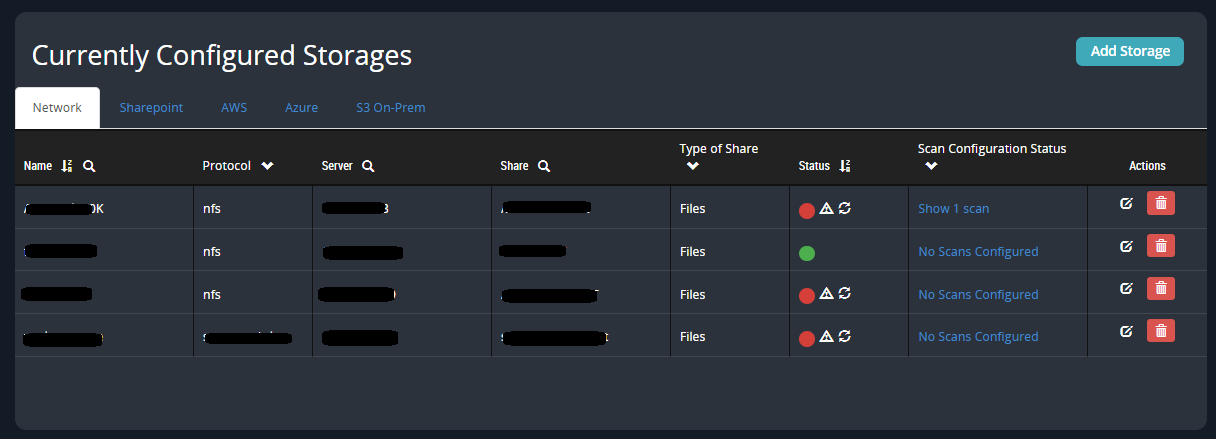
Use the Currently Configured Storage section of the Configure Storage page to view and manage configured shares.
Note
You can also add new shares from this page. For details, see Adding storage using the Web UI.
Click the Storage tab. All configured shares are displayed in the Currently Configured Storage section.
To filter the results, do any of the following:
Click the arrow in the Protocol column name and select one or more protocols.
Click the arrow in the Type of Share column name and select one or more share types.
Click the arrow in the Share Configuration Status column name and then select one or more statuses.
To search for or filter by share name, server, or network file share:
Click the search icon in the Name, Server, or Share column name.
In the search box, type the characters you want to use as search criteria. For example, if you enter "10.14" for a server search, all shares configured on servers whose IP addresses start with "10.14" are displayed.
To sort storage names alphabetically or sort the share status by severity, click the arrow in the Name or Status column name.
To view the scans that ran on a share:
Click a link in the Scan Configuration Status column in the row for the share.
The Scans page opens and lists only those scans.
Click the
.png "FX_Edit_icon.png") icon in the Actions column.
icon in the Actions column.In the Edit Storage window, change parameters as needed.
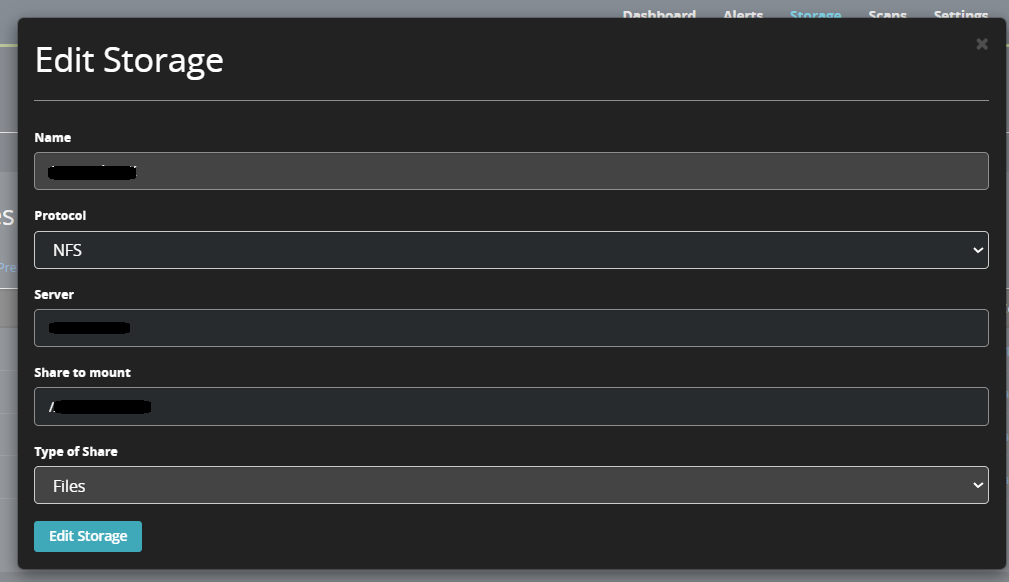
Click Edit Storage to save your changes.
Click the
.png "FX_Delete_icon.png") icon in the Actions column.
icon in the Actions column.When prompted, confirm that you want to delete the share.