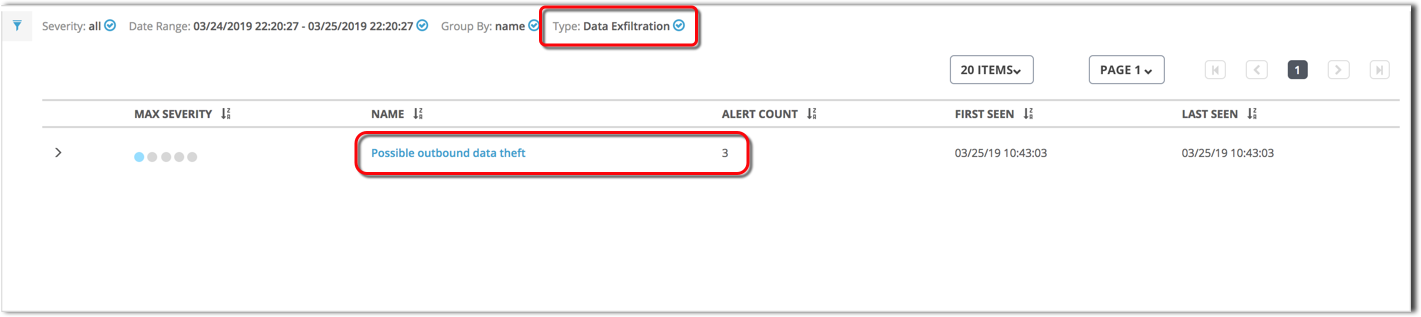
Follow these steps to view Data Exfiltration alerts only.
Prerequisites
Data exfiltration detection is enabled. See Enabling and configuring data exfiltration detection.
Important
After you configure or edit the homenet list, it takes 72 hours to build baseline egress traffic profiles for the specified hosts and networks.
Log in to the appliance Web UI and select Alerts >SmartVision.
Open the Filters panel by clicking the blue funnel icon:

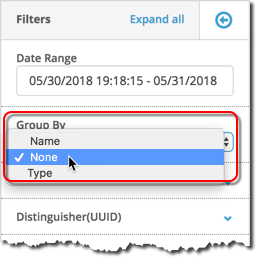
Click the Group By field and select None.
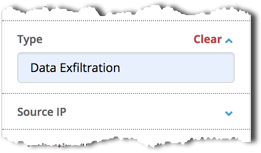
Click the Type field and enter Data Exfiltration.
(Optional) Configure other filters as needed, such as the Date Range.
Click Apply, then close the Filters panel by clicking the blue arrow icon:

To view an individual alert, expand the alert entry by clicking the arrow at the left side of the alert entry.
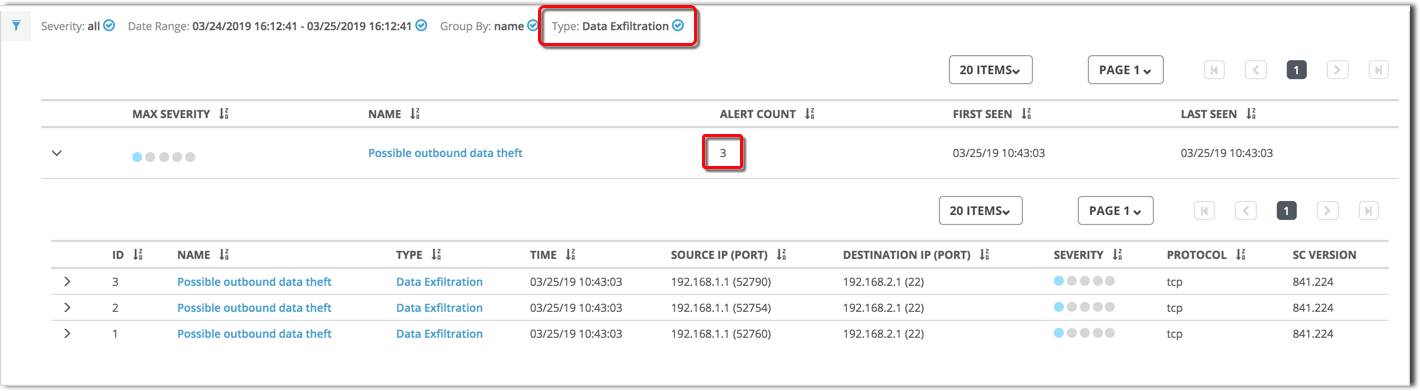
(Optional) Click a column heading to sort the list on that value. You can sort the alerts on any column except security content (SC Version).
(Optional) Click a rule name (in the Name column) to open an event description page. The page describes attack activity that Trellix SmartVision has detected using that rule.
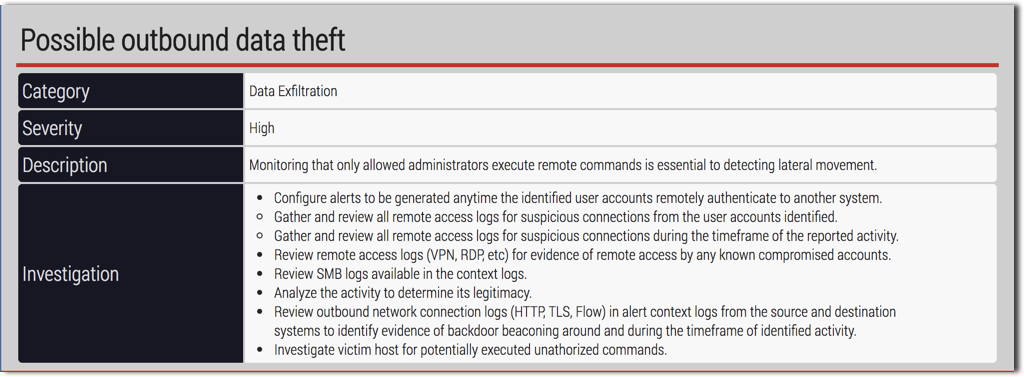
If the information is available, the attack description page includes steps to take to mitigate future attacks of this type. This information is provided by the Trellix Research Labs team, and the information is updated as the team learns more about the attack type.
To research an individual alert, view the alert details and base events by clicking the arrow at the left side of the alert.
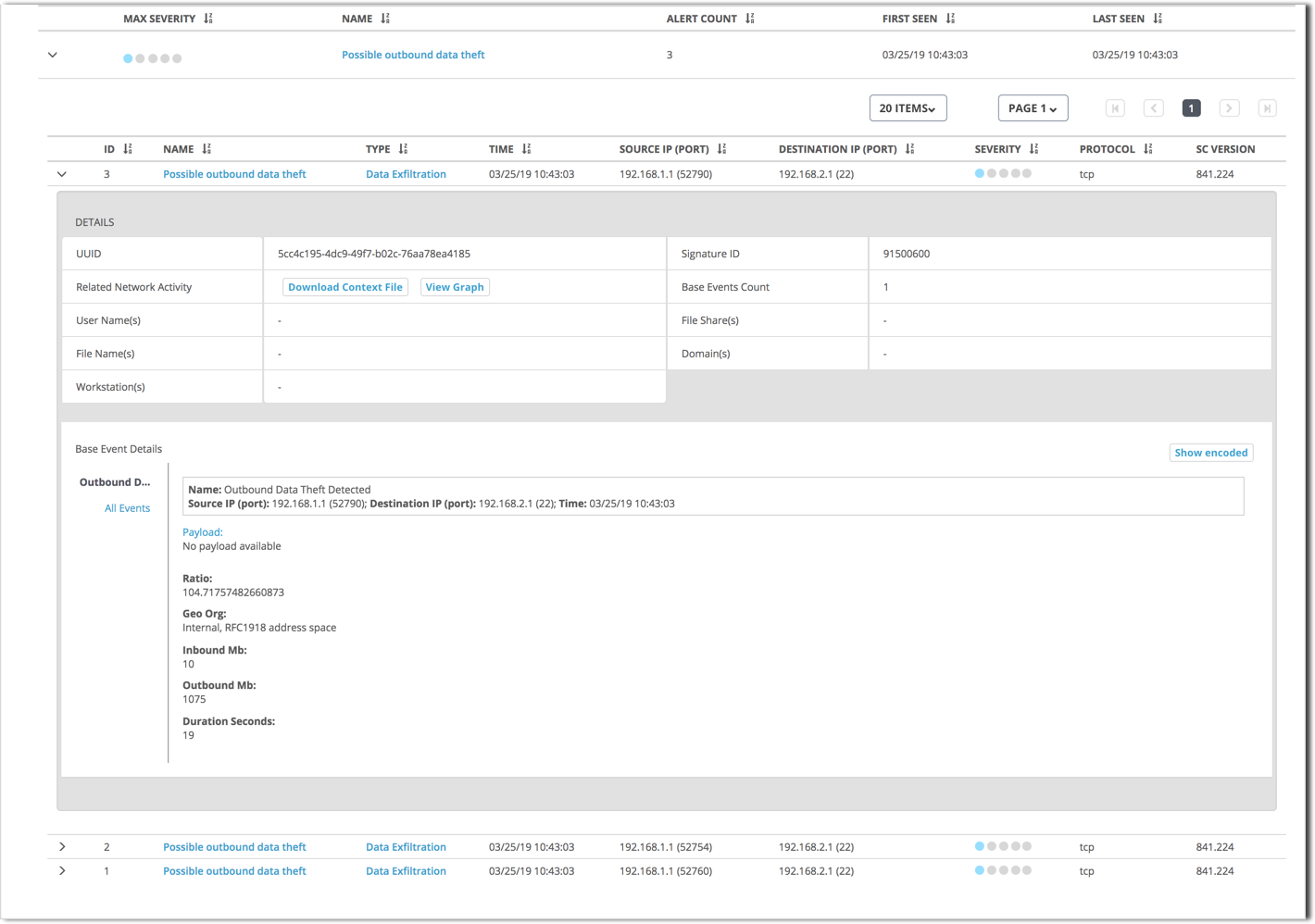
The alert details and base event fields are covered in Investigating a SmartVision alert.